
Before you get started, download the Canvas mobile app from your device’s app store. Once you’ve installed the app, open it and sign in using your myCI credentials.
Smartphones allow users to add widgets to the home screen, which provide quick access to information or app features without opening the full application. Widgets come in different sizes and styles, allowing you to customize your home screen to fit your needs
To add them to the home screen, press and hold anywhere on the screen.
- On iPhone (iOS): tap the Edit button in the top left corner.
- On Android: tap the option in the center of the screen.
A pop-up will appear; scroll down and select Canvas. You’ll then see three widget options to choose from.
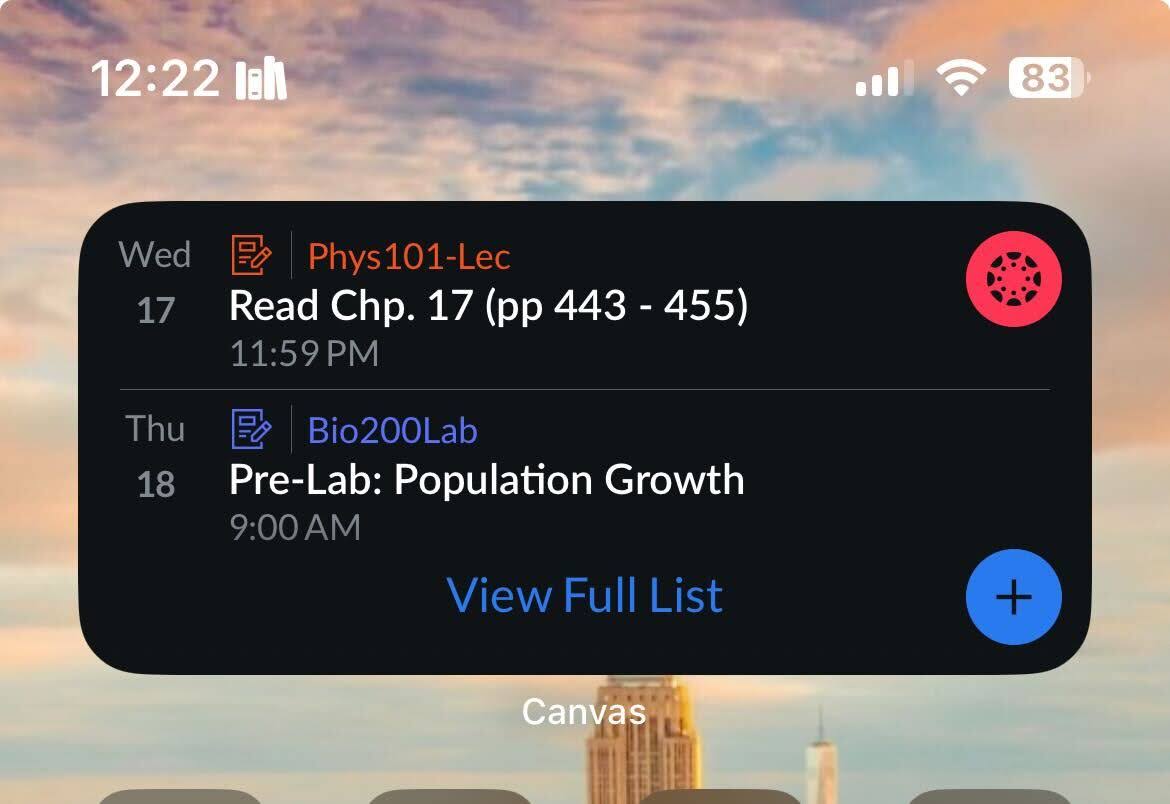
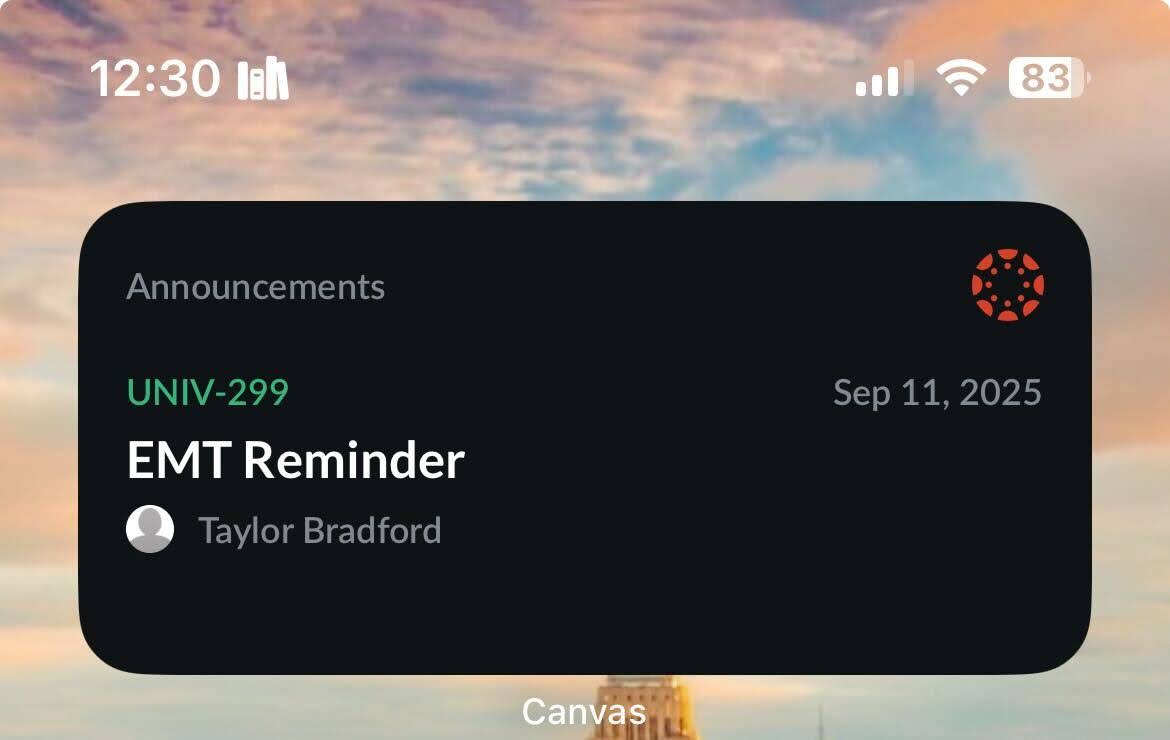
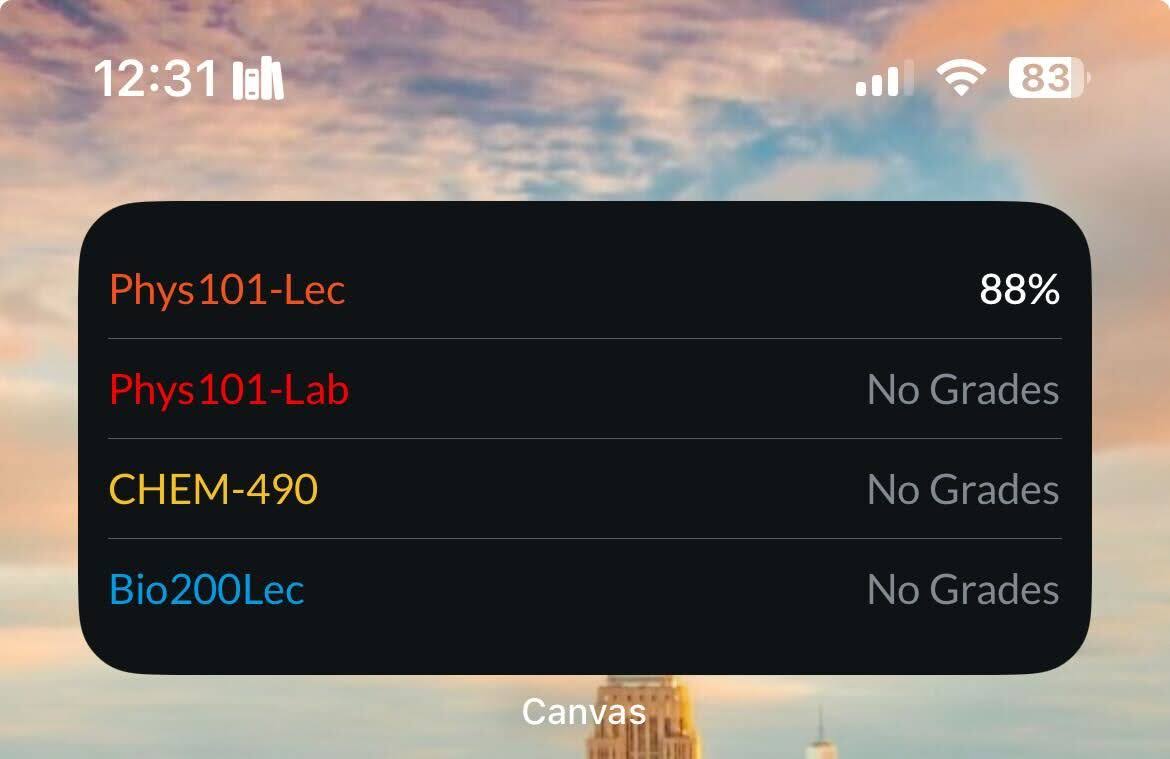
All these widgets have different options. Pick which version works best for you. Just to note, the Canvas widgets will still display updates even if notifications are turned off.
How to Set up Dashboard on Canvas Mobile
First, you need to favorite your current classes, so they show up in your Canvas Dashboard
- Go to the dashboard page
- Click the All courses button in the top right of the screen

- You will be taken to a new screen where it will list all the classes you have taken
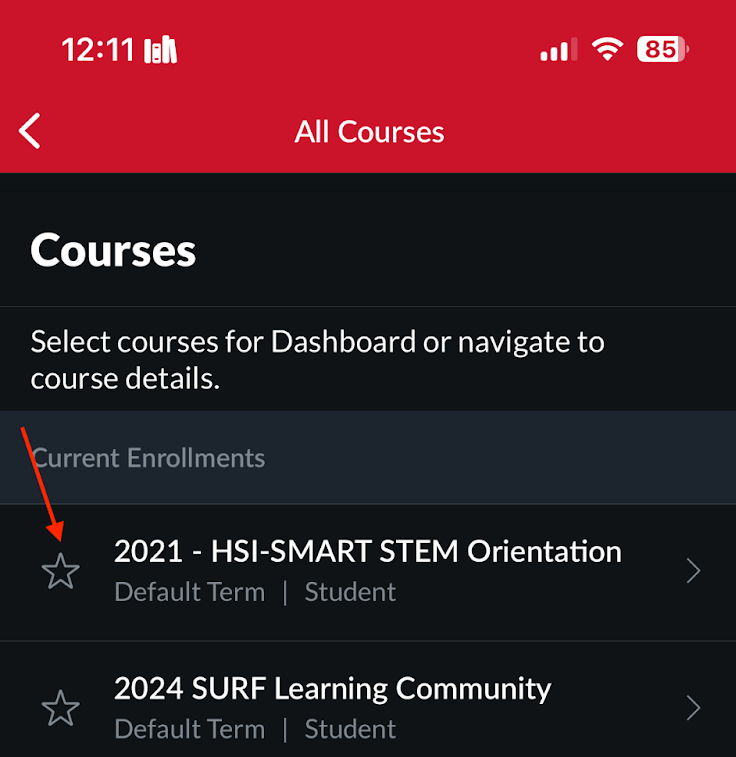
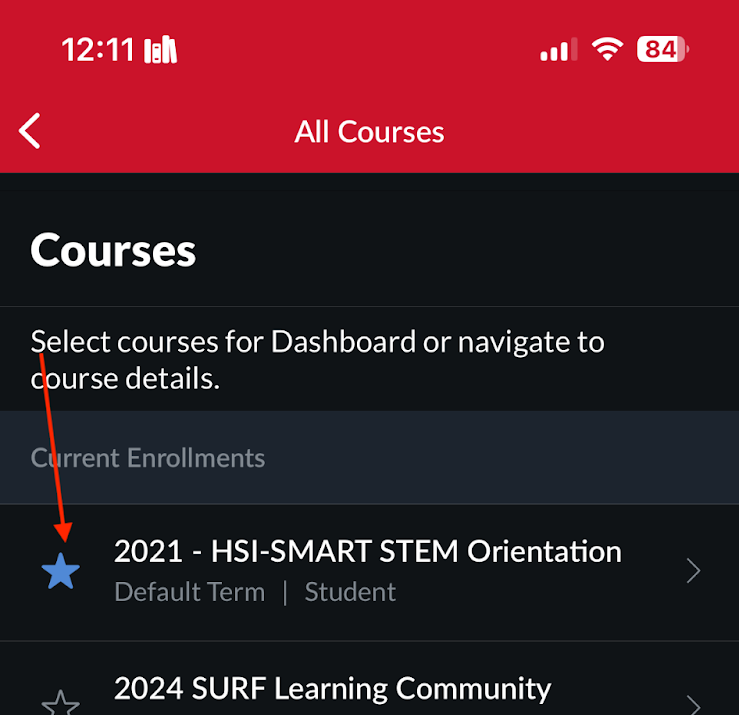
- The star on the right side indicates if a class will be featured on your dashboard
- If the star is greyed out, it will not be in your dashboard; if it is filled in, it will be in your dashboard
How to set up the Calendar
The first step is to favorite your classes in the dashboard
Then favorite current classes in the calendar
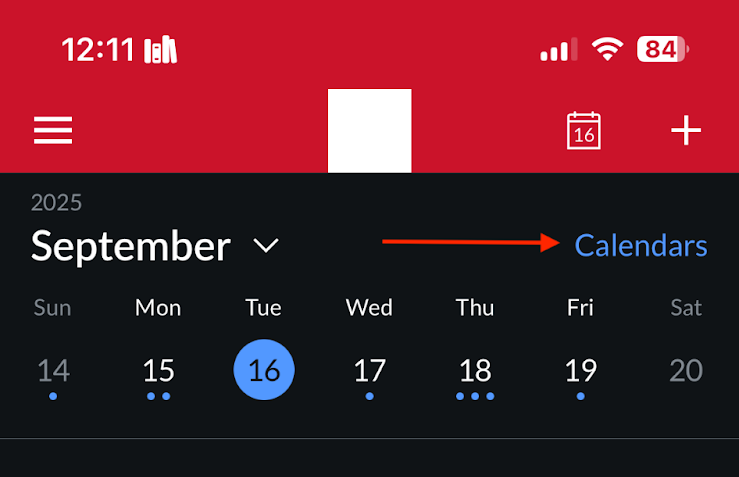
- Then click on the Calendar page. It is located to the right of the dashboard icon.
- This is similar to the process used to favor classes on the dashboard. Click the calendars button on the top right of the screen
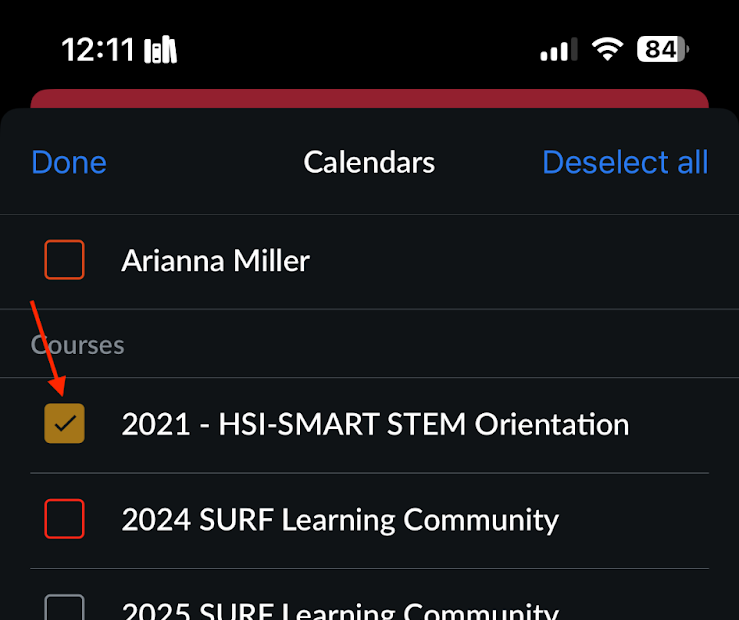
- You will be taken to a new screen where it will list all the classes you have taken
- The checkbox on the left side indicates if a class will be featured on your dashboard
- The final product would look similar to this
How to set up the TO-DO List in Canvas
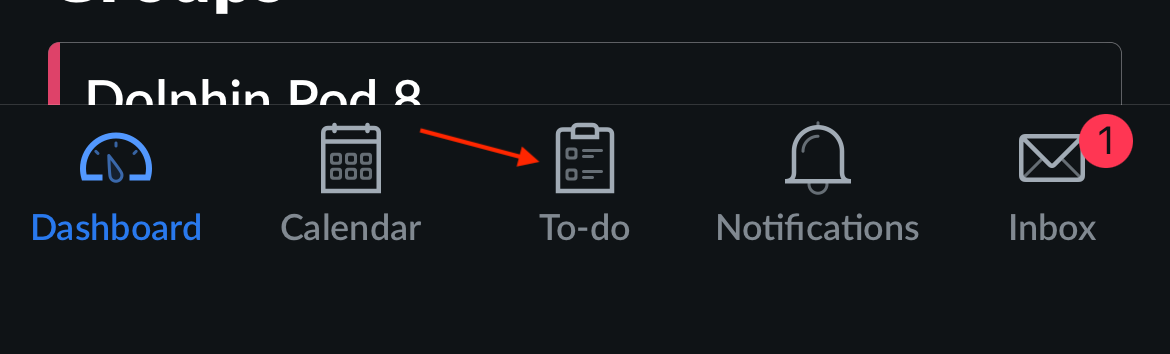
- Navigate to the To-do list page
- Once on this new page click the filter icon on the top right hand of the screen
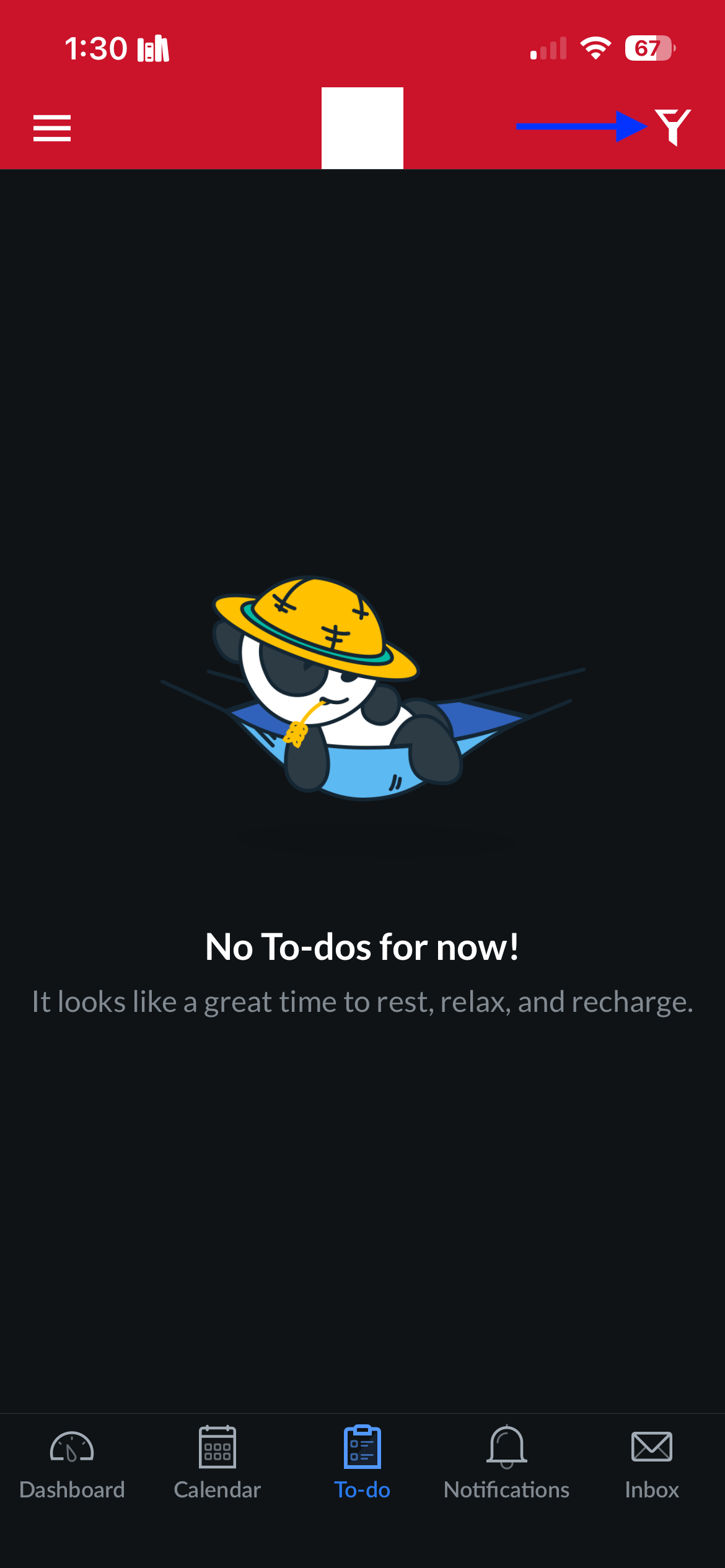
- You will be taken to a pop-up where you can customize the details of your to-do list. There are three categories, each offering multiple options:
- Visible items
- Show Tasks from
- Show tasks until
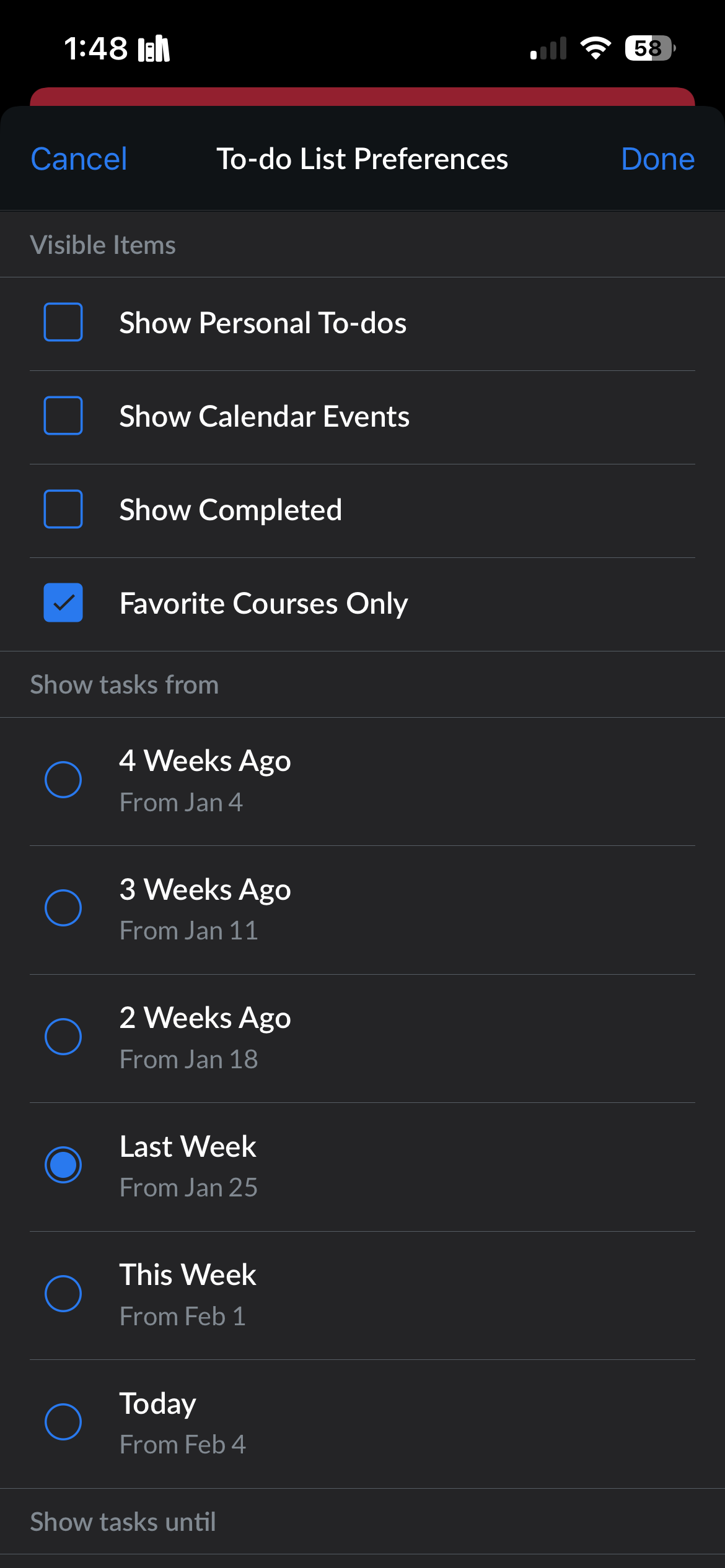
- From there, choose the options that work best for you, and click Done when you are finished to save those changes.
- Your To-Do list Items should now show up in your To-do list on the app and the widgets
