
The IgniteAI Question Authoring for Quizzes feature is an opt-in feature within Canvas and needs to be enabled in each course that you’d like to use it in. It is only available for New Quizzes, not Classic Quizzes. It’s also and instructor-only feature, so students will not see the option to generate discussion summaries if the feature is enabled.
Enabling the IgniteAI Question Authoring for Quizzes Feature
- Navigate to the course that you’d like to enable the Question Authoring for Quizzes feature in.
- Click Settings on the course menu
- Click Feature Options on the top bar
- Search “IgniteAI,” in the search bar and you’ll see the IgniteAI Question Authoring for Quizzes option.
- Click the check X icon in the “State,” column to the right and select the Enable option.
Generating Quiz Questions Using IgniteAI Question Authoring
- Open the course you wish to work in
- Go to the Quizzes section of your course and select the + Quiz/Survey button.
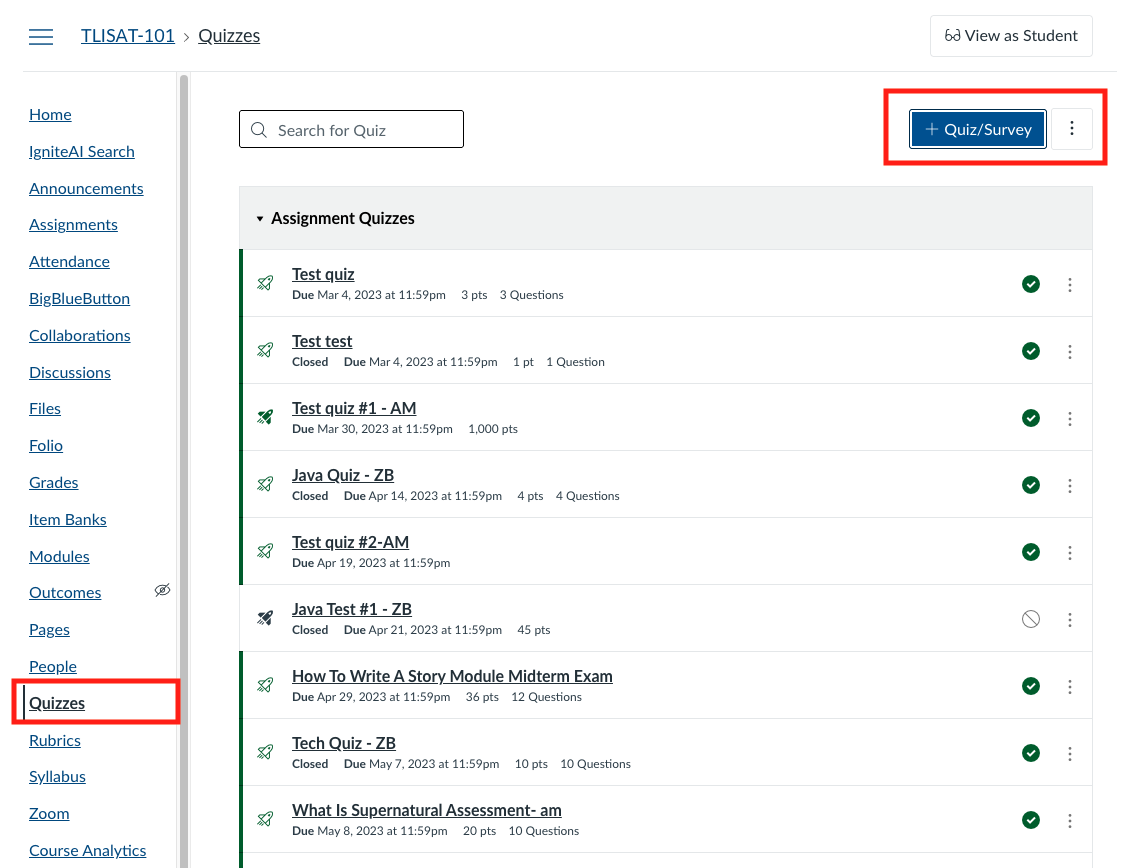
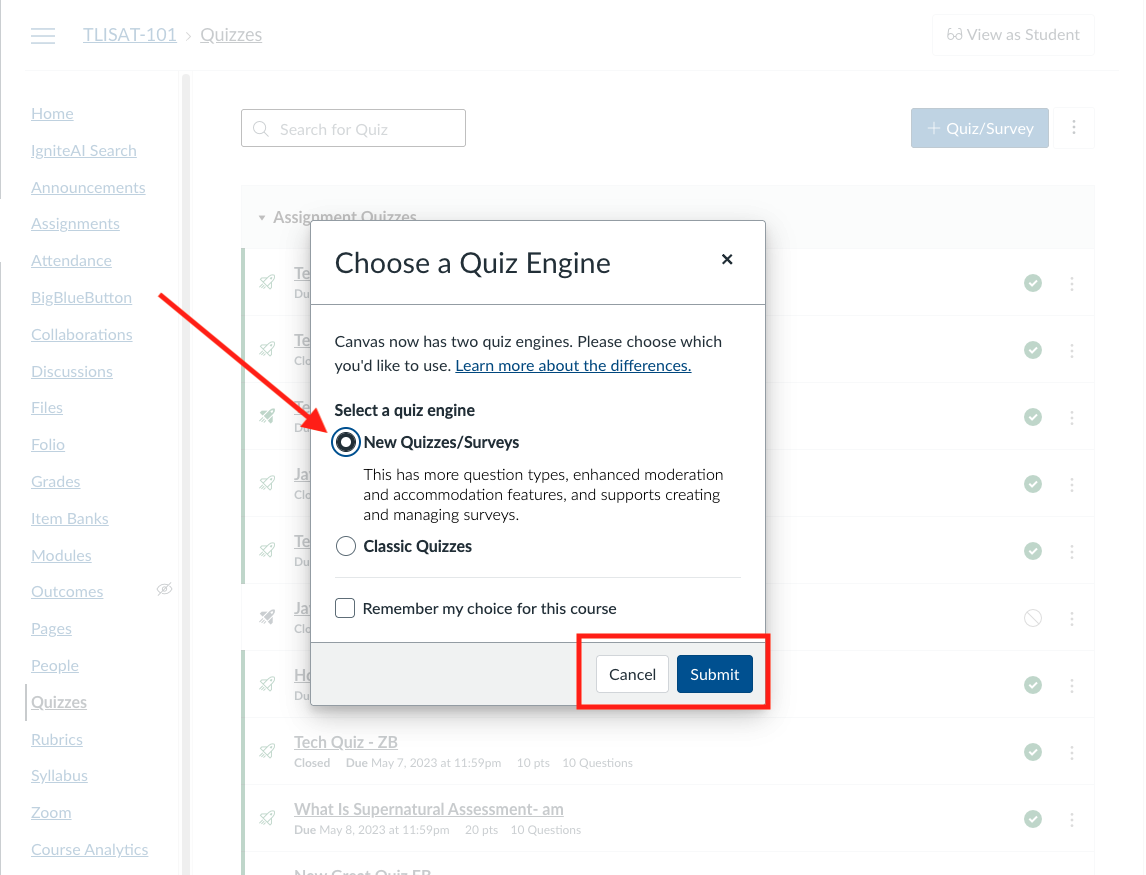
- Select the New Quizzes/Surveys option and then click the Submit button.
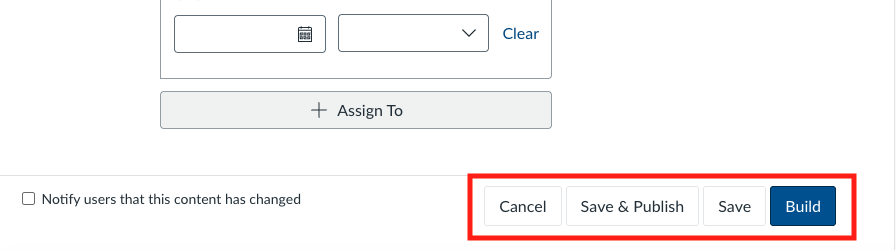
- Fill in the quiz details according to your needs.
- Click the Build button after entering all the details.
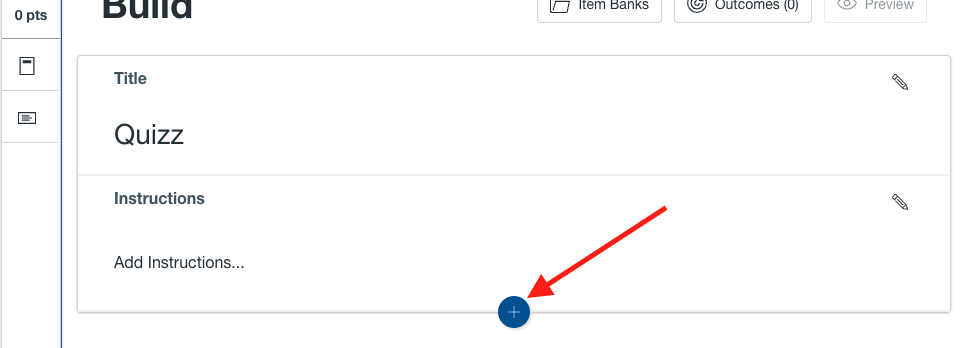
- Click the + (Plus) button beneath the Instructions field
- Select the Generate with AI button.

- Now, depending on the material you have for the quiz you have 3 options:
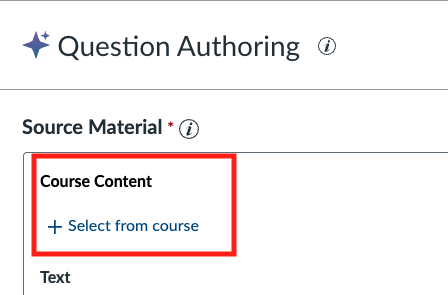
- Course Content
- Text
- File Upload
Generating Questions from Course Content
- Click the + Select from Course button.
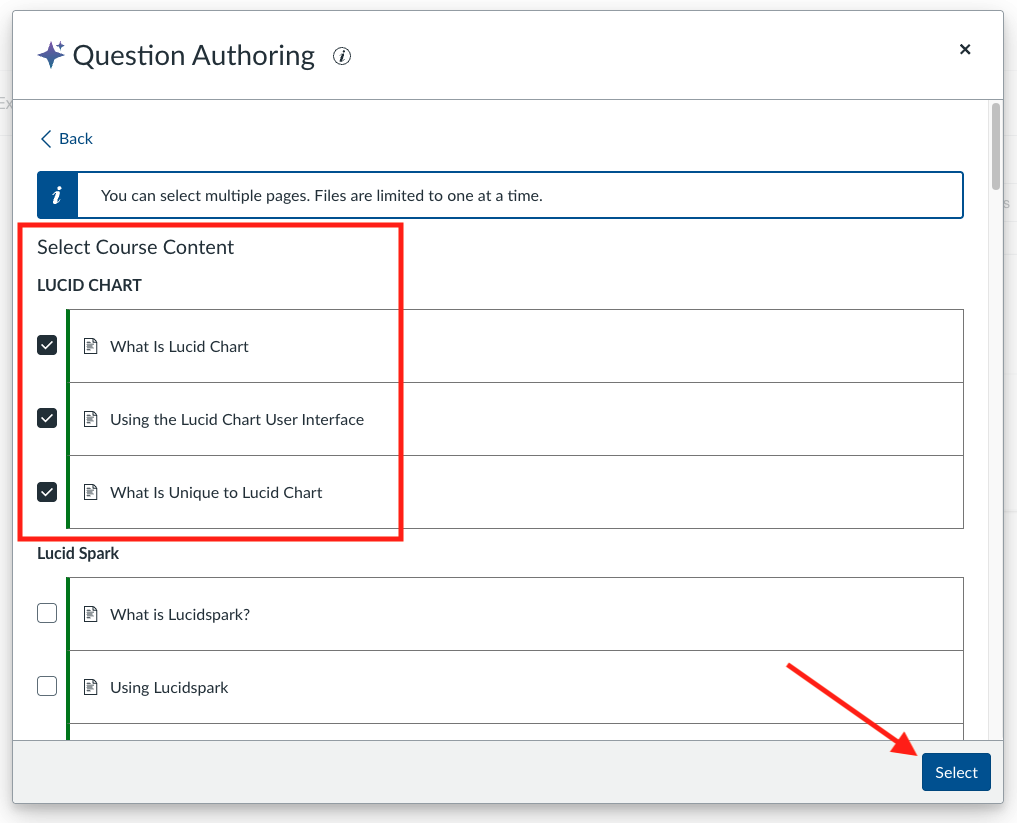
- Select the modules that need to be on the quiz and then click the Select button
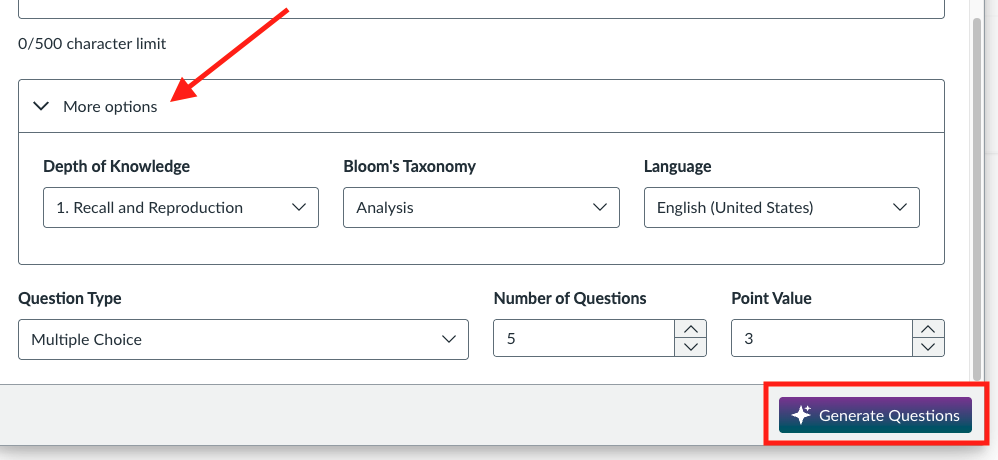
- Fill in the More options section according to your needs and then select Generate Questions.
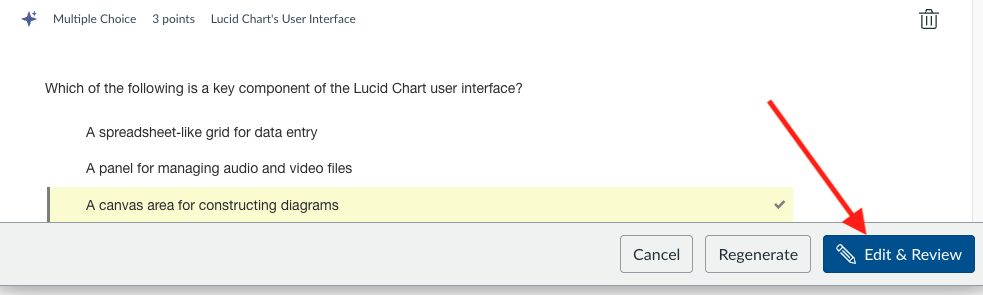
- Go through the Generated Questions Preview and then select Edit & Review.
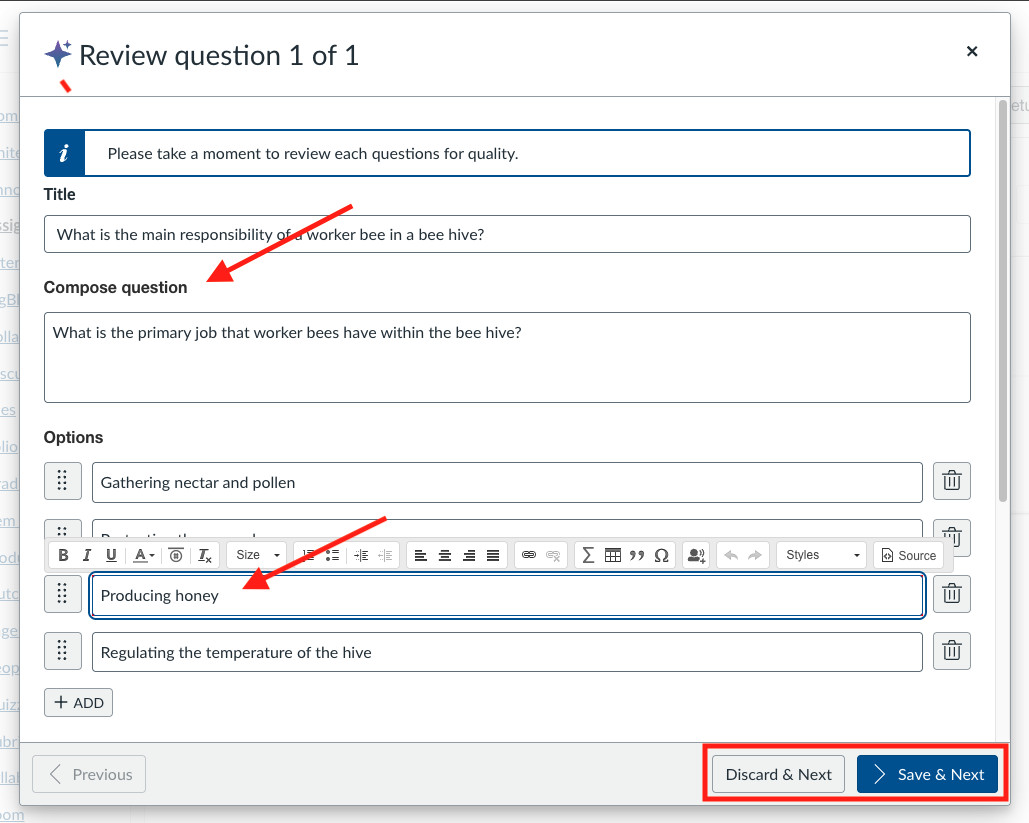
- You can edit/rephrase the question or the multiple choice answers for each question individually and then select Save & Next.
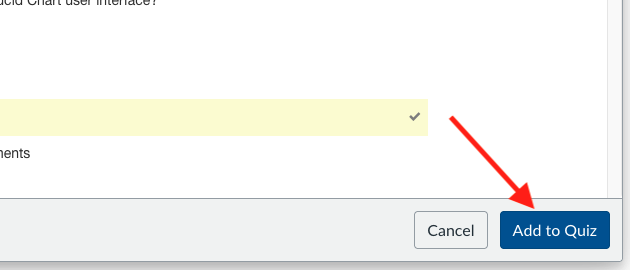
- Select the Add to Quiz button after going through the Generated Questions Preview once.
- The Quiz is now complete and you can find it in the Assignments tab.
Generating Questions Using the Text Option
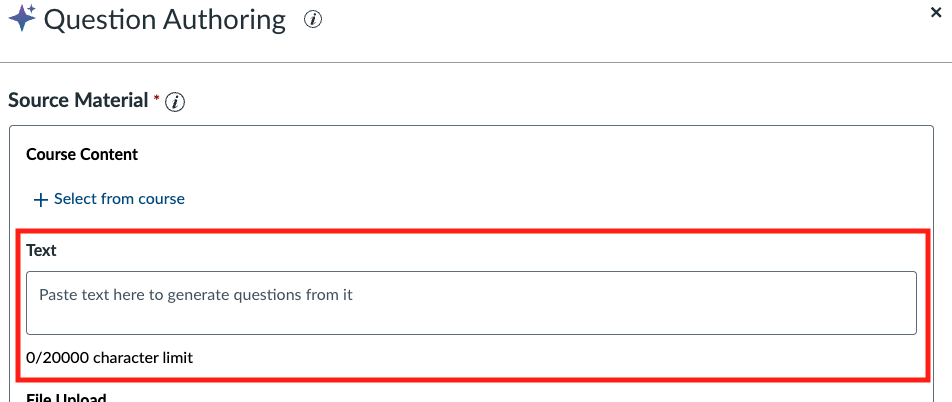
- Select the Text box and paste the text that you want the quiz to cover.
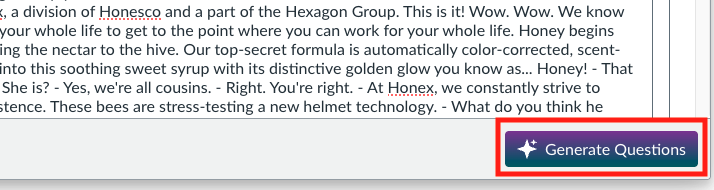
- After pasting the text select Generate Questions.
- Go through the Generated Questions Preview and then select Edit & Review.
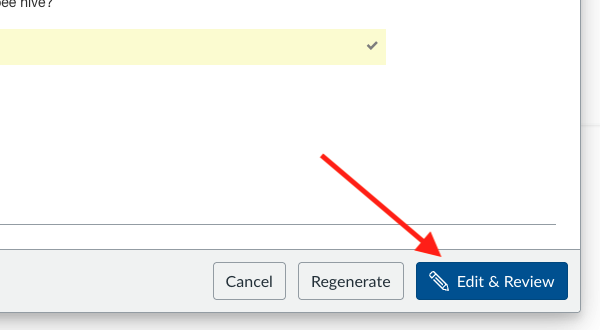
- You can edit/rephrase the question or the multiple choice answers for each question individually and then select Save & Next.
- Select the Add to Quiz button after going through the Generated Questions Preview once.
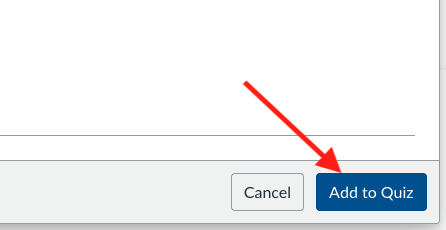
- The Quiz is now complete and you can find it in the Quizzes and Assignments tabs.
Generating Questions Using a File
- Select the Upload a file button.
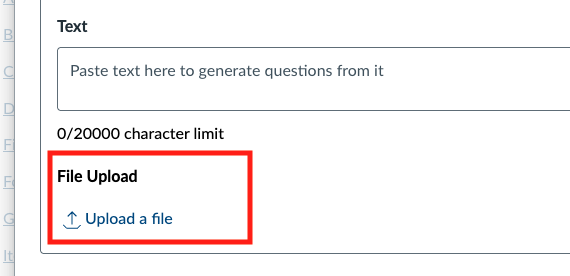
- Upload all of the files that the you want to the quiz to cover and select Generate Questions.
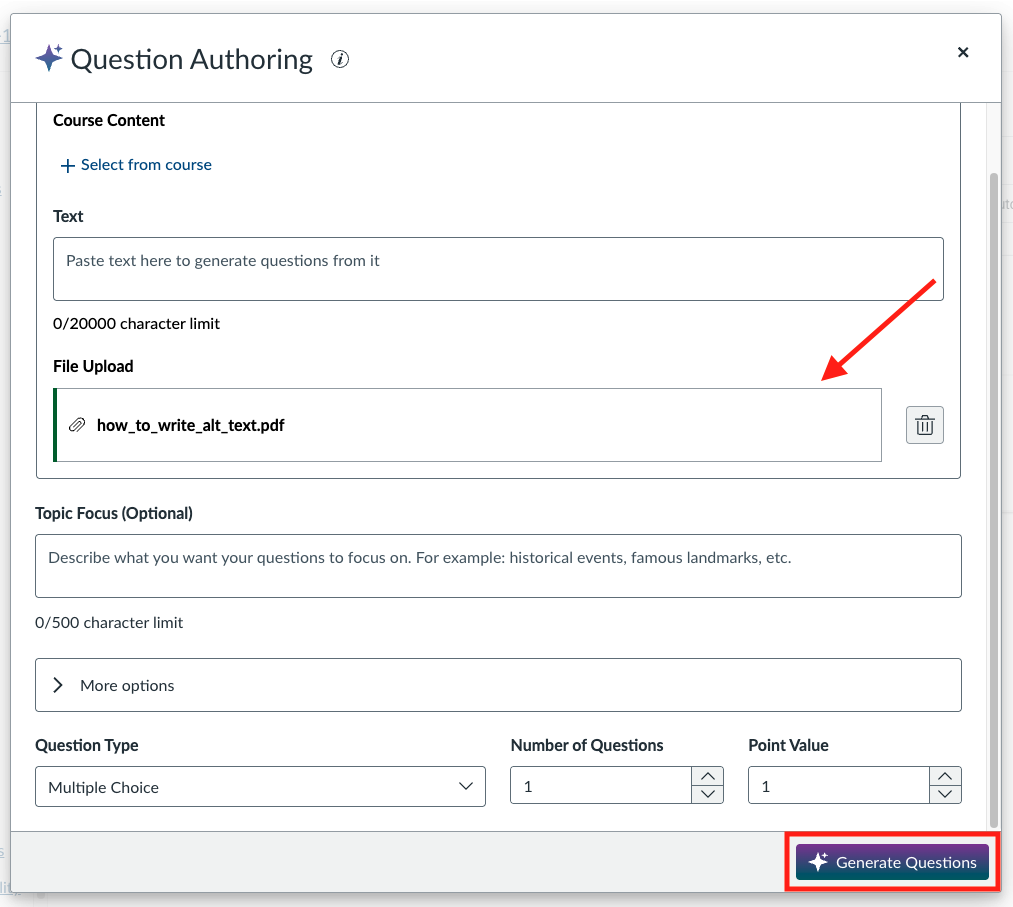
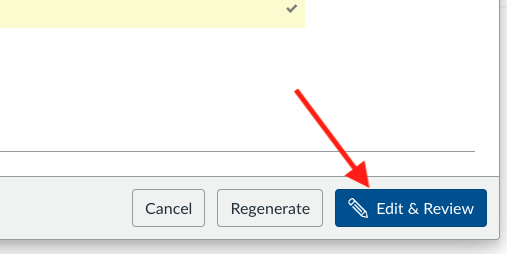
- Go through the Generated Questions Preview and then select Edit & Review.
- You can edit/rephrase the question or the multiple choice answers for each question individually and then select Save & Next.
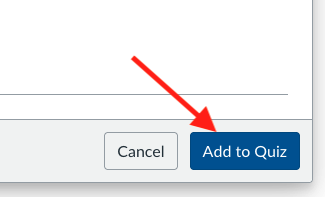
- Select the Add to Quiz button after going through the Generated Questions Preview once
- The Quiz is now complete and you can find it in the Quizzes and Assignments tabs.
