
Note: This article is adapted from Instructure’s Guide on What is Canvas Portfolio?
Canvas offers two portfolio types to support both learner-driven and instructor-guided experiences: Showcase Portfolios and Evaluation Portfolios. These tools support storytelling, assessment, and competency validation.
Instructors can assign structured, competency-based portfolios that allow learners to submit work aligned with institutional requirements and skills. Learners can also create showcase portfolios to curate academic and co-curricular achievements with reflections, tags, and shareable links.
What Is Portfolios Video
00:07: What is Portfolios?
00:09: Showcase Portfolios help learners tell their own stories and highlight
00:13: growth beyond the classroom. Enable learners to build personalized
00:17: portfolios organized by theme, experience, or timeline.
00:23: Support multiple evidence types, including Canvas submissions, media
00:27: uploads, and reflections. Let learners use tags
00:32: to emphasize competencies and themes, aligning their work with personal
00:36: or professional goals. Offer export options
00:40: as PDF or HTML, and allow bulk downloading of
00:44: uploaded portfolio files. Facilitate external
00:48: sharing through public links or direct publishing to LinkedIn.
00:53: Evaluation Portfolios allow instructors to support structured assessment and
00:57: track learner progress over time. Portfolios can be generated
01:01: using one or more Canvas courses as their foundation, with links
01:05: to key assignments and competencies. Educators
01:10: can establish evidence requirements to align expectations and support
01:14: consistent demonstration of competencies.
01:17: Align portfolio evidence with institutional competencies to help learners
01:22: demonstrate specific skills and knowledge.
01:25: Monitor progress with real-time visibility into submission status and
01:29: portfolio completion. Streamline grading by
01:33: using portfolio tasks with Canvas assignments and SpeedGrader.
01:39: Review learner reflections and narratives to better understand learning and growth.
01:44: Support feedback and iteration with options for revisions and resubmissions.
01:50: This guide covered Portfolios.
View Showcase Portfolios
Showcase Portfolios help learners tell their own stories and highlight growth beyond the classroom.
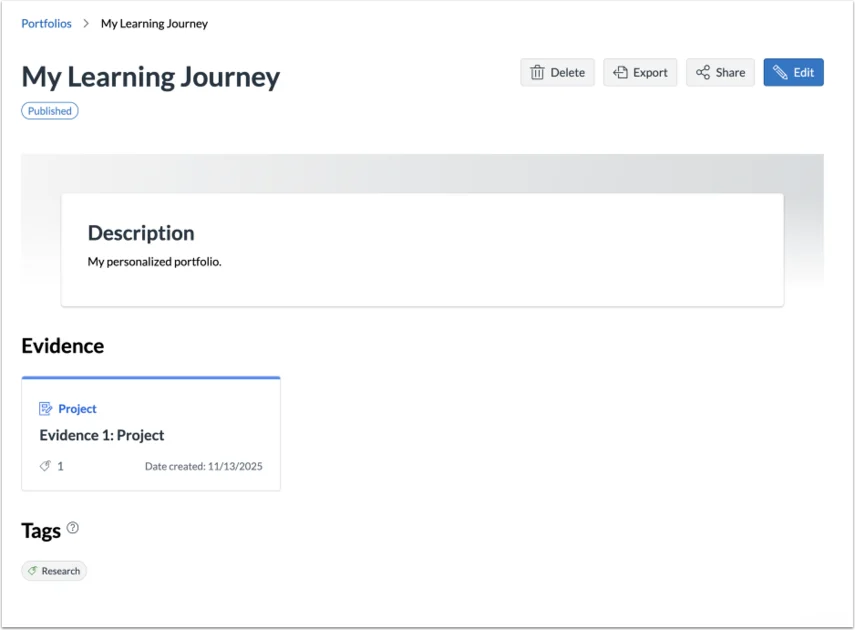
- Enable learners to build personalized portfolios organized by theme, experience, or timeline.
- Support multiple evidence types, including submitted Canvas assignments and custom portfolio evidence (e.g., projects), allowing learners to submit artifacts directly in the portfolio and reflect on their work.
- Let learners use tags to emphasize competencies and themes, aligning their work with personal or professional goals.
- Offer export options as PDF or HTML, and allow bulk downloading of uploaded portfolio files.
- Facilitate external sharing through public links or direct publishing to LinkedIn.
View Evaluation Portfolios
Evaluation Portfolios allow instructors to support structured assessment and track learner progress over time.
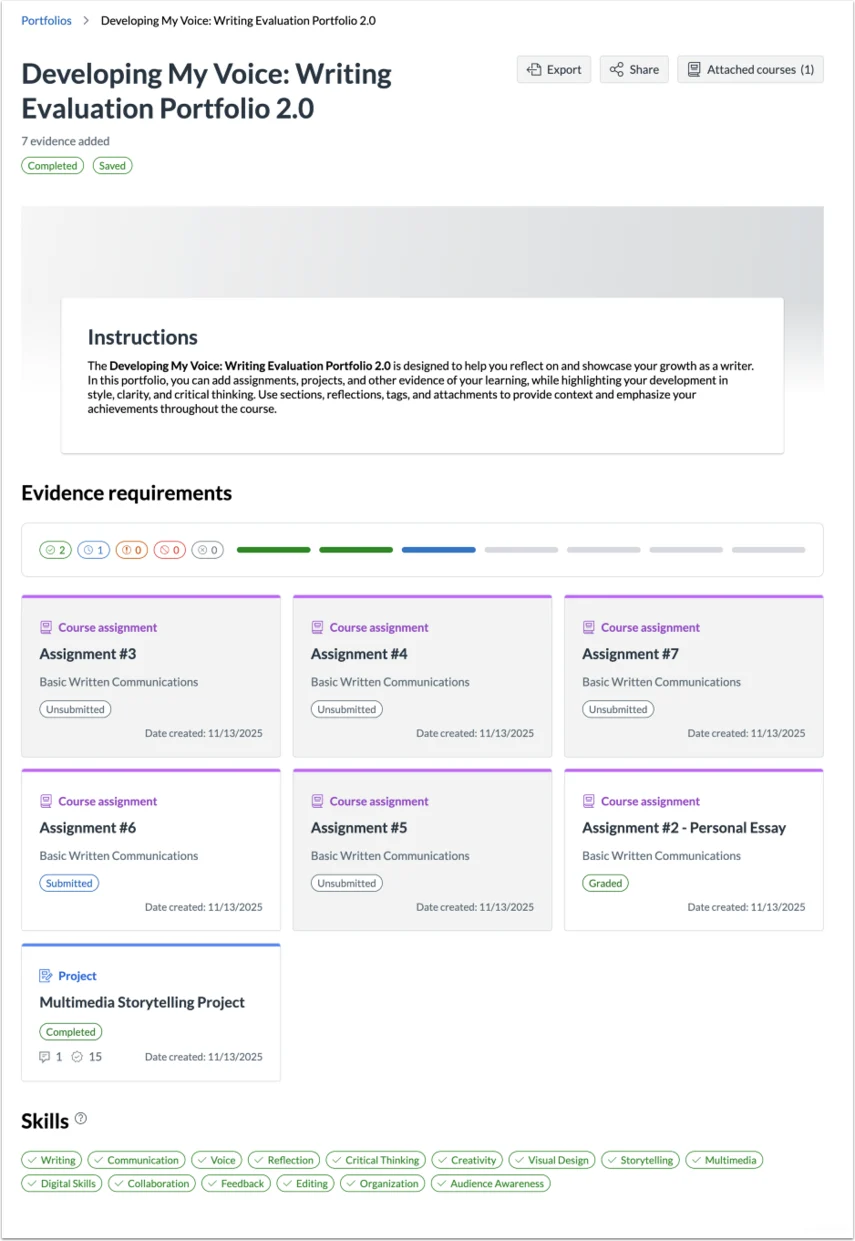
- Portfolios can be generated from one or more Canvas courses, with links to key assignments and competencies.
- Educators can establish evidence requirements to align expectations and support consistent demonstration of competencies.
- Align portfolio evidence with institutional competencies to help learners demonstrate specific skills and knowledge.
- Monitor progress with real-time visibility into submission status and portfolio completion.
- Streamline grading by using Canvas assignments with SpeedGrader or by reviewing Portfolio evidence, such as projects, extracurricular activities, and professional experiences, directly within the portfolio.
- Portfolio evidence can only be marked as Complete or Not Complete, and educators can leave comments on custom evidence to provide feedback to learners.
- Review learner reflections and narratives to better understand learning and growth.
- Support feedback and iteration with options for revisions and resubmissions.
Notes:
- If the Portfolio feature does not display in your account, it hasn’t been enabled by your institution.
- Email and in-app notifications are not currently supported.
