
The IgniteAI Discussion Summaries feature is an opt-in feature within Canvas and needs to be enabled in each course that you’d like to use it in. It’s also and instructor-only feature, so students will not see the option to generate discussion summaries if the feature is enabled.
Enable the Summaries for Discussions Feature
- Navigate to the course that you’d like to enable the Summaries for Discussions feature in.
- Click Settings on the course menu
- Click Feature Options on the top bar
- Search “IgniteAI,” in the search bar and you’ll see the IgniteAI Summaries for Discussions option.
- Click the check X icon in the “State,” column to the right and select the Enable option.
Navigate to the AI Summaries for Discussions
- Open the course you want to work in.
- Go to the Discussions tab.
- Find and select the Discussion for which you want to generate an AI summary.
- Scroll to the end of the instructions. In the bottom right corner, you will see the Open Summary button.

Generating AI Summaries for Discussions
- Select the Open Summary button.
A pop-up window will appear with a field where you can enter the topics you want the AI to focus on.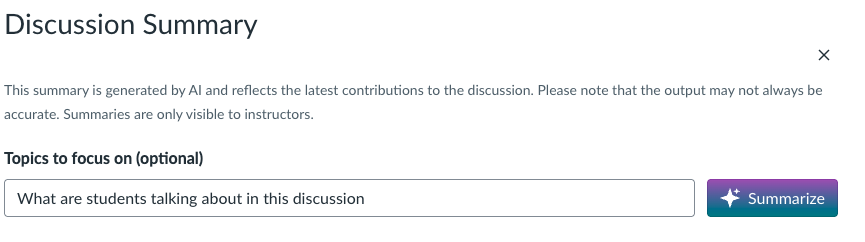
- Example prompt: What are students talking about in this discussion?
- A summary of the responses to the discussion will then be generated.
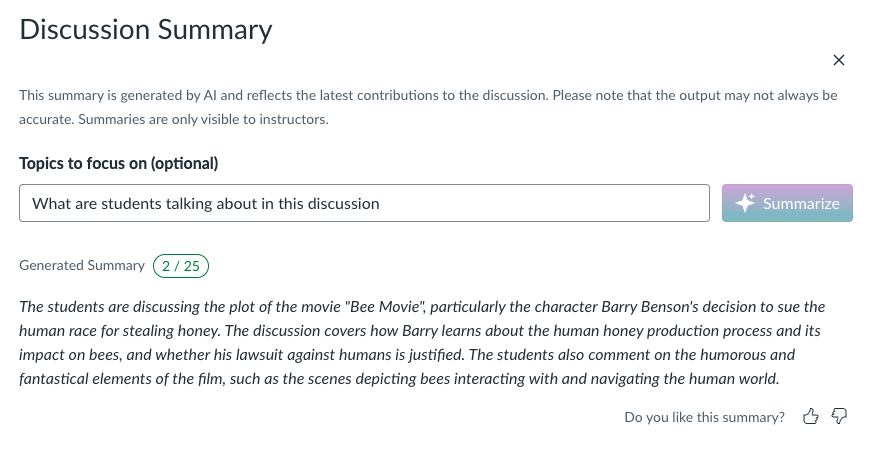
- You may regenerate the summary if the selected focus topics are not what you intended.
Important Notes:
- You have 25 attempts per day per user before access to this feature is temporarily locked.
- The summaries are for quick review and understanding, not a replacement for faculty judgment or grading participation.
