With having multiple course cards on your Canvas Dashboard, adding nicknames to your courses allows you to quickly identify and select your courses in Canvas, email notifications, and more. You may change the nickname of your course as many times as you like.
Note! By changing the nickname of a course on your Canvas dashboard, DOES NOT change the name appearance of the same course to others enrolled in the course. The nickname you chose will only be visible to you.
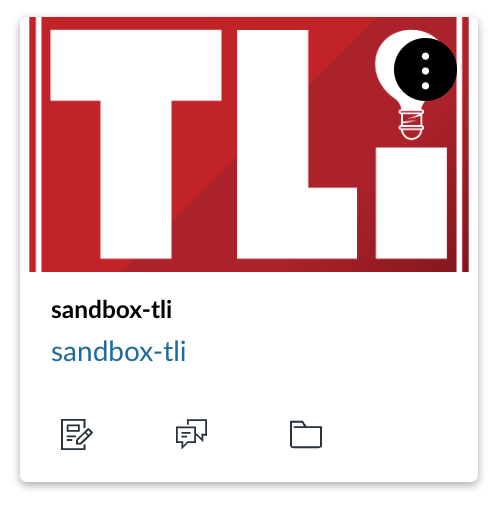
- Select the More Options icon (three vertical dots) on the course card of the course you would like to change the nickname of.
2. Enter the nickname into the space provided and select Apply.
Bonus Tip! In this same pop-up menu, you may also customize the color of the course card. Choose any color from one of the presets or enter in your own hex code for a specific color. You may change the color of the course card at any time.
3. The nickname will now appear on your course card, course list, and be displayed on Canvas email notifications.