
Creating group assignments in Hypothesis is simple and allows for smaller, concentrated interactions on documents within your course. The first step is to create groups in your Canvas course, and then enable the group assignment option within the assignment itself.
Creating Groups in Canvas
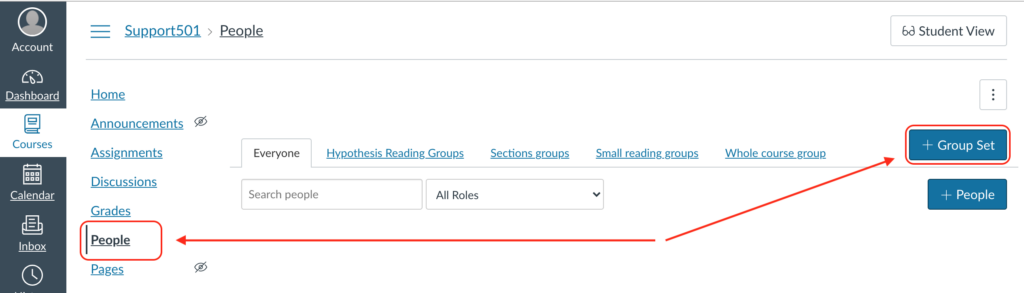
- Within your course, click the People link on the course menu
- Click the + Group Set button in the upper right corner
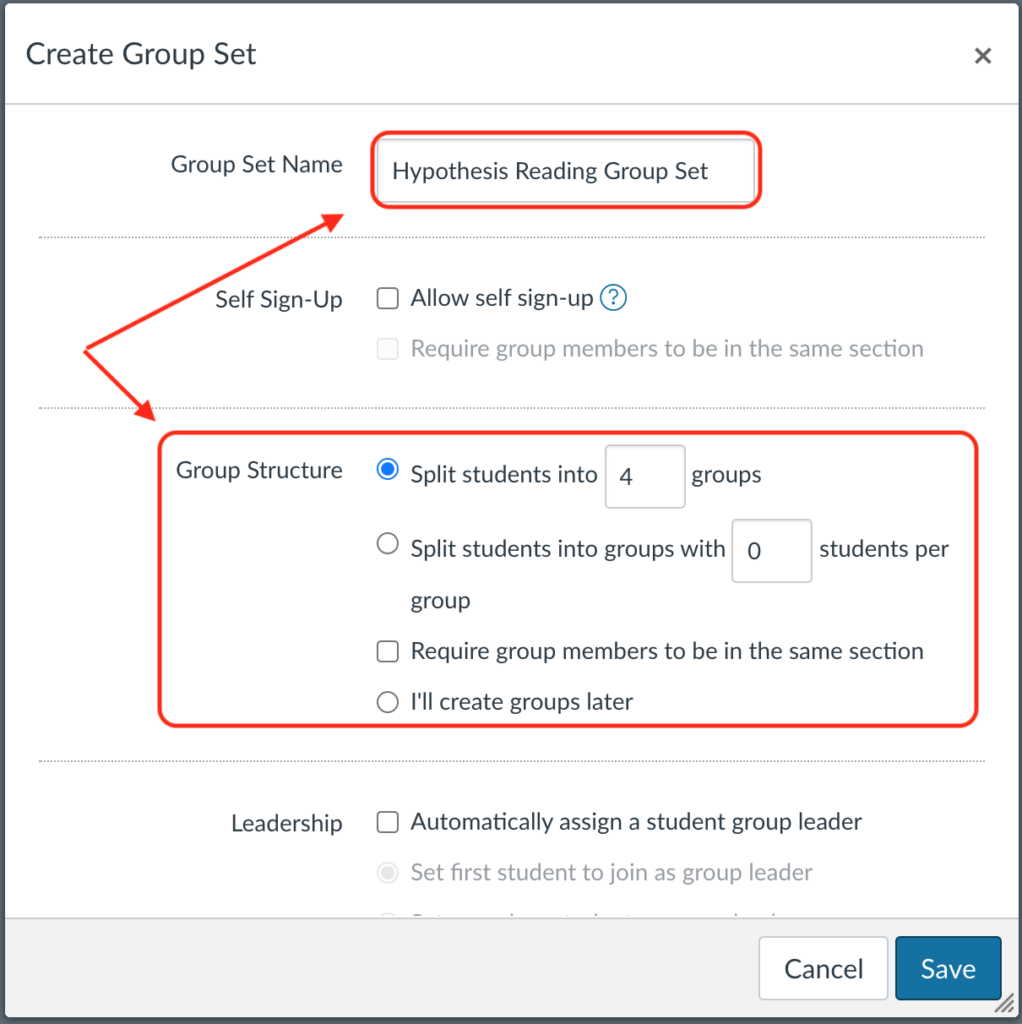
- In the Create Group Set window, enter an appropriate name for the new Group Set Name, such as “Hypothesis Reading Group Set”. Under the Group Structure section you can specify how you want Canvas to automatically create groups, or choose to create groups manually later.
- Click Save to create the group set.
Creating the Hypothesis Assignment
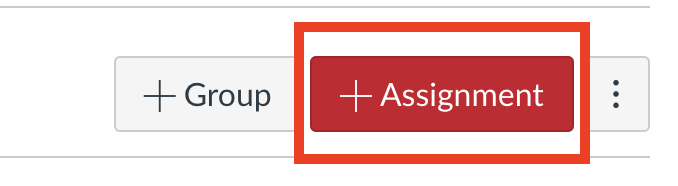
- Navigate to your Assignments page and click the + Assignment button
- Enter a name for your Assignment and appropriate instructions
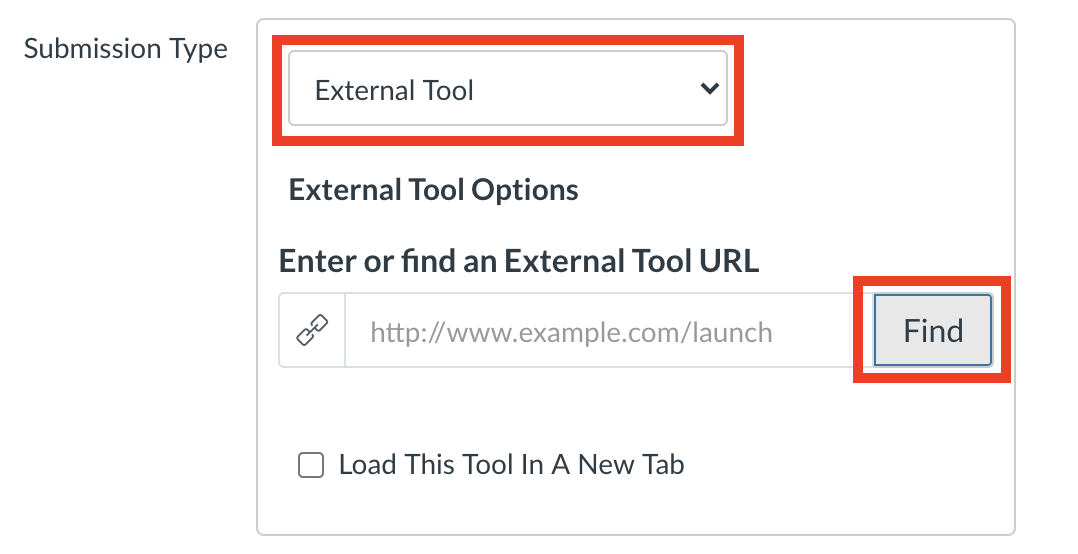
- Scroll down to the Submission Type field
- From the drop-down menu, choose External Tool and click Find
- Select Hypothesis from the list of external tools available
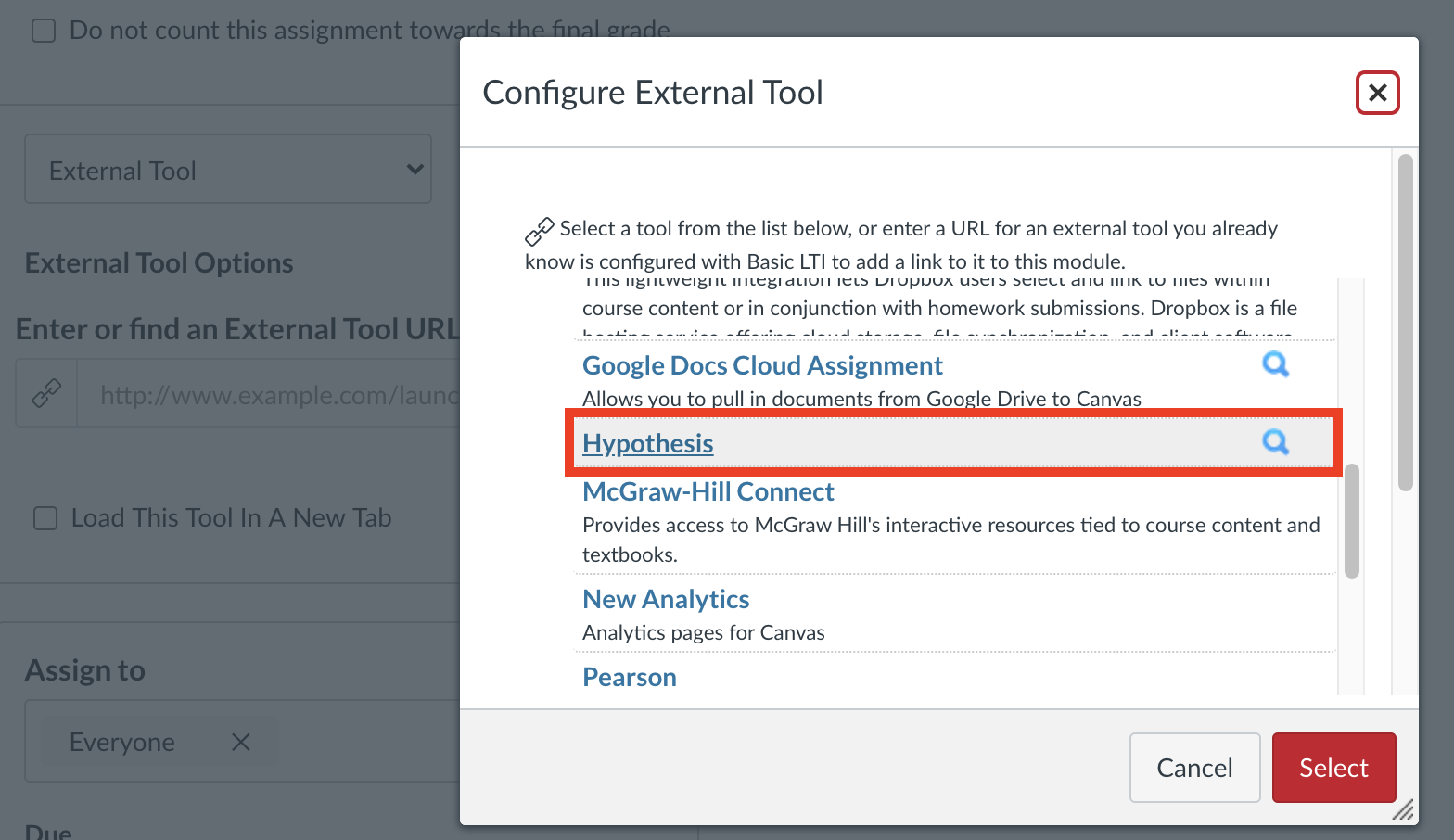
- On the next screen, you will be able to create a Hypothesis-enabled reading by linking to a publicly-viewable page or document, choosing a file from Google Drive, or selecting a file from your Canvas file repository. The screen will look like the one below

- Using a URL of a web page or publicly available PDF: On the “Link Resource from External Tool” screen, paste a link in the text box. Please note that the content at the link must be publicly viewable (i.e., not behind a login or paywall). Here we’ve chosen a Wikipedia article, but you can link to blog posts, open-access books, journal and news articles, HTML pages, etc.
- Using a PDF from Canvas: Note: You must upload PDFs to your Canvas file repository before completing the steps below. The Canvas File Picker does not allow for uploading new documents.
You will see a list of files that have been uploaded to your Canvas file repository. Click on the title of the file you wish to use and click Submit. - Using a PDF from Google Drive: Note: This process will change the privacy of the selected Google Drive file to “Anyone with the link can view,” creating a publicly-viewable URL for the document. However, the document URL will not be shared with anyone outside your course and cannot be easily discovered.
On the Link Resource from External Tool screen, click Use Google Picker. You will be asked to authorize a Google account, and then you’ll be able to search for and select a file, or upload a new one. Click on the file you want to use and then click Select.
- Check the box for This is a group assignment
- Select the Group Set that you want to use for the assignment.
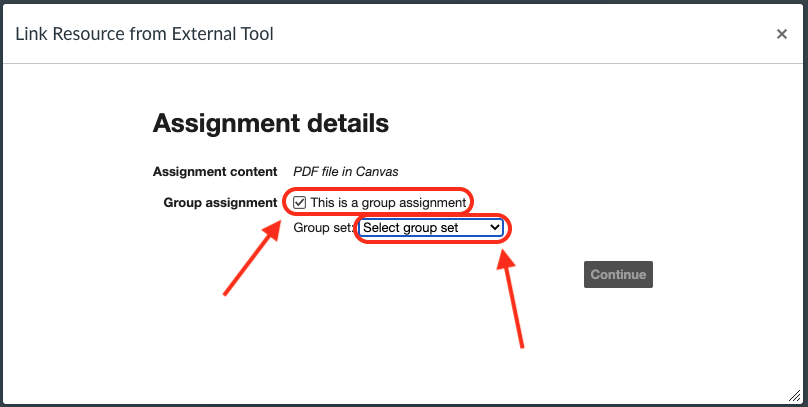
- Click Continue
- Scroll down to the bottom of the page and set any additional assignment options and dates that you want configured.
- Click Save and Publish
As the instructor, when you open the Hypothesis assignment you will see each group listed in the drop-down at the top of the Hypothesis sidebar. To view annotations for a group, select the group name from the list.
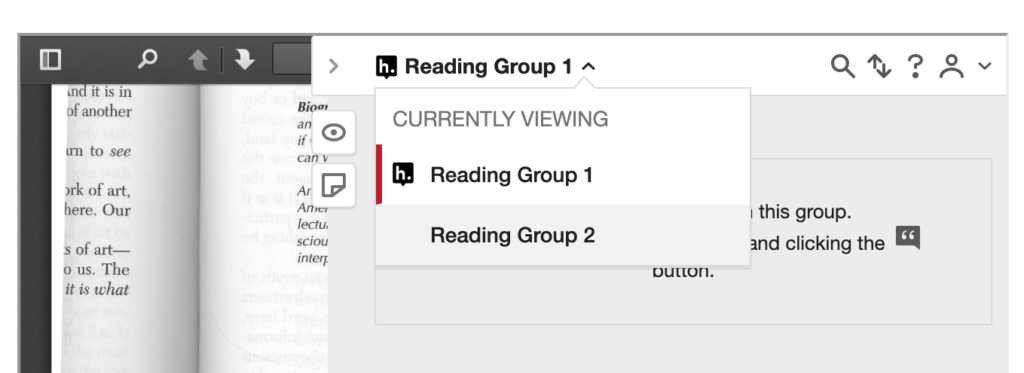
Students will only see the annotations made by others in their specified group.
