
Content adapted from PlayPosit’s Knowledge Base.
This is a step-by-step guide to building a bulb in PlayPosit. A bulb is an interactive experience created in PlayPosit. Transform any video into an active learning experience for students by embedding questions, images, audio, and other media elements.
Creating a New PlayPosit Bulb and Adding Video
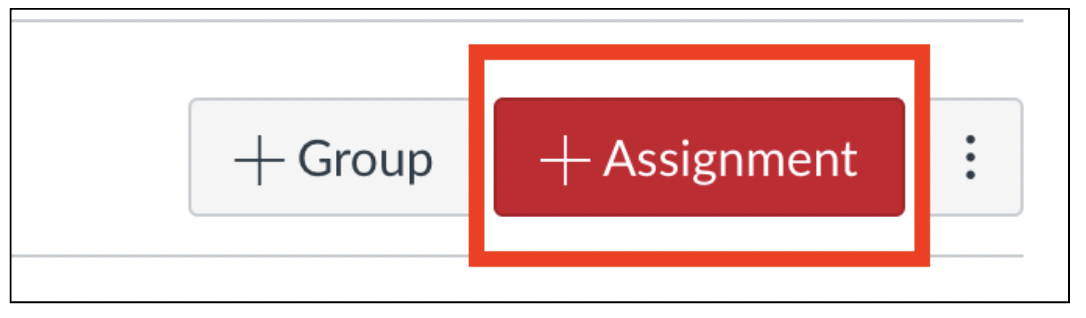
- Navigate to your Assignments page and click the + Assignment button.
- Enter a name for your Assignment and appropriate instructions.
- Scroll down to the Submission Type field.
- From the drop-down menu, choose External Tool and click Find. It’s recommended to check Load This Tool In A New Tab.

- Select PlayPosit from the list of external tools available.
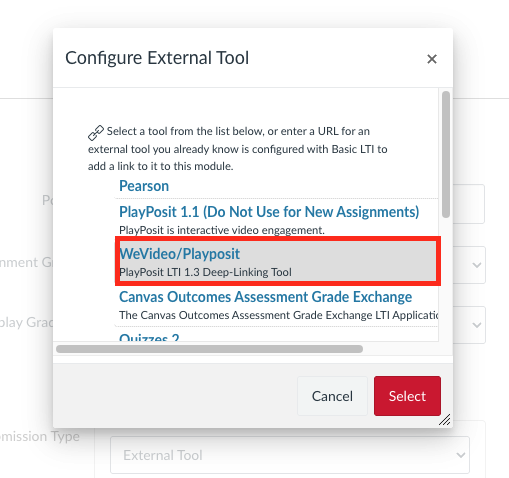
- Click Enter WeVideo/PlayPosit.
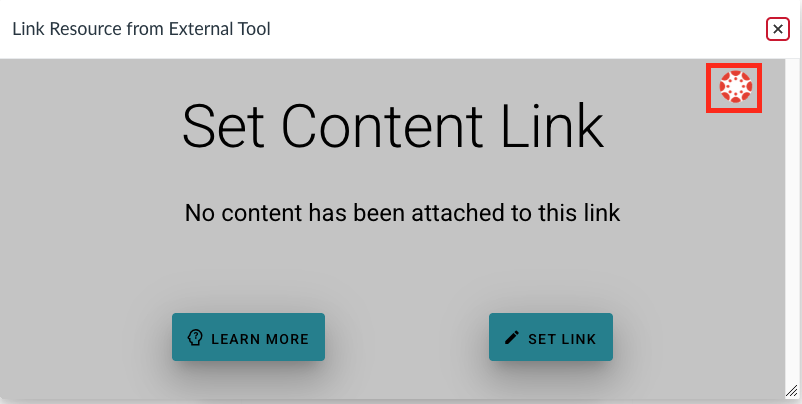
- Select Add New Interactive Video.
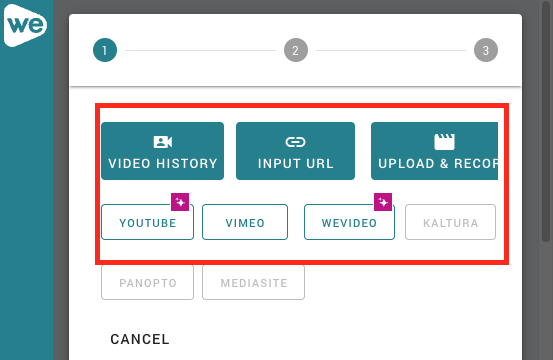
- In the next screen, you will leave Canvas and be taken to the PlayPosit site. Notice the different video sourcing options.

- Select the source of your video. You have the options to source videos from:
- My Videos: Select from your videos that are already inserted in PlayPosit
- Input URL: Paste a video link from any source.
- YouTube: Search YouTube for a video.
- Vimeo: Search Vimeo for a video.
- Once you have selected a video source, click Done. Congratulations, you have created a bulb and inserted a video.
NOTE: Make sure to add captions to your Bulb in PlayPosit. Captions are an accommodation for learners who are d/Deaf or hard-of-hearing. Captions also help all students watch your Bulb in noisy areas, maintain attention better, and retain more information from your video content.
Adding Interactions to an interactive video in Wevideo/PlayPosit
- In PlayPosit, move to the Interactions tab. Scroll to a point in the video where you want to add an interaction. Click Add An Interaction at the bottom of the screen.
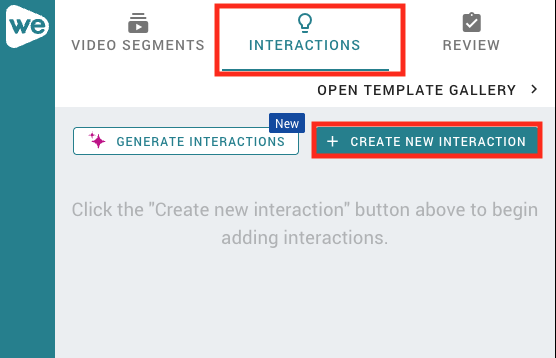
- From here, you will be taken to the interactions menu. Choose your desired interaction type. Before you can save the interaction, you may be required to add text to the question prompt, provide answer options, or designate a correct answer. Once you have filled out all the required fields, click Done. Congratulations, you have made your video interactive by adding an interaction to your bulb!
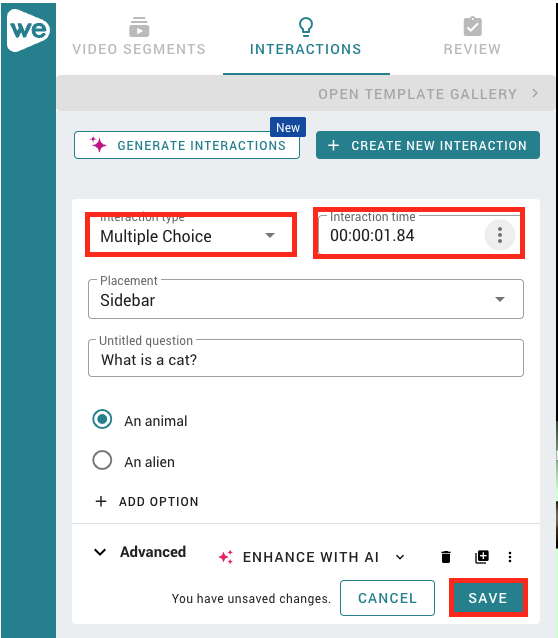
Change the Point Value of a Question in WeVideo/PlayPosit
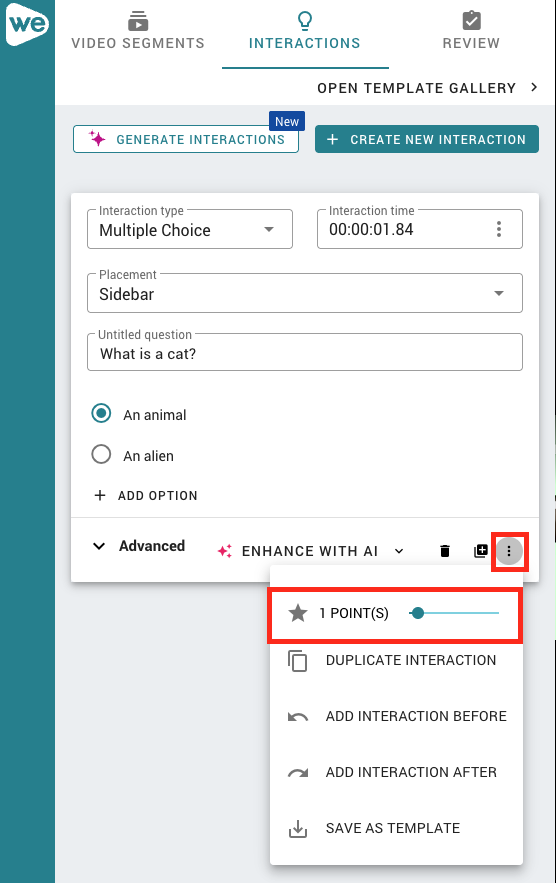
By default, when you create new interactions, PlayPosit will automatically set a point value depending on the type of interaction. These can be manually changed.
- Click on the triple dots icon for the interaction you want to edit
- Click and drag the slider next to the point value (10 points maximum)
Adding Built-In Feedback to WeVideo/PlayPosit Interactions
To add feedback to individual answer choices for multiple choice, check all, or polling survey interactions:
- From the interactions menu, click on the three dots at the top right of the interaction and click the Gear Icon.
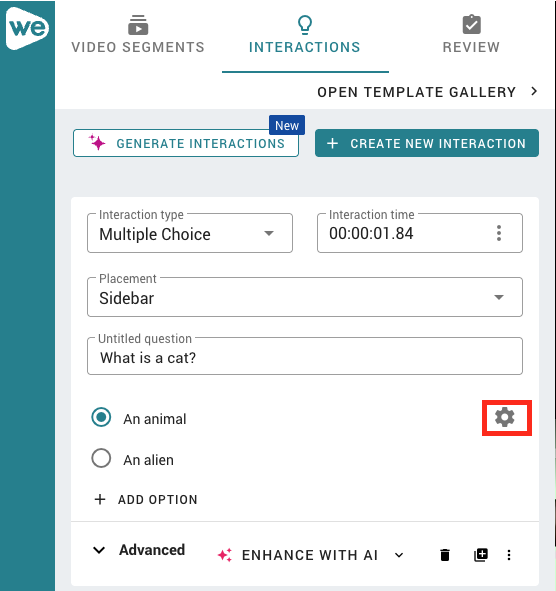
- Click the gear icon next to the answer choice and select Add Feedback.
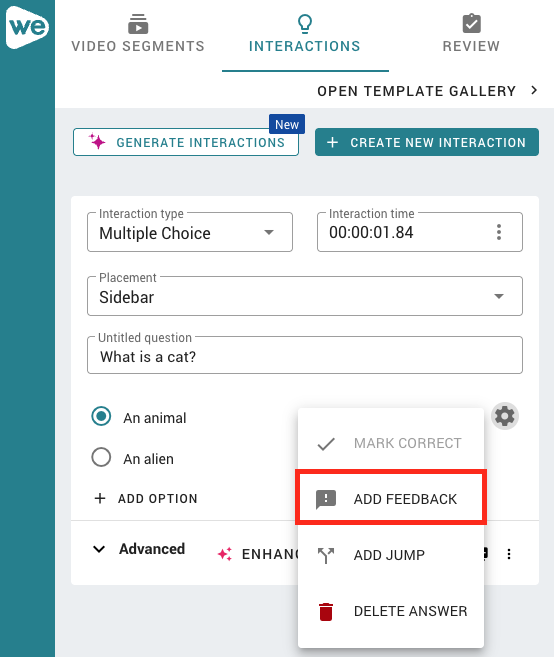
- Type out your feedback.
- Click Done to close the dialog.
