
If your instructor has created a WeVideo activity/assignment in your course that is also using Panopto and you’re accessing it on a mobile device, there are some steps that you may need to take in order to get the video to play correctly.
An important note: it’s recommended that you use Chrome or Firefox as your browser when interacting with a WeVideo assignment on mobile.
- Allow the pop-up if it’s blocked
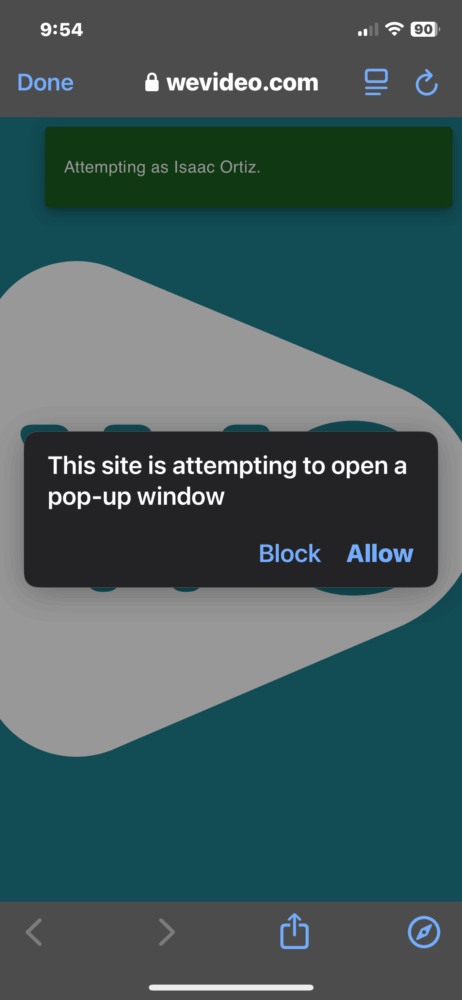
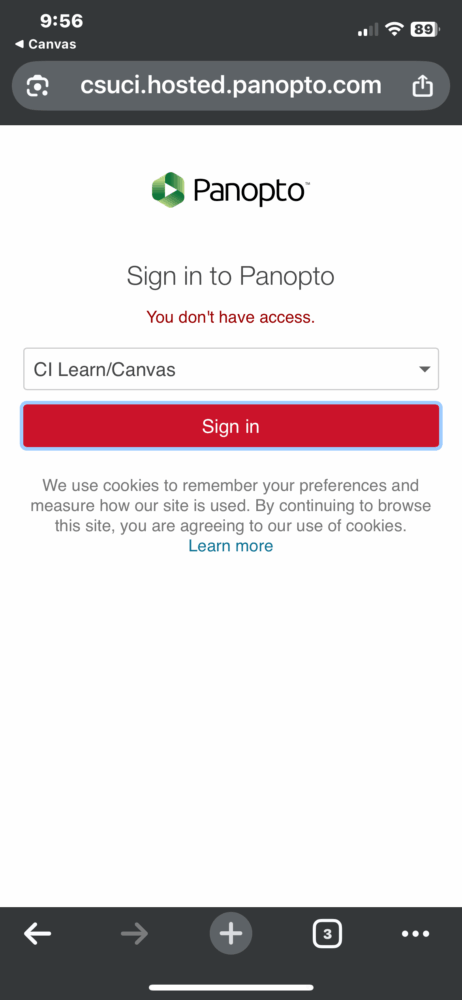
- Open the resulting pop-up window where the Panopto sign-in shows up
- Choose the CI Learn/Canvas option and then click the Sign In option
- This should take you to a screen where you can click to authorize the connection and also check a box to remember the authorization.
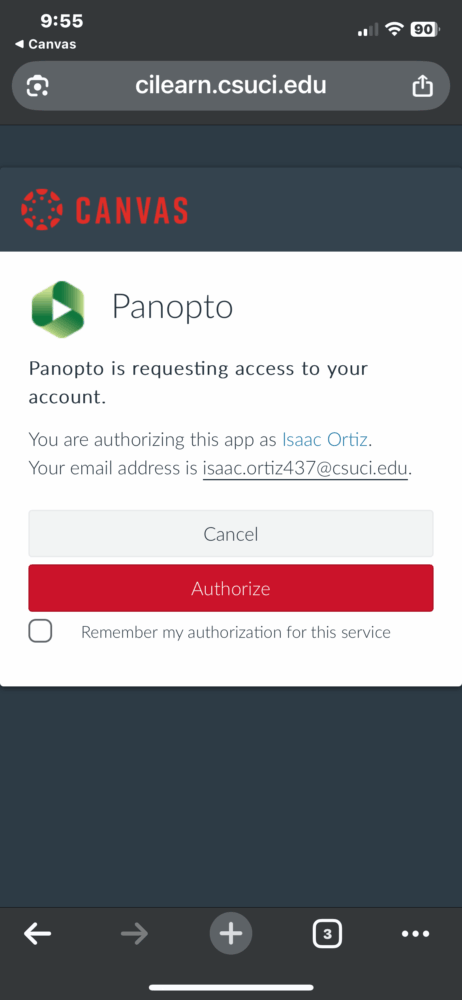
- Once you’ve authorized the app, you can close the tab and go back to the WeVideo activity tab, which should now play successfully
