
Why Are Captions Important?
Captions are a required accommodation to allow the learning content in your video to be accessible to students who may be d/Deaf, hard-of-hearing, or are learning with another disability. Additionally, captions have been proven to help all students with comprehension, memory, and retained attention while watching videos (Gernsbacher, Morton 2015). If a student is learning on a mobile device or in a public place, captions can help accommodate their experiences if they can’t play audio out loud.
Before You Begin
PlayPosit does not create captions for you, it allows you to upload existing caption tracks. If your video is self-recorded, you will need to have a .srt or .vtt file to upload to PlayPosit.
If your video is already recorded and you need a caption track, learn how to create captions with Adobe Premiere Pro. If you typically create your videos in Zoom and have not yet recorded the video for your PlayPosit Bulb, learn how automatically transcribe recordings in Zoom before you start recording.
If the video linked to PlayPosit is from YouTube or Vimeo, you can easily connect the existing YouTube or Vimeo captions to PlayPosit.
How to Add Captions
- Open your Bulb in PlayPosit
- Access the video segments tab. Once there, click the CC icon at the top left of the video you’d like to caption

If the video is from YouTube or Vimeo, there are likely existing captions
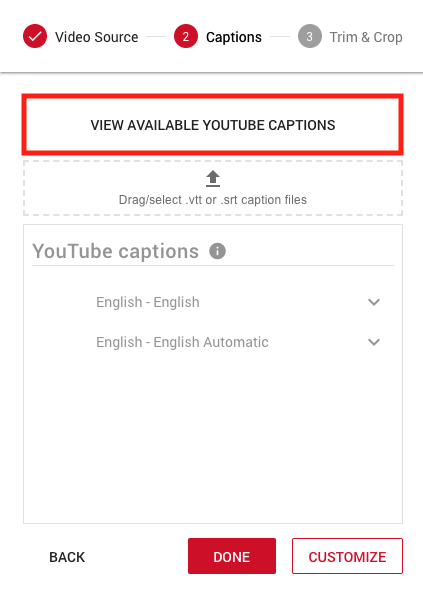
- Click View Available YouTube Captions
- From the list that appears, select all relevant caption options by checking the box to the right
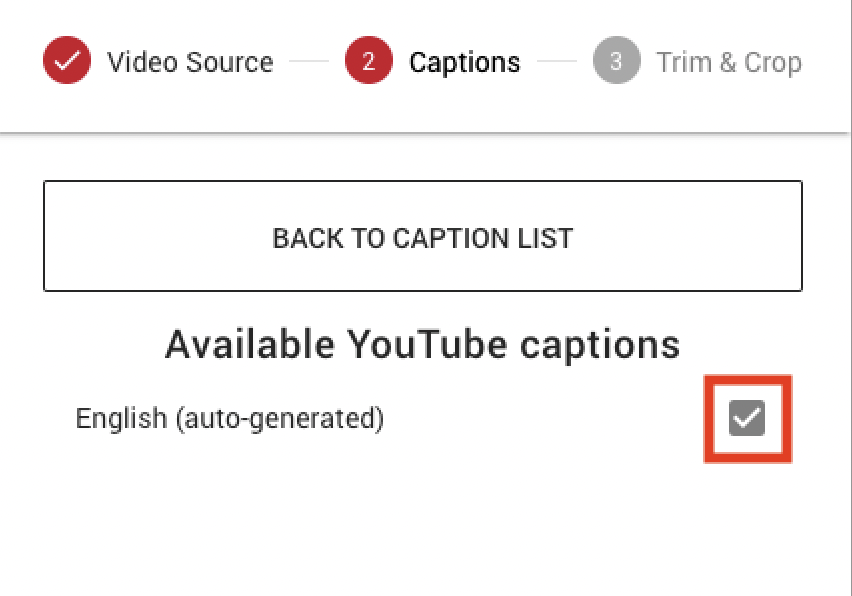
- Click Download
If the video has been uploaded by you (ex. uploading an MP4 file) you must provide the caption track
- Click Drag/select .vtt or .srt caption files
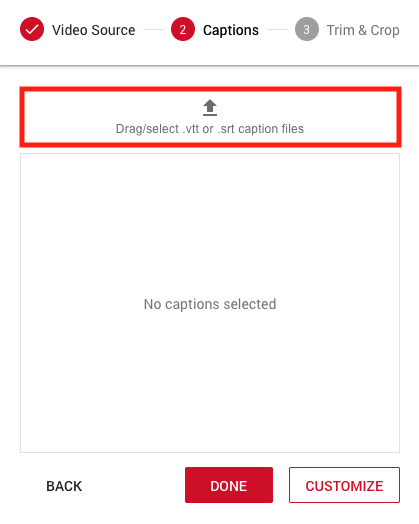
- Upload the file of your choice
- Click Done
How to Edit Existing Captions in PlayPosit
- In the captions menu, click the existing caption file you wish to edit
- From the options that appear, click the pencil icon
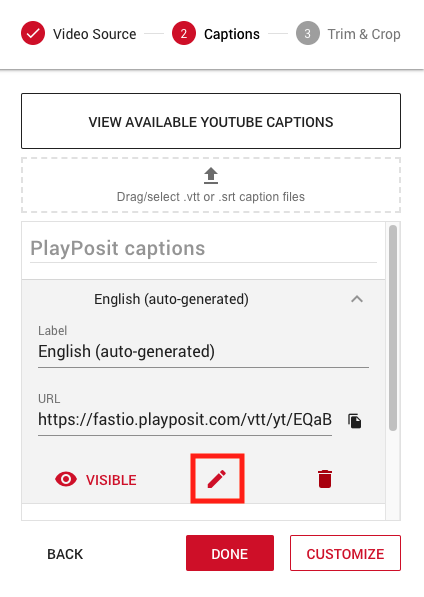
- A new tab will open the PlayPosit Caption Editor. You will be able to edit text and and add text to improve the accuracy of the captions. Note that you are not able to adjust the timestamps.
- When editing is complete, click Save Captions. The newly edited captions will be automatically added to the video segment.

