
Note: CourseTuner is only available through your CSUCI ChatGPT EDU Account.
If you haven’t accessed your CSUCI ChatGPT account, refer to the Accessing ChatGPT EDU at CSUCI guide, which provides more in-depth guidance.
Below is an overview of the steps, followed by animated images (GIFs) as a demonstration.
- To access your CSUCI ChatGPT Account: Go to chatgpt.com and log in with your myCI credentials.
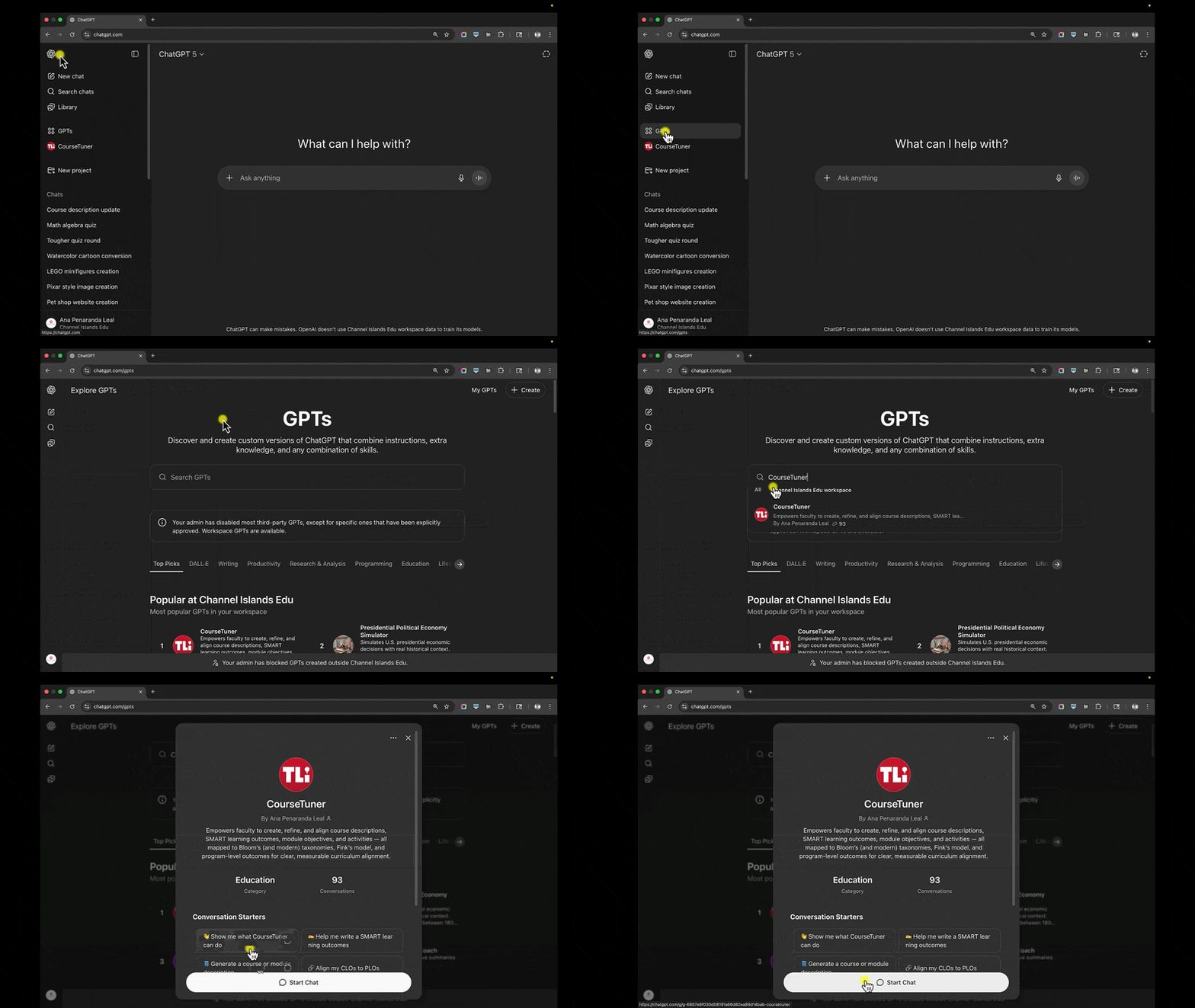
- Locate CourseTuner: On the left-hand sidebar, click on “GPTs” to open the “Explore GPTs” page. Search for “CourseTuner” or find it under “Popular at Channel Islands” and click on it.
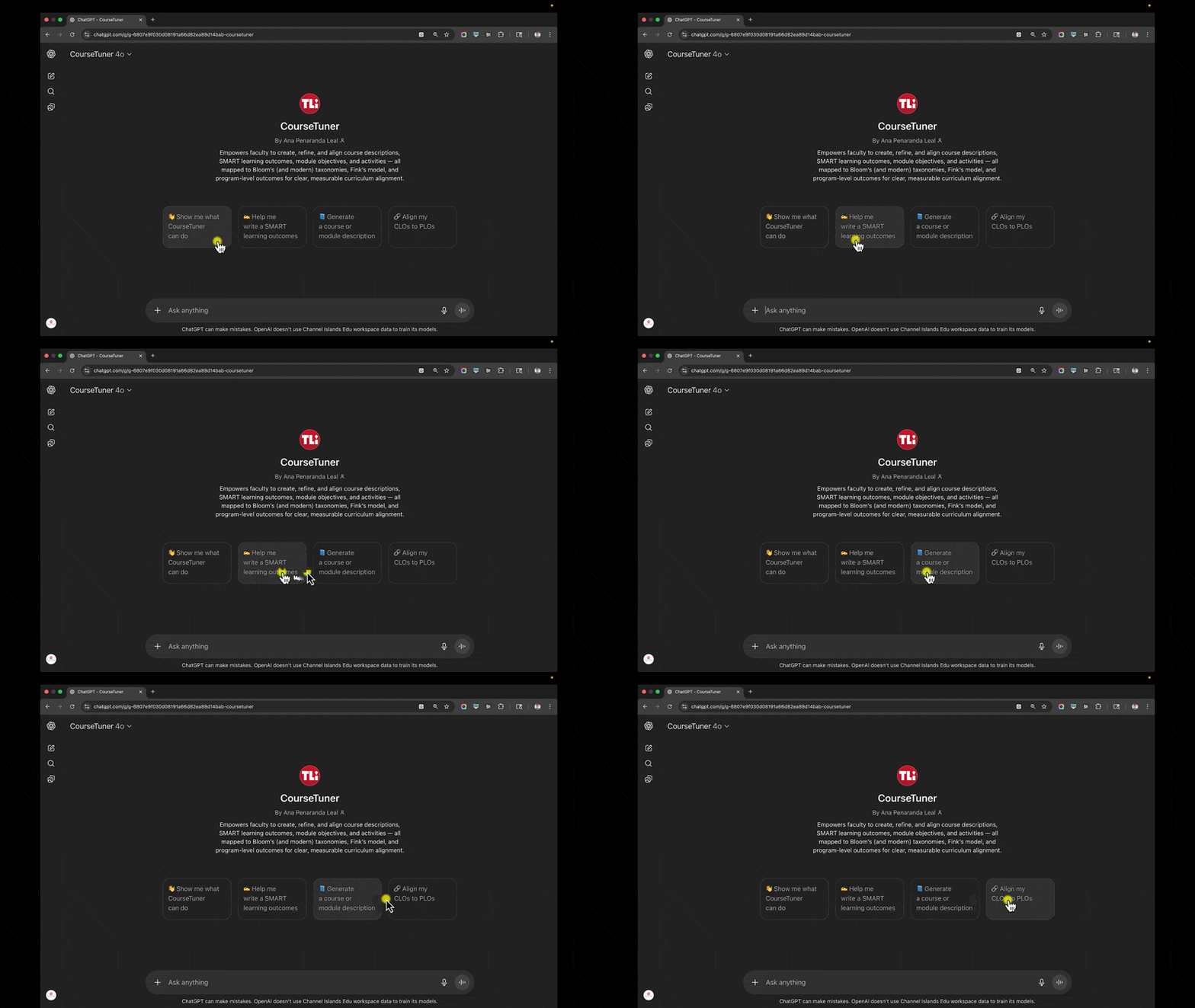
- Start a Conversation: The CourseTuner interface should now be visible. Click the navigation buttons to begin exploring.
- Begin with Learning Outcomes: CourseTuner is designed to help you with your specific course in a completely private environment; your conversations aren’t saved on our end. To get started, you’ll see a few welcoming buttons. For this guide, we’ll focus on the foundation of a meaningful course design: Learning Outcomes.
Accessing Your ChatGPT EDU Account
To access your CSUCI ChatGPT Account: Go to chatgpt.com and log in with your myCI credentials.
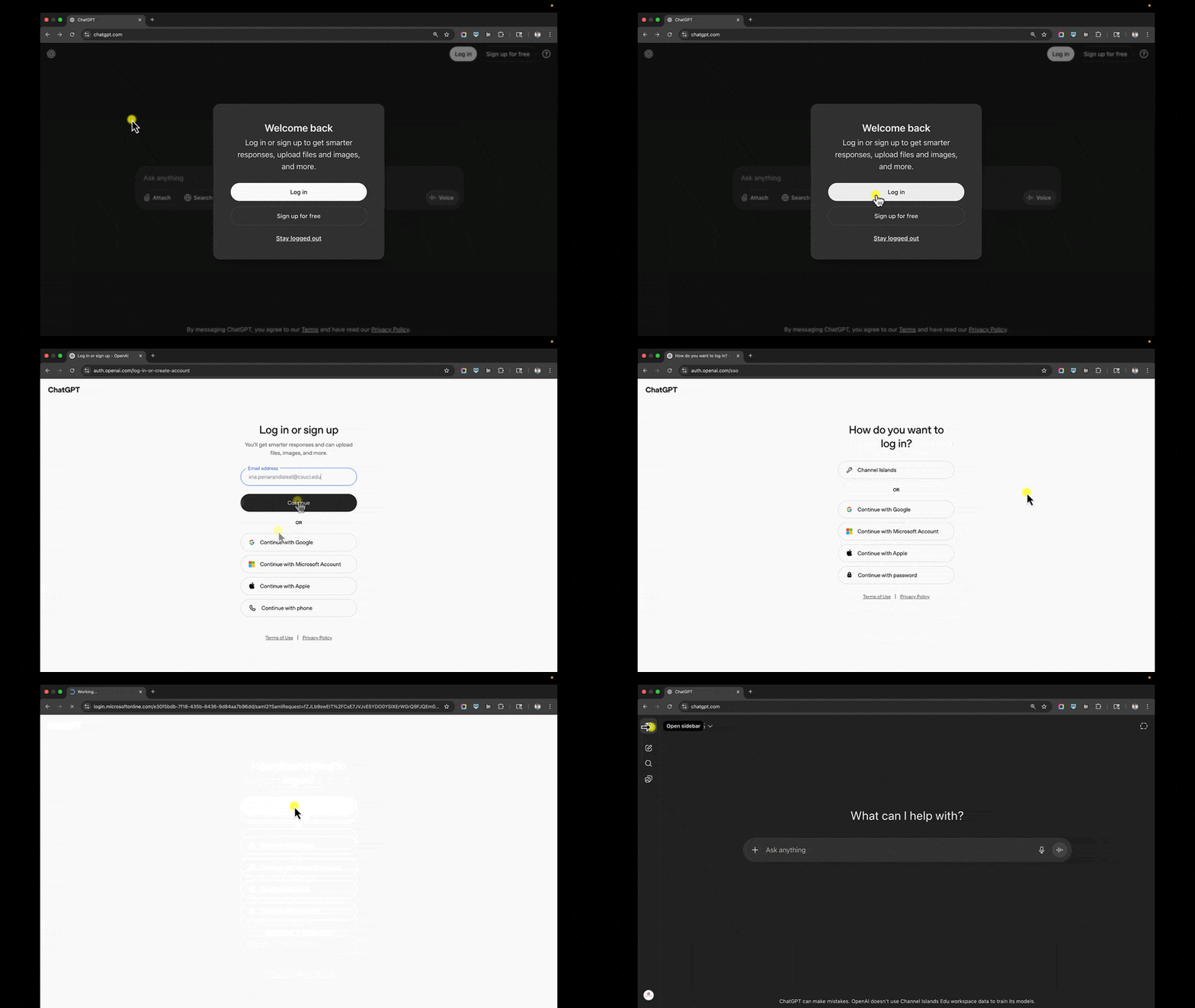
enter your credentials, and then your ChatGPT EDU account will open.
Locating CourseTuner
On the left-hand sidebar, click on “GPTs” to open the “Explore GPTs” page. Search for “CourseTuner” or find it under “Popular at Channel Islands”, select it, and click “Start Chat”.
Starting a Conversation in CourseTuner
The CourseTuner interface should now be visible. Consider clicking one of the four conversation starters provided at the top of the page to get started.
Creating SMART Learning Outcomes with CourseTuner
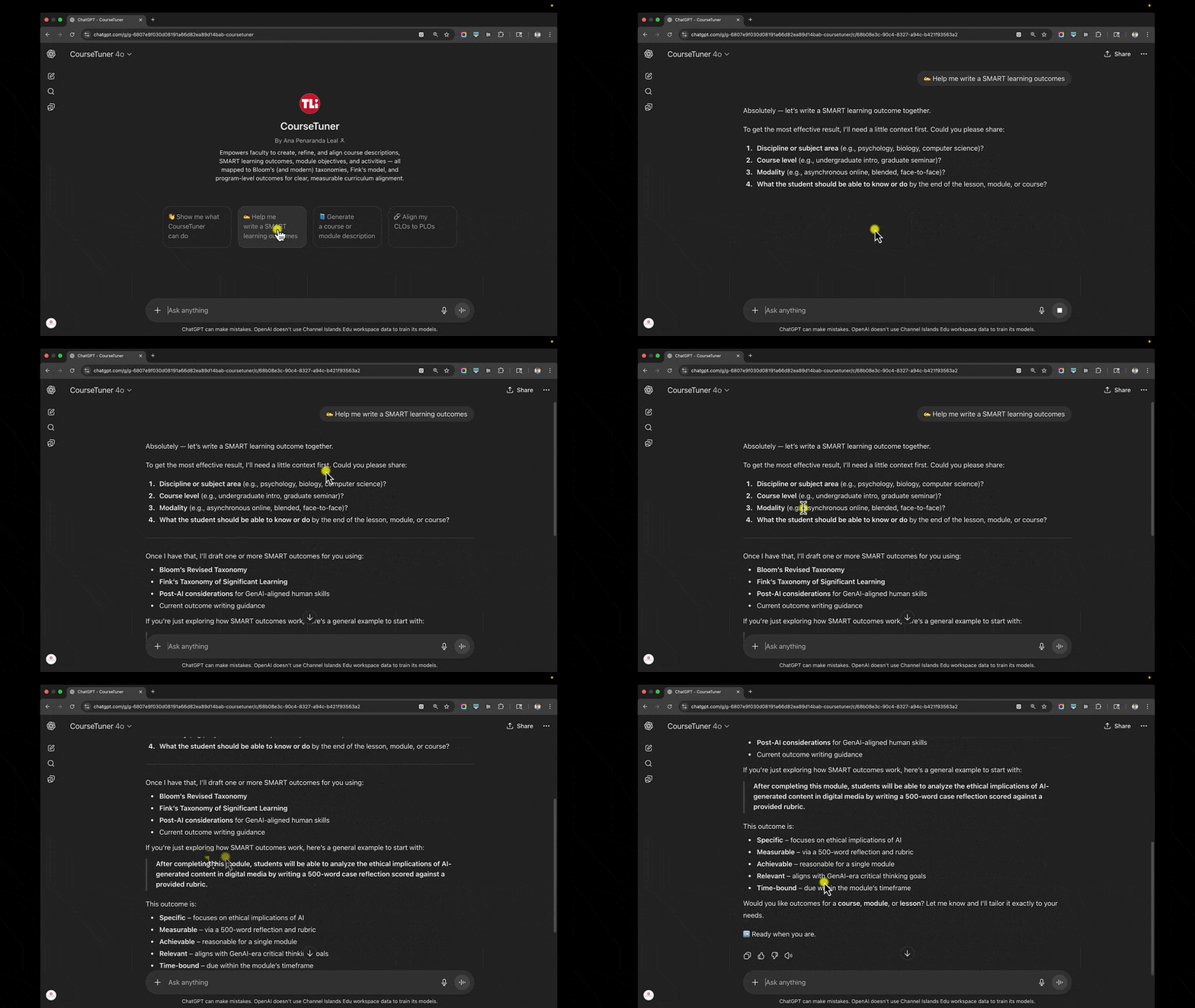
For this example, we’ll focus on the foundations of a meaningful course design: Learning Outcomes, by clicking the “Help me write SMART learning outcomes” conversation starter. The GPT will then either provide a quick refresher on what makes a learning outcome SMART or ask you to enter the context (i.e., discipline, level, modality, etc.) for your course, such as in the GIF provided below.
CourseTuner is designed to help you with your specific course in a completely private environment; your conversations aren’t visible outside of your account, even to TLi.
You can ask for help writing great learning outcomes. The GPT will offer suggestions and ask you for information. A great way to begin is by providing your Program Learning Outcomes, your course description, and Student Learning Outcomes. If you already have Course Learning Outcomes written, you can ask CourseTuner to evaluate them. If you want to refine them into SMART goals, you can ask, “Please help me craft some great Learning Outcomes for my course.”
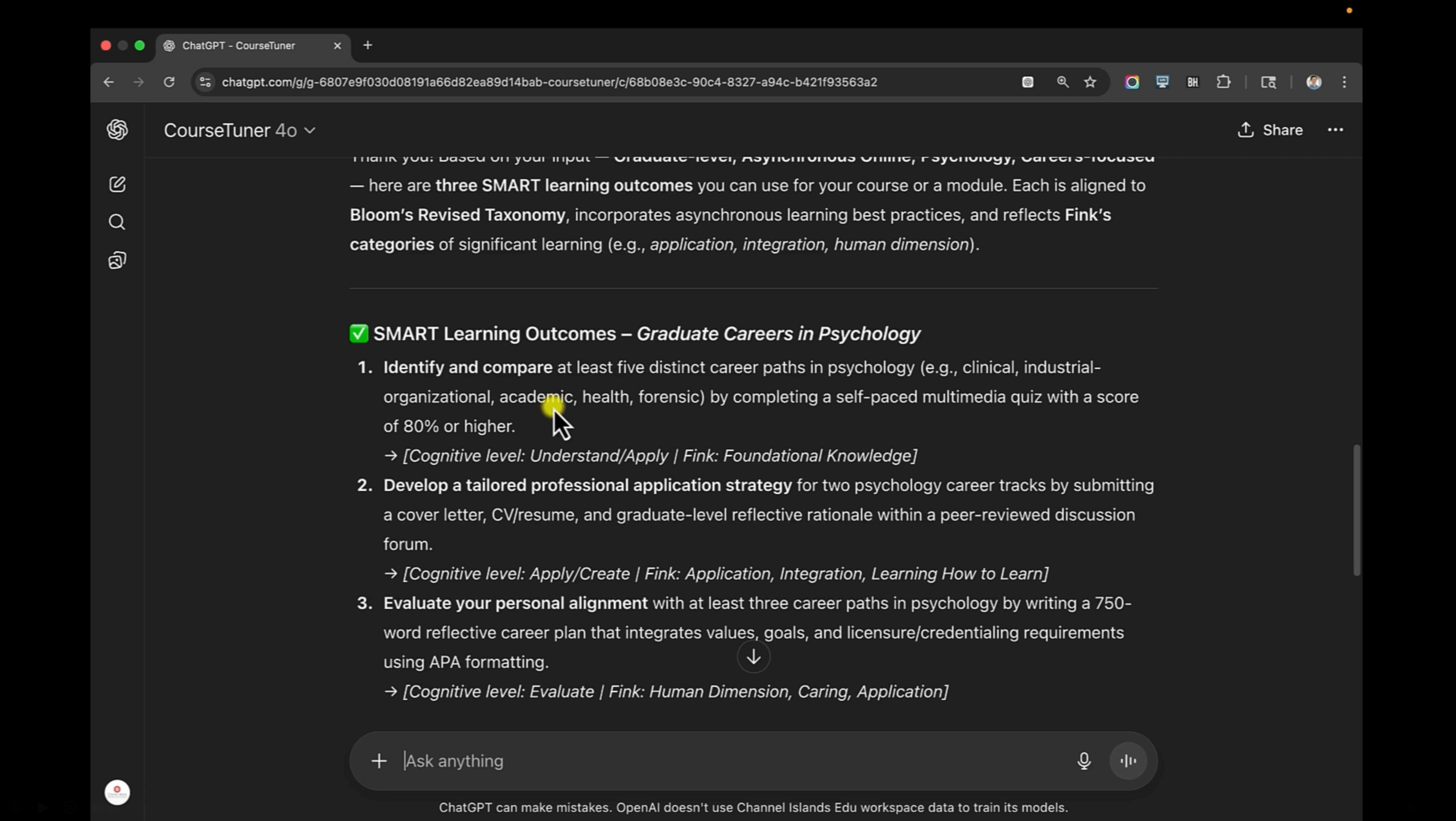
The rest is a natural conversation. Tell CourseTuner about your course’s modality (e.g., online, in-person, hybrid), how many weeks it is, and provide your weekly topics. From there, you can ask for help designing assessments or offer samples of what you currently have. CourseTuner is all about iteration. You might not use every idea, but you’ll have a solid, research-backed foundation to make your course design meaningful by combining its suggestions with your expertise.
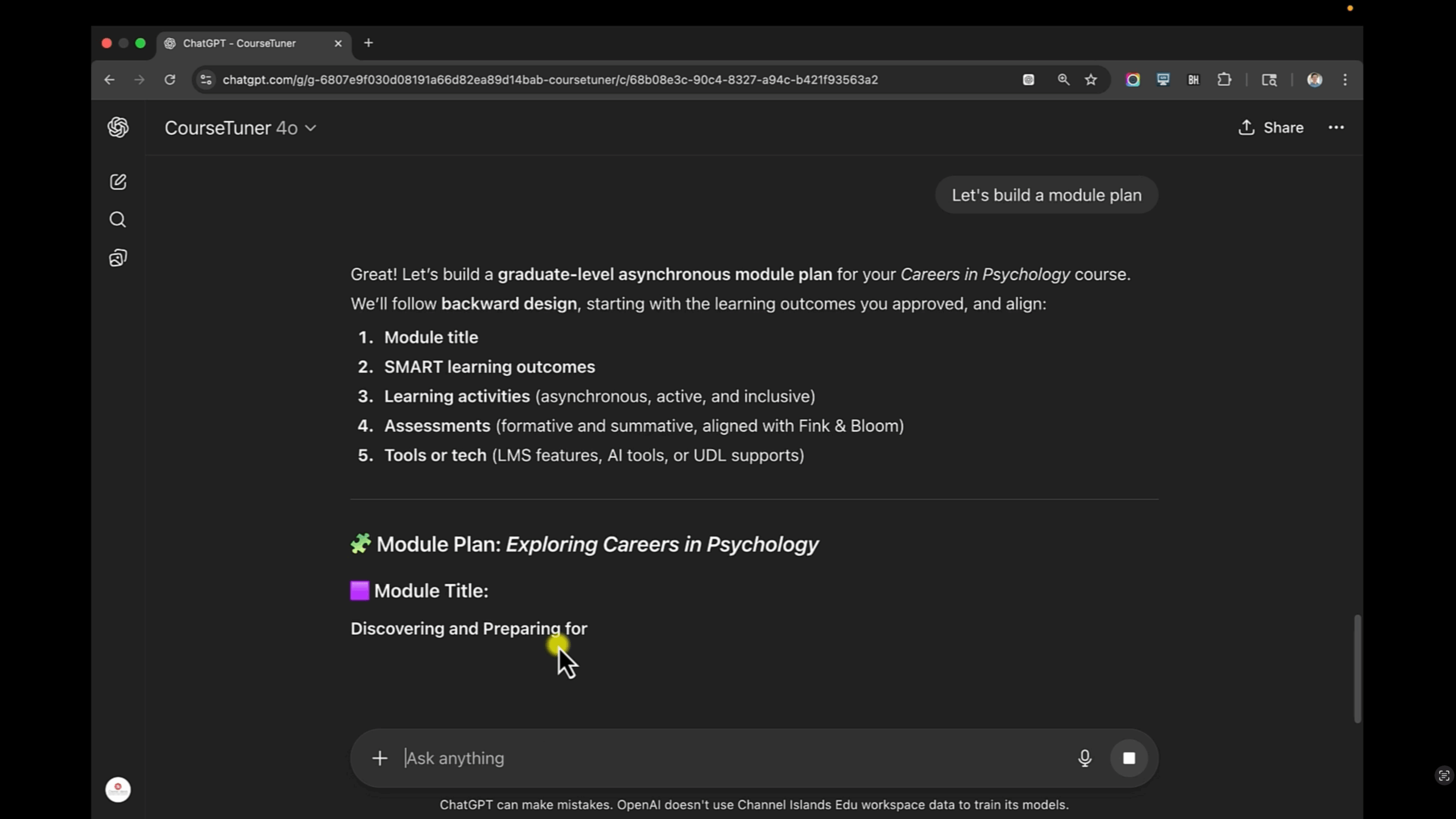
But that’s just the beginning. CourseTuner supports many other use cases. Try prompts like these:
- “What kind of assessments can I design for my module topic?”
- “How can I enhance student engagement in my online course?”
- “Suggest active learning strategies”
- “Generate a syllabus-ready course description for [course Title]”
- “Rewrite/analyze this course overview to make it more inclusive and student-centered.”
- “Create a rubric for [type of assignment]”
- “Generate 10 multiple-choice questions testing [topic]”
- “Write a critical thinking discussion prompt for a module [topic]”
We hope you enjoy using it!
