
There are many instances where clearing your browser’s cache and cookies can serve as a fix for errors showing up in different web applications, such as CI Learn, VoiceThread, etc. The following steps will walk you through how to do so in various browsers and operating systems.
Google Chrome
PC:
- In the Chrome browser toolbar, click the Menu icon.
- Click the More Tools link.
- Click the Clear browsing data link.
- Use the drop-down menu to select the time range from which you want to clear browsing data.
- Select the Cookies and other site data and Cached images and files checkboxes.
- Click the Clear Browsing Data button.
Mac:
- In the browser toolbar, click the Menu icon.

- Click the Delete browsing data option.
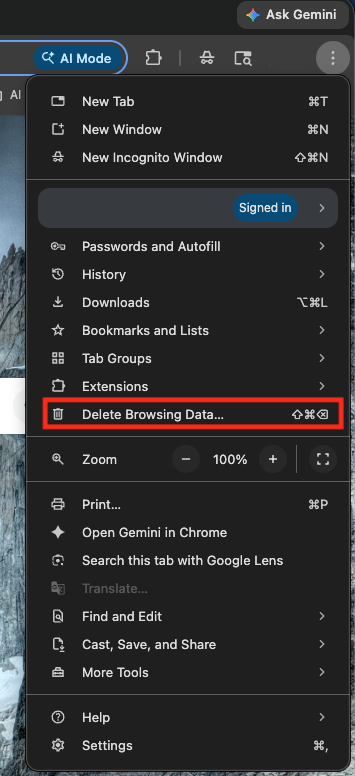
- You will be taken to a new page where there will be a pop-up menu
- In the pop-up menu, there will be a data drop-down menu. Select the time range where you want to clear browsing data.
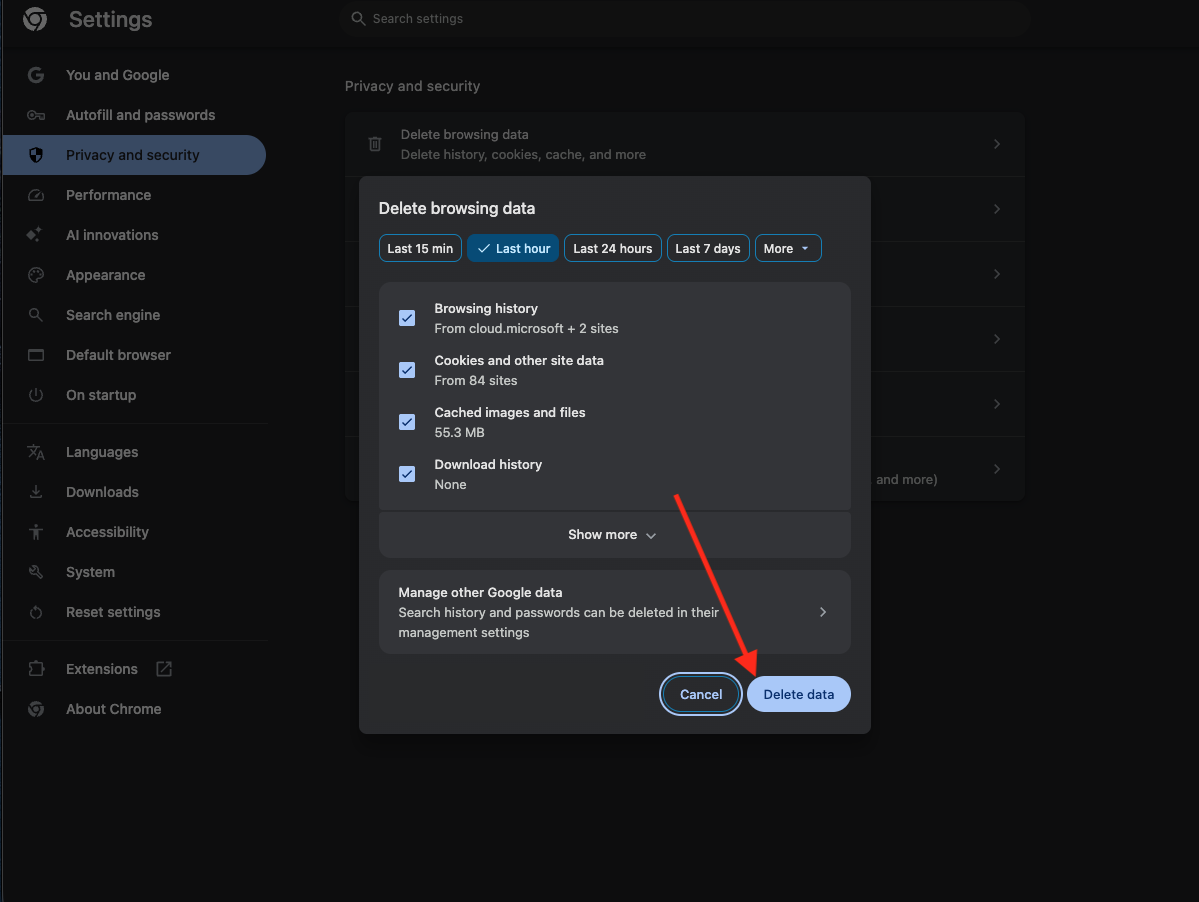
- Select the Cookies and other site and plug-in data and Cached images and files checkboxes.
- Click the Delete Data button.
To learn more about clearing your cache in Chrome, visit Google Support.
Microsoft Edge
- In the Edge menu bar, click the Hub icon.
- To view your browsing history, click the History icon.
- Click the Clear all history link.
- Choose the types of data or files you want to remove. Select the Cookies and saved website data and Cached data and files checkboxes.
- Click the Clear button.
To learn more about clearing your cache in Edge, visit Microsoft Support.
Mozilla Firefox
PC:
- In the Firefox menu bar, click the Firefox option.
- Select the Preferences link.
- Click the Privacy tab.
- Under the History heading, click the clear your recent history link.
- Select the Cache checkbox.
- Click the Clear Now button.
Mac:
- In the Firefox menu bar, click the Firefox option.
- Select the Preferences link.
- Click the Privacy tab.
- Under the History heading, click the clear your recent history link.
- Select the Cache checkbox.
- Click the Clear Now button.
To learn more about clearing your cache in Firefox, visit Firefox Support.
Safari
- In the Safari menu bar, click the Safari option.

- Click the History Button.
- A new tab will open, and click the Clear History Button
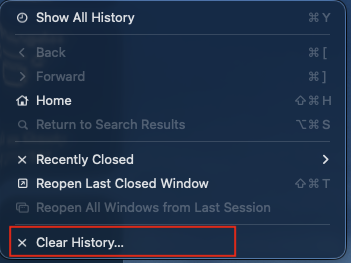
- In the Clear History drop-down menu, select the time range where you want to clear browsing data
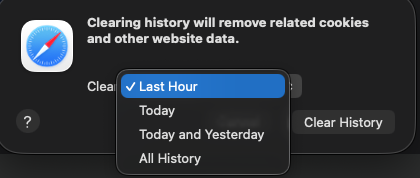
- Click the Clear History button.
To learn more about clearing your cache in Safari, visit Apple Support.
Use Incognito/Private Browser
If clearing your cache and cookies doesn’t resolve the problem, something in your browser may be blocking your access. To verify this, try using Chrome’s incognito or Firefox’s Private mode.
Try New Browser
If using an incognito or private browser doesn’t work, try using a different browser. Canvas generally recommends using Chrome or Firefox.
