1. Home
  2. Knowledge Base
  3. Supporting Students
  4. How to Access Instructor Feedback in WeVideo/PlayPosit
  1. Home
  2. Knowledge Base
  3. Digital Tools for Teaching
  4. WeVideo/Playposit
  5. How to Access Instructor Feedback in WeVideo/PlayPosit

How to Access Instructor Feedback in WeVideo/PlayPosit

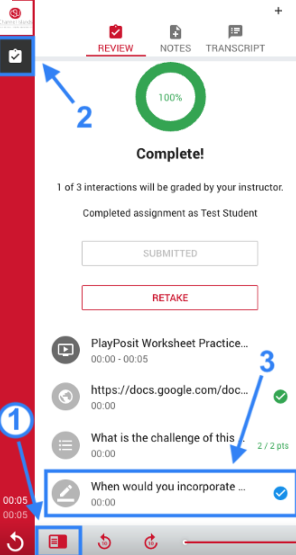
To view feedback left by your instructor, return to your course and open the assignment in WeVideo/PlayPosit.

  1. Click on the sidebar icon in the lower-left corner of the player.
  2. Click the review icon (box with a checkmark) at the top of the sidebar
  3. Select the desired interaction from the table of contents. This will take you to the interaction and show you any available feedbackScreenshot of the PlayPosit sidebar interface explained in the listed steps above the images with associated number and arrows highlighting the mentioned icons.
Updated on August 13, 2025
Was this article helpful?

Related Articles

Need Support?
Can’t find the answer you’re looking for? Don’t worry we’re here to help!
Submit a Help Request

Leave a Comment

This site uses Akismet to reduce spam. Learn how your comment data is processed.

css.php