
How to Download a Zoom Recording
- Log in to myCI and click on the Zoom button.
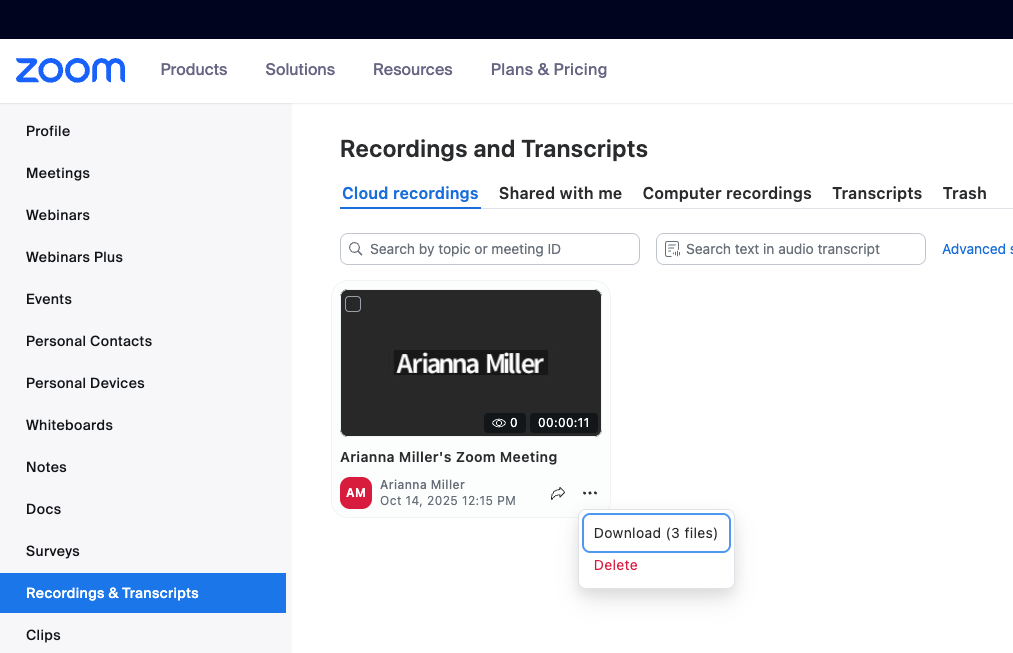
- On the left sidebar, click Recordings and Transcripts.
- To the right of each recording that you want to download, click the three dots button next to the share arrow and then select the Download option. If an audio file (m4a) and a captioning file (vtt) is available for your recording, they will be downloaded as separate files.
- Once you’ve downloaded your recording, you can delete it from your list of recordings. You can also upload it to an alternative streaming platform, such as YouTube or CI’s internal streaming platform, ShareStream, if you’d like to share it. Note that a recording that is uploaded to ShareStream will not be easily shareable to users who do not have a myCI account.
How to upload a Zoom Recording
- Navigate to Panopto and press the Create button located at the top of the screen
- A drop-down list will appear, and click the Upload media button
- A pop-up will appear, offering an option to select either audio or visual files. Click the Choose audio or visual files when it appears
- Find your file on your computer and click Open
- Once the video and or audio file is uploaded, you can click the x-button to the top right of the screen to exit.
Your Zoom recording is now uploaded to Panopto
