
Peer review assignments have two parts: the creation of the assignment, and the usage of the reviews once they’ve been done. Let’s take a look at how to create and use peer review assignments within Canvas.
Creating a Peer Review Assignment
- Click the Assignments link in your course menu
- Click the Add Assignment button

- Enter your assignment details: Assignment title, description/instructions, points possible, etc.
- Select the submission type. Online submissions will work best here because the submission will be contained within Canvas as opposed to a physical paper submission.
- If using an online submission type, choose the types of submissions that will be accepted: text entry, file uploads, etc.
- Optional: Check the “This is a group assignment” option if you intend on doing a peer reviewed group assignment.
- Check the Require Peer Reviews box [1]. By default, peer reviews are assigned manually [2]. If you want to assign peer reviews automatically, select the Automatically Assign radio button [3].

Note: Peer reviews must be manually assigned for On Paper and No Submission assignment types.- If you automatically assign peer reviewers: the menu displays additional options. In the Reviews Per User field [1], enter the number of reviews each student will be required to complete. In the Assign Reviews field [2], use the calendar icon to select a date or manually enter the date for student peer reviews to be assigned. The Assign date must come on or after the assignment due date. If left blank, Canvas will use the assignment due date.

- If you are using peer review with a group assignment: In group assignments, you also have the option to allow intra-group peer reviews.
Peer reviews require a student to review an individual submission by another student. However, group assignment submissions are made by one group member on behalf of the entire group, and all group members have the same submission.
By default, the Allow intra-group peer reviews checkbox is not selected, which means Canvas will filter out members of the same group when automatically assigning the reviews. However, selecting the checkbox allows assignments to be truly random and disregard student group associations.
To allow Canvas to automatically assign a peer review to a student from within the student’s own group, select the Allow intra-group peer review checkbox.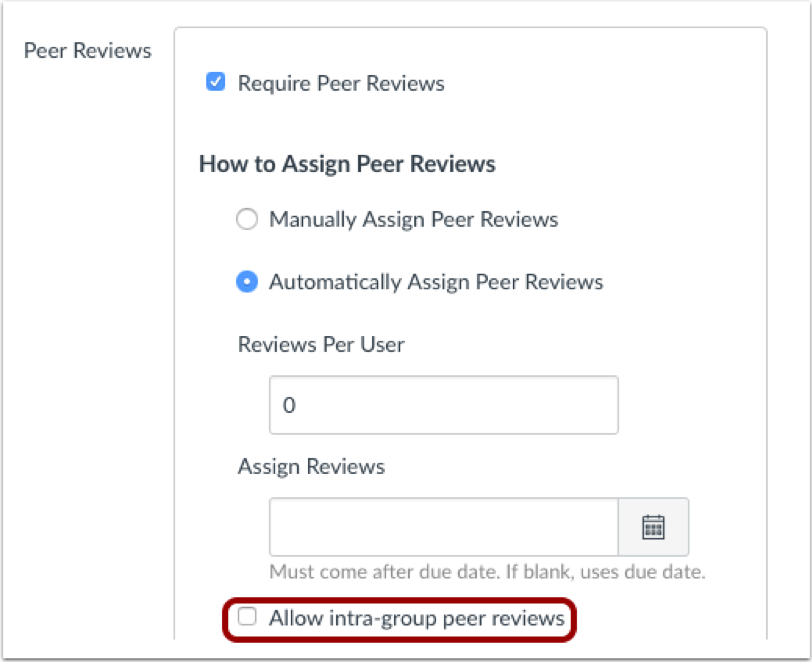
- If you automatically assign peer reviewers: the menu displays additional options. In the Reviews Per User field [1], enter the number of reviews each student will be required to complete. In the Assign Reviews field [2], use the calendar icon to select a date or manually enter the date for student peer reviews to be assigned. The Assign date must come on or after the assignment due date. If left blank, Canvas will use the assignment due date.
- Choose whether or not you want the peer reviews to be anonymous. If you want to make peer reviews anonymous, check the Peer Reviews Appear Anonymously checkbox.

Note: Canvas DocViewer does not support anonymous comments, so it cannot be used for annotated feedback on assignments with anonymous peer reviews. - Set any date options such as due date and availability dates in the Assign section.
- Click Save or Save and Publish if you are finished creating your assignment and are ready for it to go live to your students.
Using a Peer Review Assignment
Once students have begun submitting their peer review assignments, you can view the feedback that has been given.
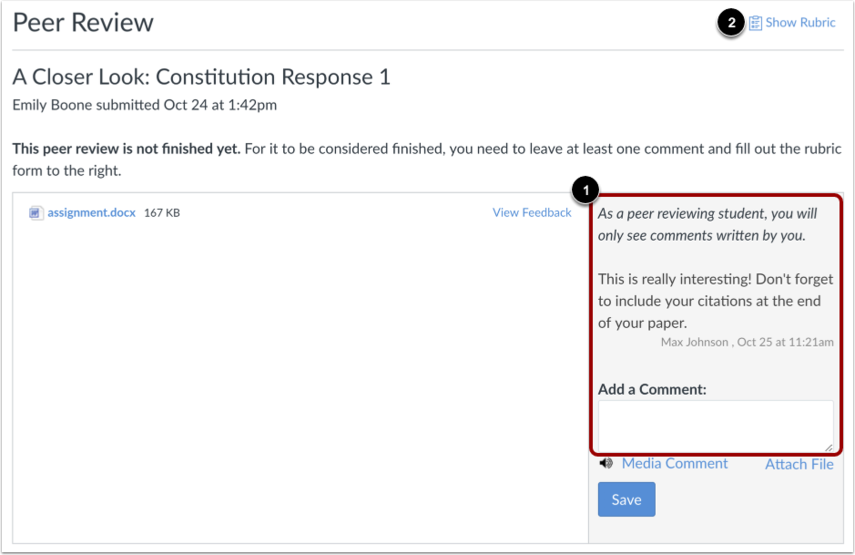
To complete a peer review, students must review the assignment and leave a comment on the submission details page [1].
Students cannot view previously submitted comments by any other reviewers, including comments by TAs or other instructors.
You can also assign a rubric to the assignment. If the assignment includes a rubric [2], students must only complete the rubric to complete the peer review. However, you can choose to ask your students to also leave a comment in the comment sidebar. The rubric score is used for an assessment opinion only; you must review the assignment and assign the final grade.
Student Guide to Submitting a Peer Review Assignment
A helpful tip when using peer review assignments is to provide some instruction to your students on how to complete the assignment with Canvas. You can easily include a link to this handy guide created by Canvas in your assignment instructions, which will guide them through the process.
Parts of this page were built using content from the Canvas Guides which are licensed under a Creative Commons Attribution-NonCommercial-ShareAlike 4.0 International License
