
After Panopto is integrated with Zoom, all meetings and webinars recorded to the Cloud in Zoom will be automatically added to your Panopto library. This integration is an opt-in integration that requires users to activate it before it starts working. The integration is also not retroactive, meaning that Zoom recordings made prior to opting in will not be automatically sent to Panopto.
Some of the benefits of activating and using the Panopto/Zoom integration are that videos in Panopto are not routinely deleted like Zoom cloud recordings, and Panopto integrates seamlessly into Canvas and other digital learning tools, such as WeVideo.
Opting In To the Panopto Zoom Integration
- From within a CI Learn/Canvas course, click the Panopto link on the course menu
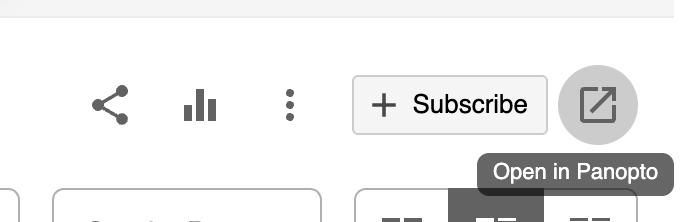
- Click the Open in Panopto button in the upper-right corner
Optional But Recommended Step: Create a ‘Zoom Recordings’ Folder
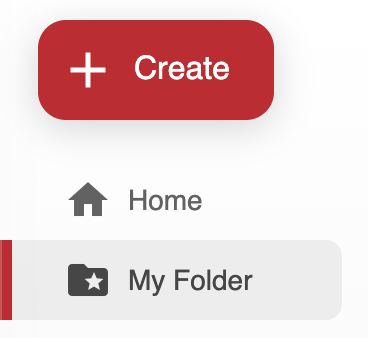
- Click the My Folder link on the left-side navigation
- Click the Add folder button
- Create a folder named Zoom Recordings
Activating the Integration and Setting a Default Storage Location
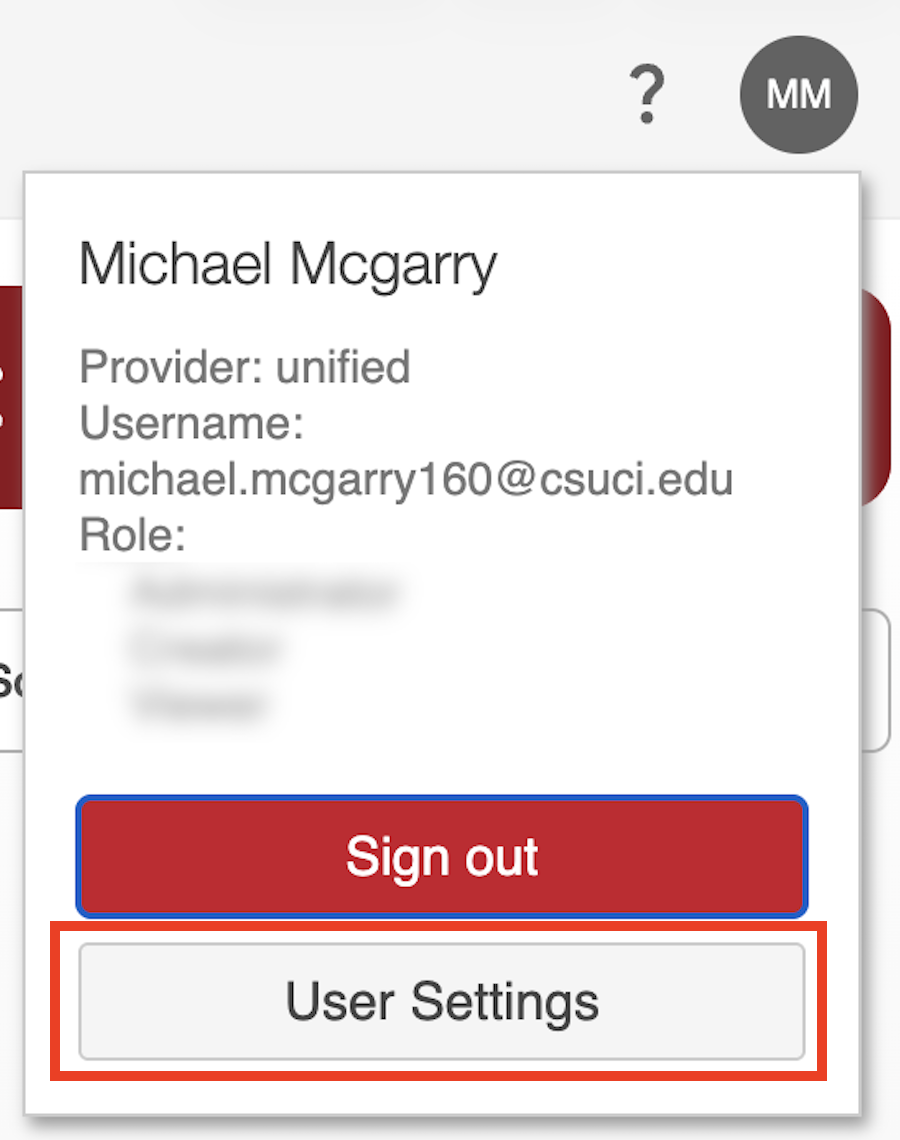
- Click your user icon in the upper-right corner and then click User Settings button
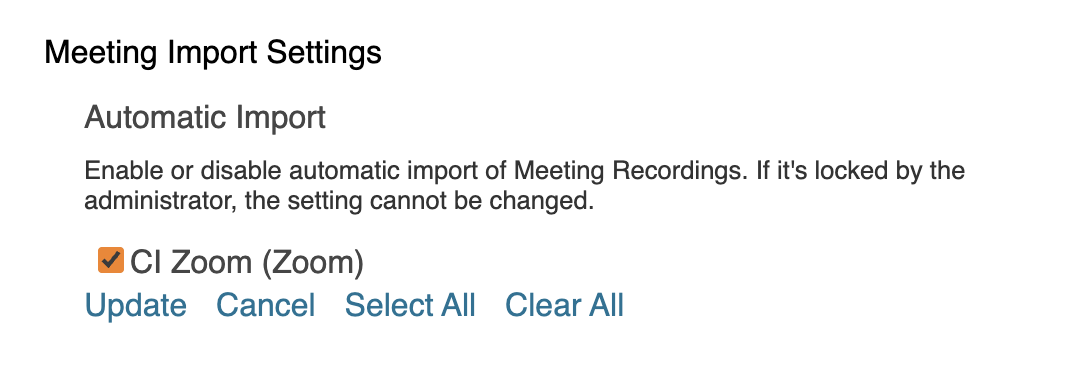
- Under the “Meeting Import Settings,” section, check the box next to CI Zoom (Zoom) and then click Update
- Set the default location for your Zoom cloud recordings to go in Panopto. We recommend either selecting My Folder or the designated Zoom Recordings folder that you created in the optional step above. Click Save
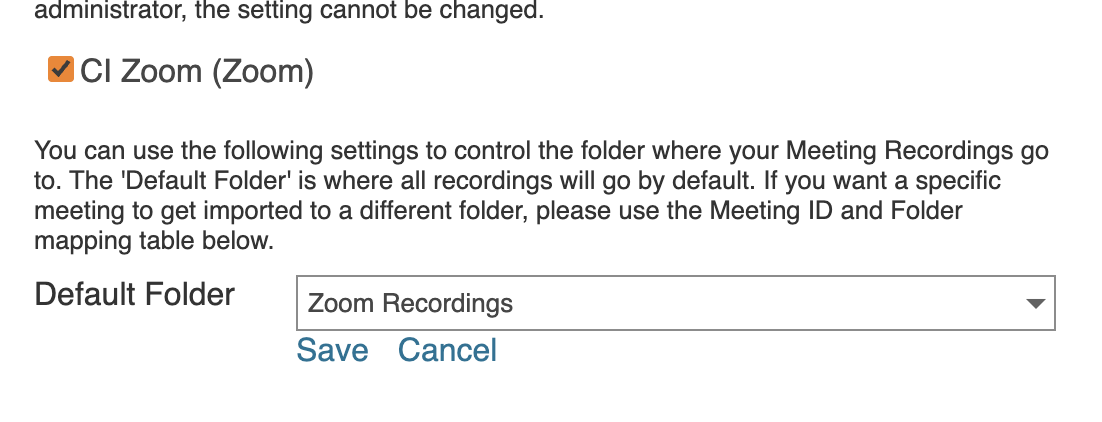
- Leave the Mappings section below alone. You can now close the dialogue and your Zoom and Panopto accounts are linked.
How to Use the Integration
Record Your Zoom Meeting
- Start your Zoom meeting
- Record the meeting using the Record to the Cloud option
- Once the recording is finished and has been processed, it’ll be added to Panopto in the default location that you selected in the previous section. These recordings can now be added to your Canvas courses from Panopto.
