1. Home
  2. Knowledge Base
  3. Digital Tools for Teaching
  4. CI Learn
  5. IgniteAI Question Authoring for Quizzes in Canvas

IgniteAI Question Authoring for Quizzes in Canvas

The IgniteAI Question Authoring for Quizzes feature is an opt-in feature within Canvas and needs to be enabled in each course that you’d like to use it in. It is only available for New Quizzes, not Classic Quizzes. It’s also and instructor-only feature, so students will not see the option to generate discussion summaries if the feature is enabled.

Enabling the IgniteAI Question Authoring for Quizzes Feature

  1. Navigate to the course that you’d like to enable the Question Authoring for Quizzes feature in.
  2. Click Settings on the course menu
  3. Click Feature Options on the top bar
  4. Search “IgniteAI,” in the search bar and you’ll see the IgniteAI Question Authoring for Quizzes option.
  5. Click the check X icon in the “State,” column to the right and select the Enable option.

Generating Quiz Questions Using IgniteAI Question Authoring

  1. Open the course you wish to work in
  2. Go to the Quizzes section of your course and select the + Quiz/Survey button.
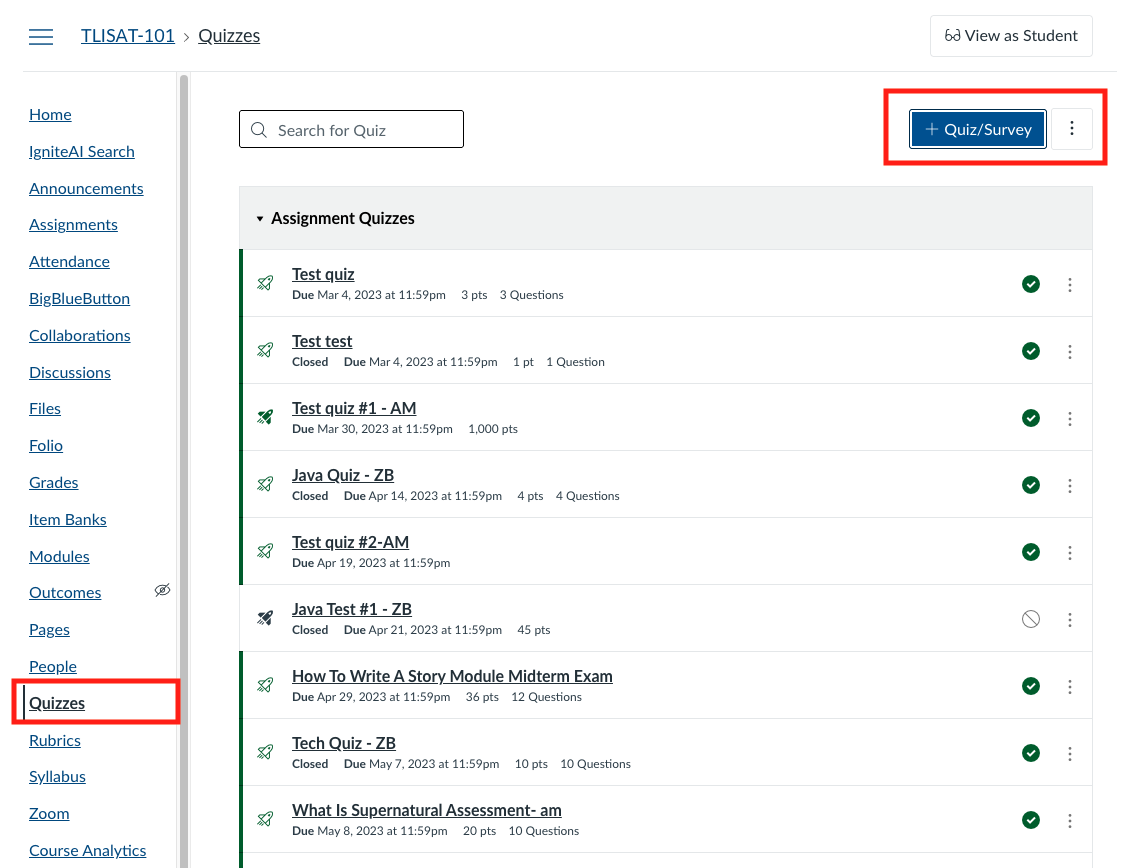
    The Quizzes page in Canvas with the Quizzes navigation tab and the ‘+ Quiz/Survey’ button emphasized to show where to create a new quiz or survey.
  3. Select the New Quizzes/Surveys option and then click the Submit button.
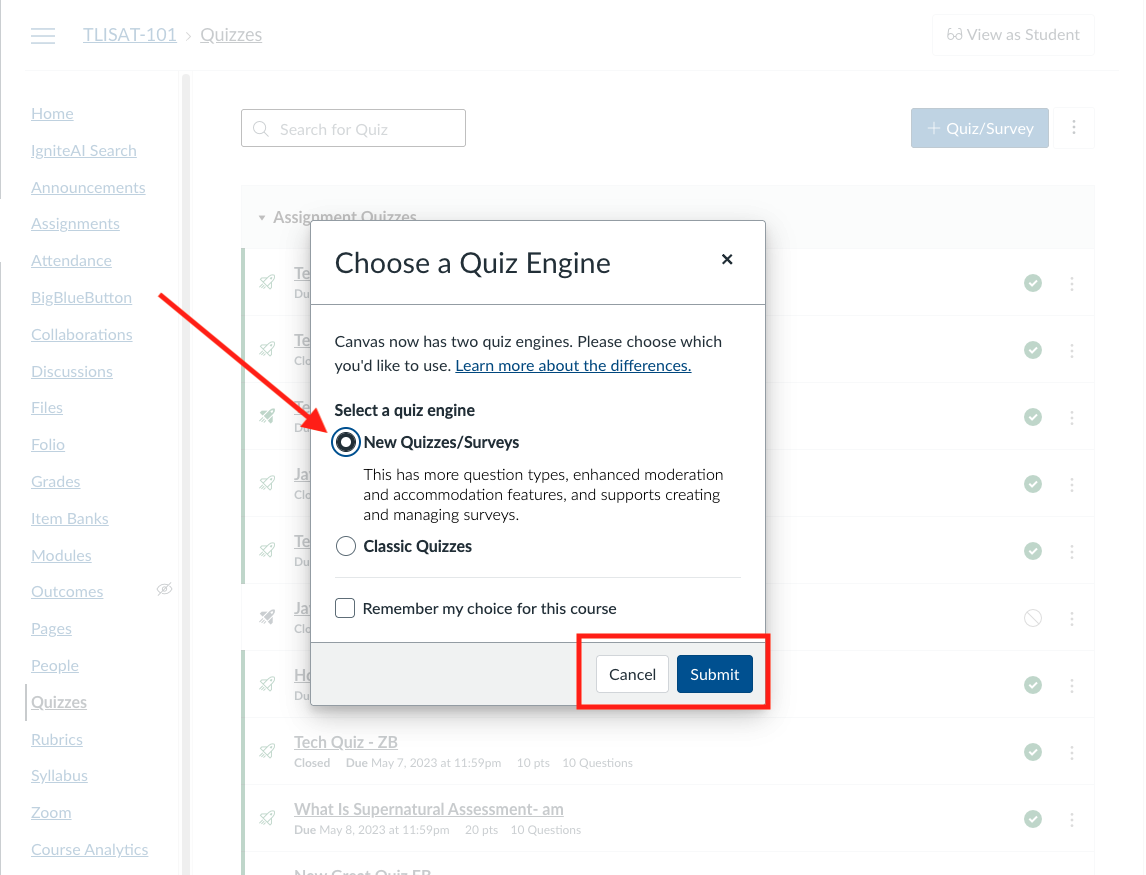
    The ‘Choose a Quiz Engine’ popup in Canvas, showing the selection of ‘New Quizzes/Surveys’ and highlighting the Submit button to continue creating a new quiz.
  4. Fill in the quiz details according to your needs.
  5. Click the Build button after entering all the details.
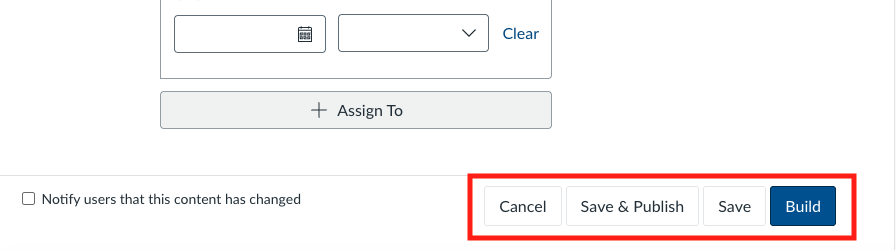
    The lower portion of the Canvas quiz setup page, highlighting the action buttons: Cancel, Save & Publish, Save, and Build; used to finalize or continue building the quiz.
  6. Click the + (Plus) button beneath the Instructions field
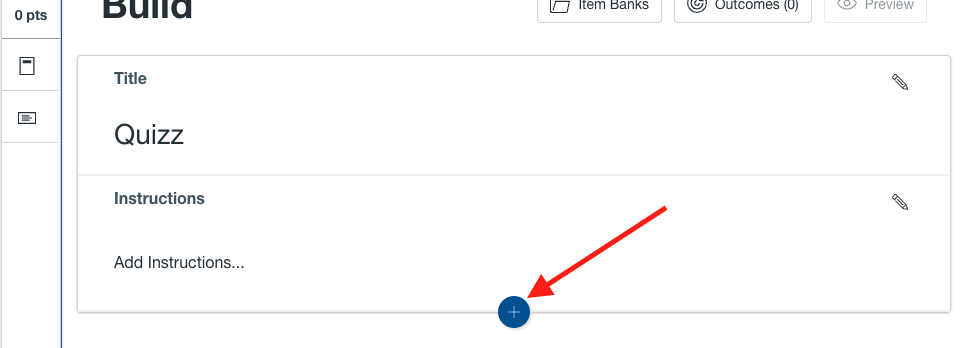
    The Build view of a Canvas quiz, highlighting the plus (+) button where instructors can add questions or additional content to the quiz.
  7. Select the Generate with AI button.
    The Insert Content menu in the Canvas quiz builder, emphasizing the ‘Generate with AI’ option used to automatically create quiz questions.
  8. Now, depending on the material you have for the quiz you have 3 options:
    • Course Content
    • Text
    • File Upload

Generating Questions from Course Content

  1. Click the + Select from Course button.
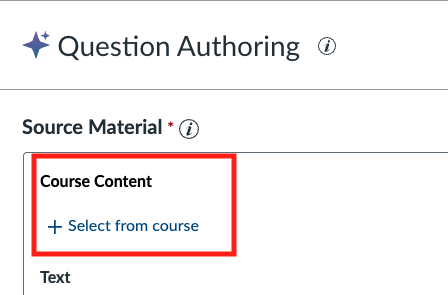
    The Source Material section of the Question Authoring tool, highlighting the ‘Select from course’ option used to choose course content for generating quiz questions.
  2. Select the modules that need to be on the quiz and then click the Select button
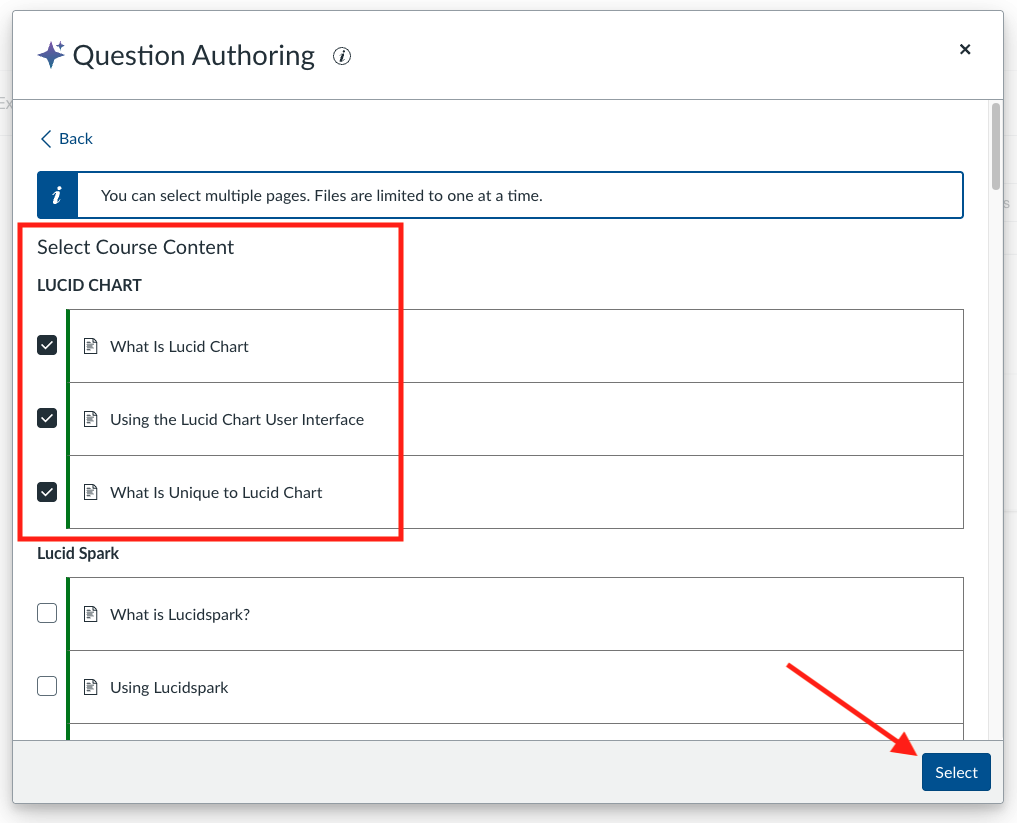
    The Question Authoring interface in Canvas, highlighting selected course content pages under the Lucid Chart module and the Select button used to proceed with generating quiz questions.
  3. Fill in the More options section according to your needs and then select Generate Questions.
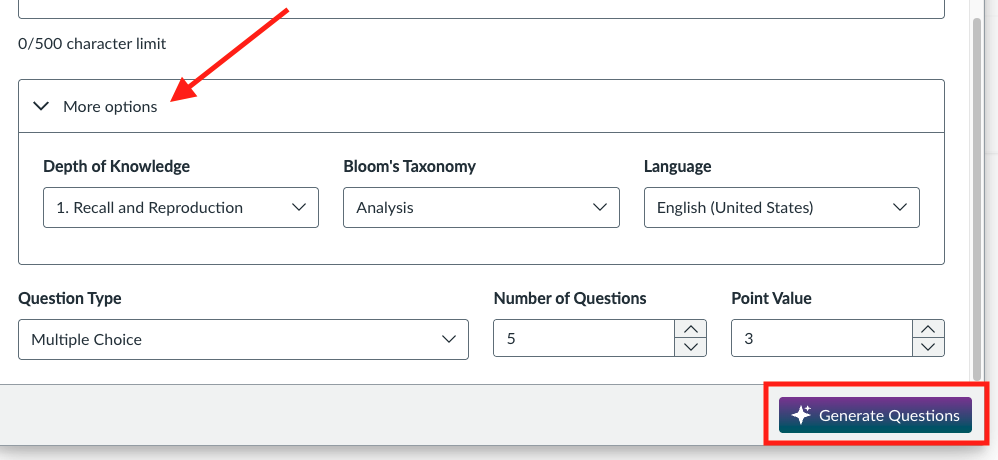
    The Question Authoring panel expanded to show advanced options such as Depth of Knowledge and Bloom’s Taxonomy, with the Generate Questions
  4. Go through the Generated Questions Preview and then select Edit & Review.
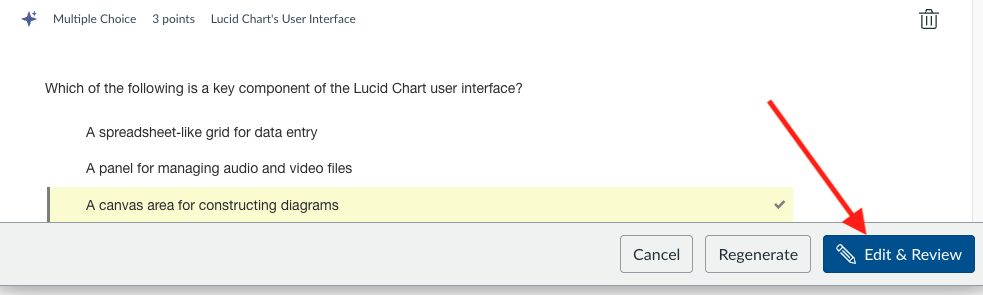
    The Generated Questions Preview screen, where instructors can view AI-generated questions and proceed by selecting the Edit & Review button.
  5. You can edit/rephrase the question or the multiple choice answers for each question individually and then select Save & Next.
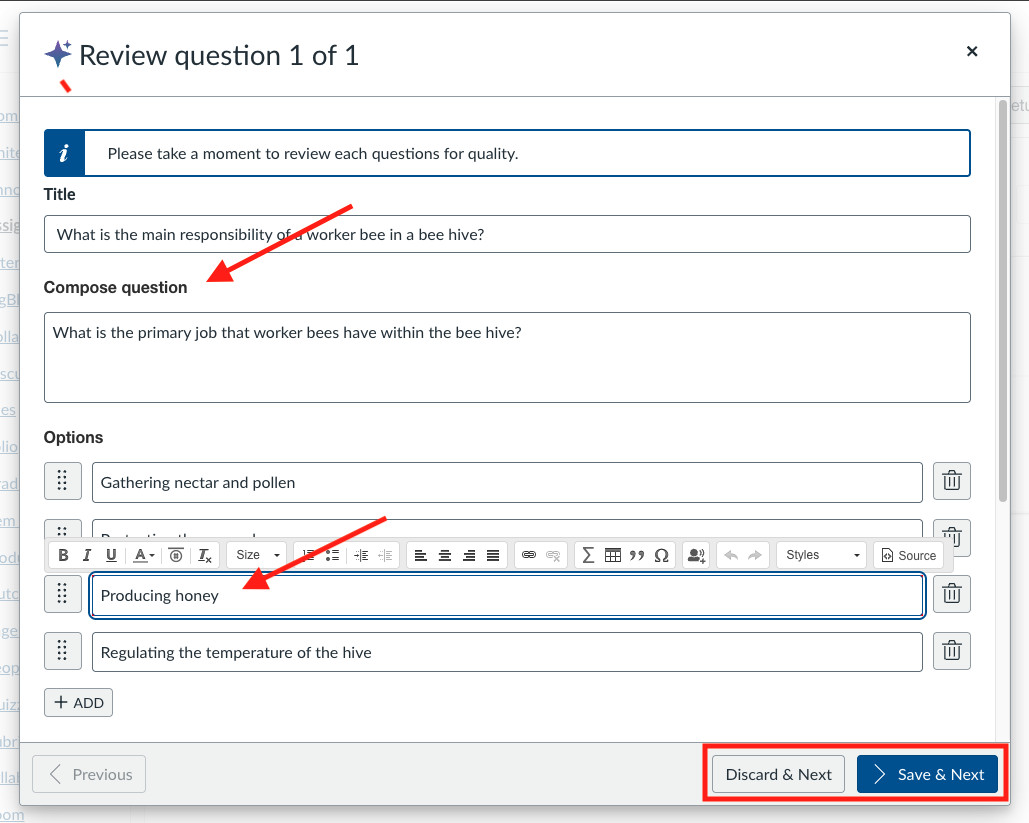
    The Review Question interface in Canvas, highlighting editable question text, answer options, and the navigation buttons for moving to the next question.
  6. Select the Add to Quiz button after going through the Generated Questions Preview once.
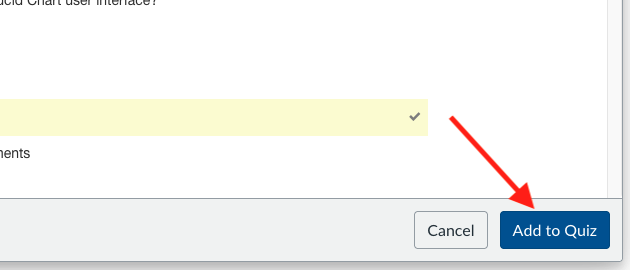
    The final Generated Questions Preview screen, where instructors can confirm the AI-generated questions and select the Add to Quiz button to include them in the quiz.
  7. The Quiz is now complete and you can find it in the Assignments tab.

Generating Questions Using the Text Option

  1. Select the Text box and paste the text that you want the quiz to cover.
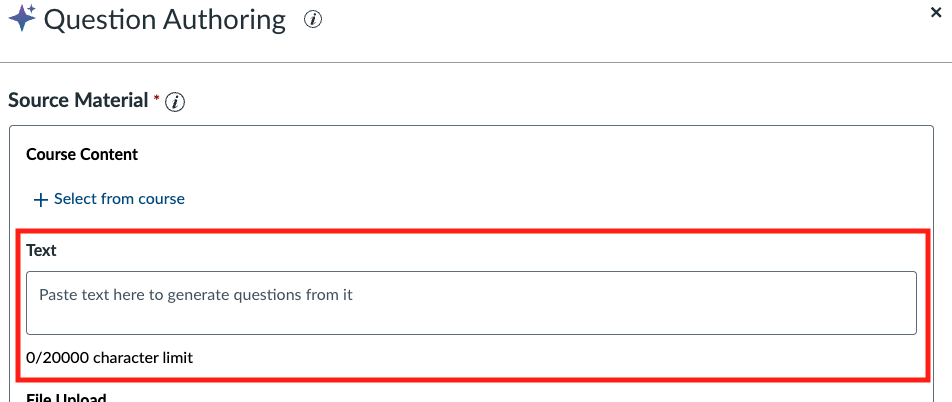
    The Source Material panel in the Question Authoring tool, emphasizing the text input field used to generate quiz questions from pasted content.
  2. After pasting the text select Generate Questions.
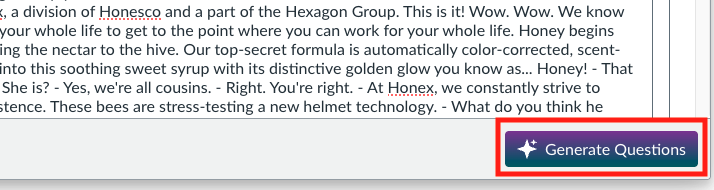
    The Question Authoring interface with pasted text ready for processing, highlighting the Generate Questions button used to create quiz questions from the provided text.
  3. Go through the Generated Questions Preview and then select Edit & Review.
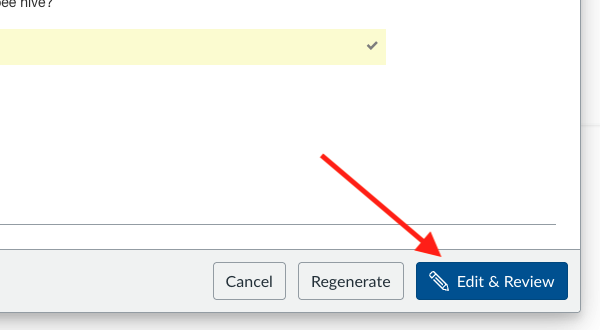
    The Generated Question Preview screen displaying an AI-generated question with the right answer and highlighting the Edit & Review button used to proceed with refining the question.
  4. You can edit/rephrase the question or the multiple choice answers for each question individually and then select Save & Next.
    The Review Question interface for refining a bee-related multiple-choice question, with emphasis on editable fields and the navigation buttons for moving to the next step.
  5. Select the Add to Quiz button after going through the Generated Questions Preview once.
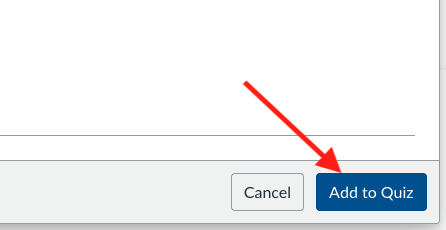
    The Generated Question Preview screen confirming the finalized question and answer, with the Add to Quiz button highlighted for adding it to the quiz.
  6. The Quiz is now complete and you can find it in the Quizzes and Assignments tabs.

Generating Questions Using a File

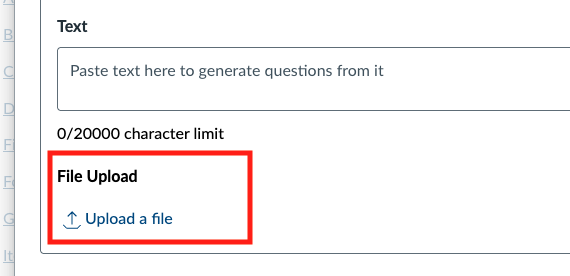
  1. Select the Upload a file button.
    The Source Material panel in the Question Authoring tool, emphasizing the File Upload option used to generate quiz questions from uploaded documents.
  2. Upload all of the files that the you want to the quiz to cover and select Generate Questions.
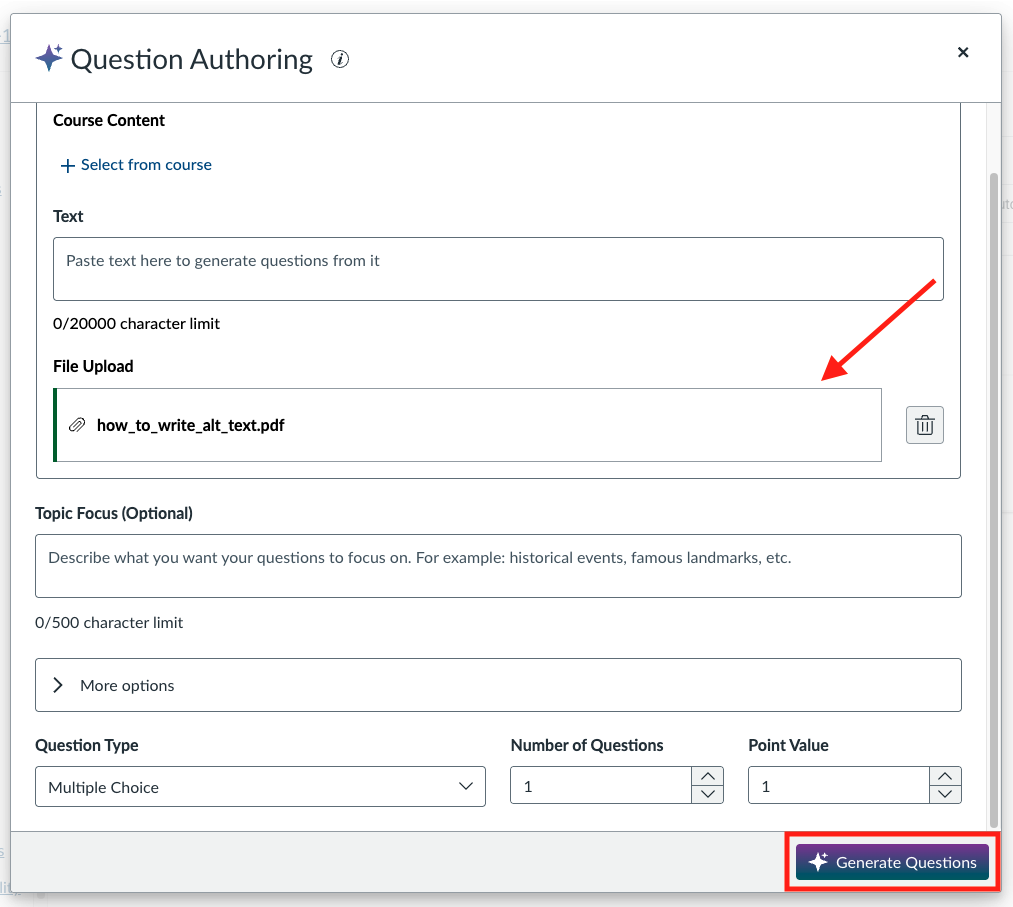
    The Question Authoring interface with an uploaded PDF file selected as the source material, highlighting the Generate Questions button used to create quiz items from the uploaded document.
  3. Go through the Generated Questions Preview and then select Edit & Review.
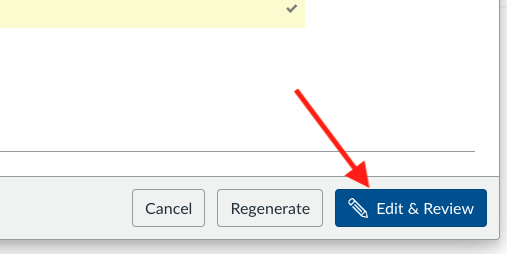
    The Generated Question Preview screen for question, highlighting the correct answer and the Edit & Review button used to continue refining the question.
  4. You can edit/rephrase the question or the multiple choice answers for each question individually and then select Save & Next.
    The Review Question interface with editable question and answer fields, highlighting where instructors can refine content and proceed using the Save & Next or Discard & Next buttons.
  5. Select the Add to Quiz button after going through the Generated Questions Preview once
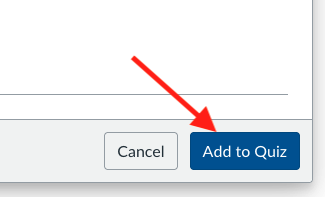
    The final Generated Question Preview for question, highlighting the Add to Quiz button used to include the generated question in the quiz.
  6. The Quiz is now complete and you can find it in the Quizzes and Assignments tabs.
Updated on January 15, 2026
Was this article helpful?

Related Articles

Need Support?
Can’t find the answer you’re looking for? Don’t worry we’re here to help!
Submit a Help Request

Leave a Comment

This site uses Akismet to reduce spam. Learn how your comment data is processed.

css.php