Instructors can create a Canvas assignment, which requires the student to submit ( or create) a media (audio or video) file. Students will have the option of either submitting an audio or video file of their own creation or recording an audio or video file using their computer’s webcam and microphone inside Canvas itself.
Note:
- Canvas will not accept media uploads larger than 500 MB as assignment submissions.
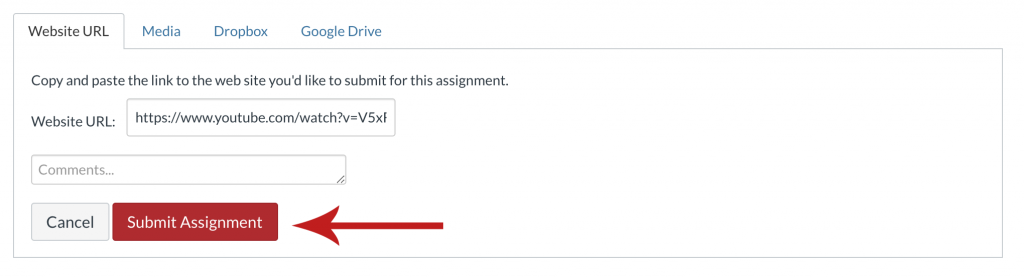
Alternatively, videos or other pieces of media that are bigger than 500mb can be hosted on an external site like Youtube and be submitted through a shareable URL link.
Setting Up An Assignment for Media Submissions
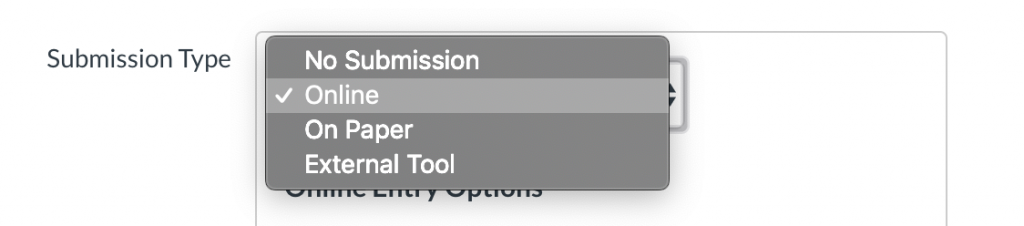
When Setting up an assignment for media based submissions in the assignment editor, go down to the Submission Type drop-down menu, select “Online” submissions for the submission type.
Next, select the online entry options you want to allow for the assignment. In the case of media based assignments, you will need “Media Recordings” checked if you want students to be able to record or upload their own media less than 500 MB in size and “Website URL” check if you want to give students the ability to submit media larger than Canvas’s 500 MB limit.
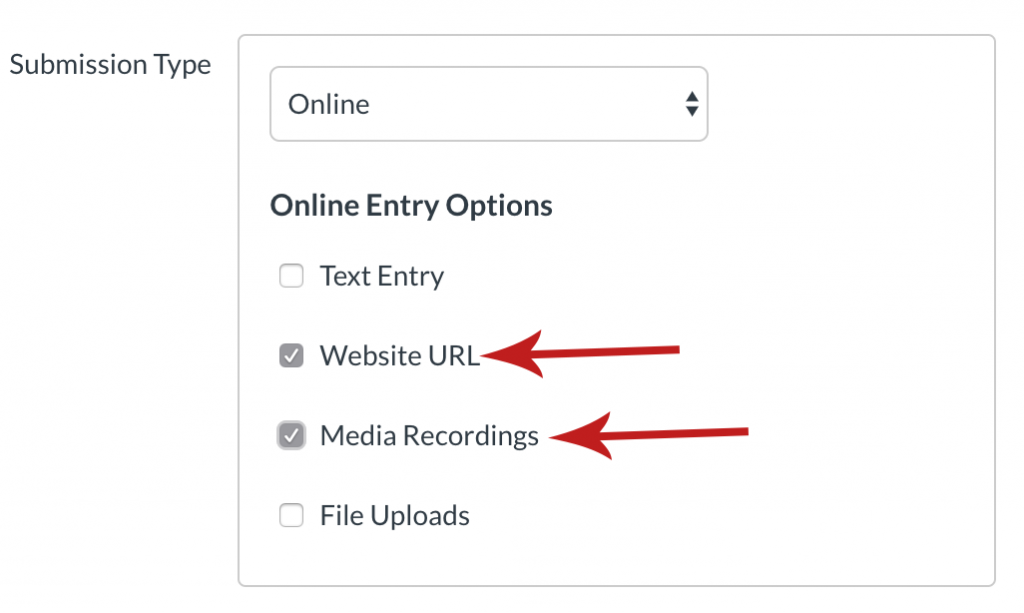
Illustration of selecting “Website URL” and “Media Recording” under the “Online” Submission type
How Students Record or Submit Their Assignments
Once the assignment is ready for student submissions and published in the class, students will be able to access the options to record and upload their media by opening the assignment details and clicking on the “Submit Assignment” button just like any other online assignment on Canvas.

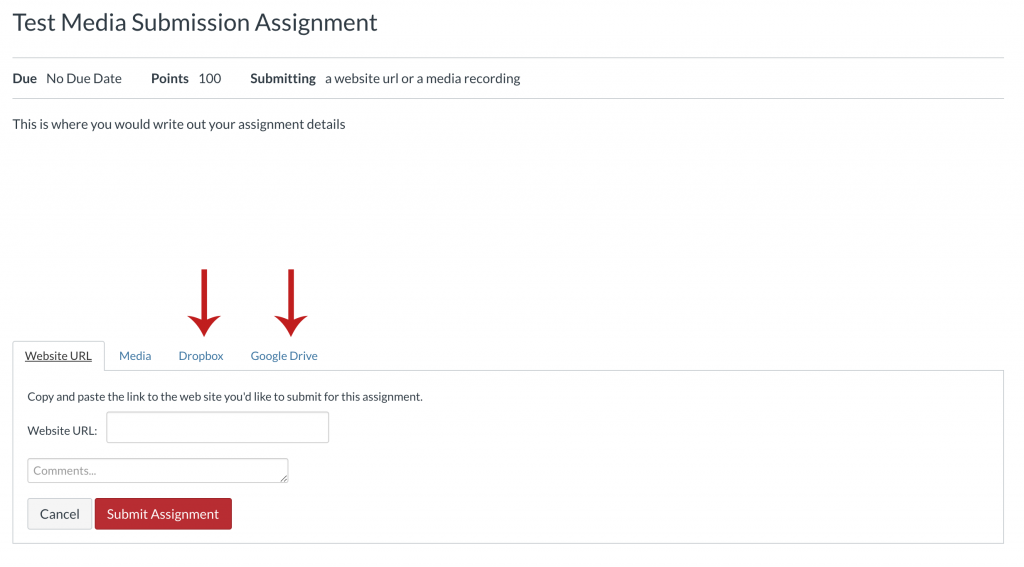
This will take the student to the submission page itself, allowing students to either select Website URL or Media from the submission type tabs list at the bottom of the window, depending on what submission types their instructor chose to be available to them for the assignment.
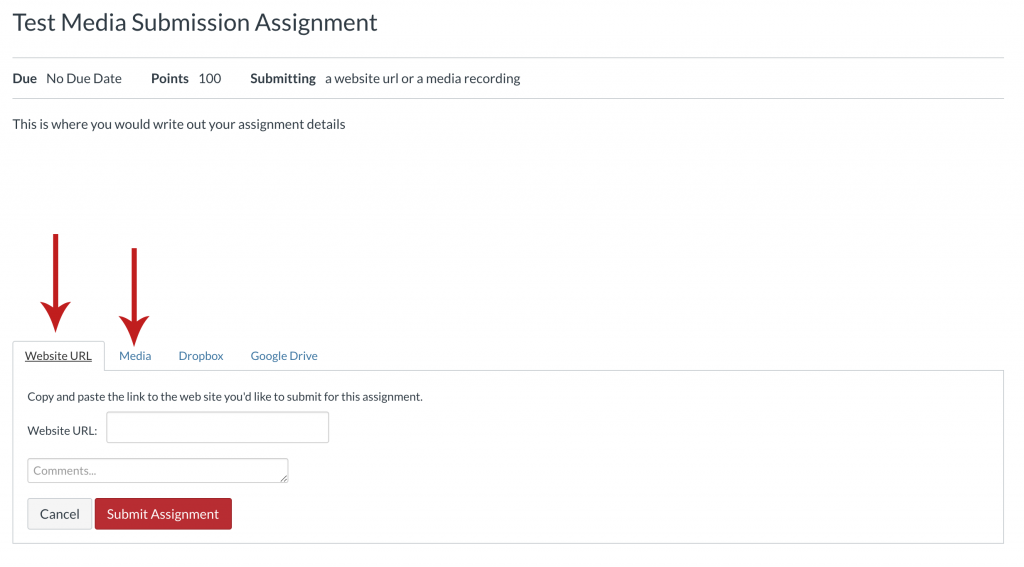
Submitting a Website URL
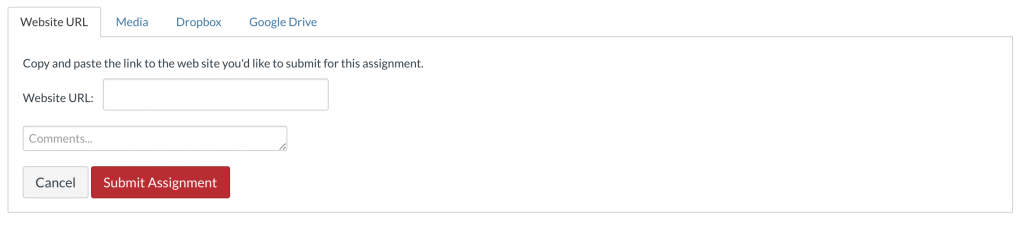
To submit a website URL to the assignment, students will click on the Website URL tab and copy and paste their sharable url into the “Website URL” box. Additional comments or details about the URL can be provided in the “Comments” box below before submitting the assignment.
Recording or Uploading Pre-Made Media
To submit or make a video or audio recording, students will go to the Media tab in the submission types tab list and then click on the “Record/Upload Media” button. This will open up the Record/Upload Media Comment window.
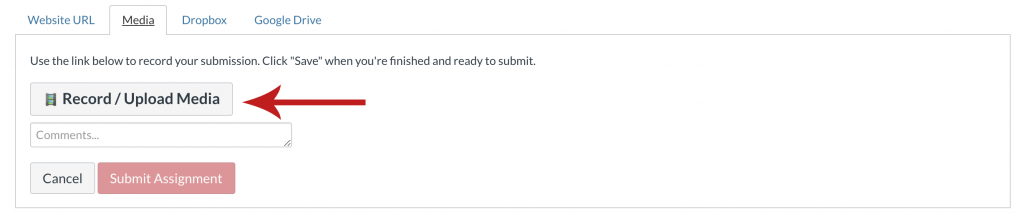
When a student opens up the Record/Upload Media Comment window, they will be presented with two tabs, Record Media and Upload Media. by default, Record Media will be the first tab open.
Recording Media
To record media, simply allow Canvas to access microphone and webcam settings if not already enabled and choose which microphone and webcam you wish to use if multiple feeds are available for your computer. Once the preferred inputs are selected, you can press the “Start Recording” button to begin recording your submission
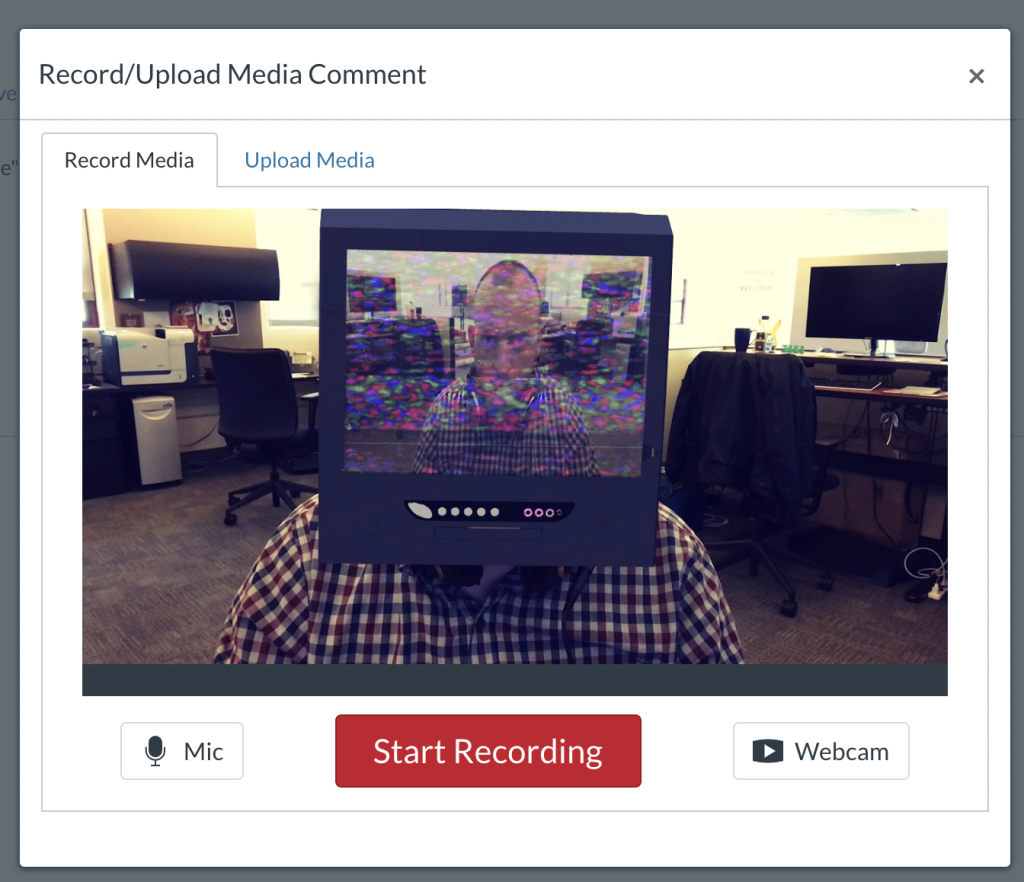
Alternatively, if you need to submit just an audio recording, you can turn off you webcam feed and start a strictly audio recording with the “Start Recording” button.

Uploading Pre-Recorded Media
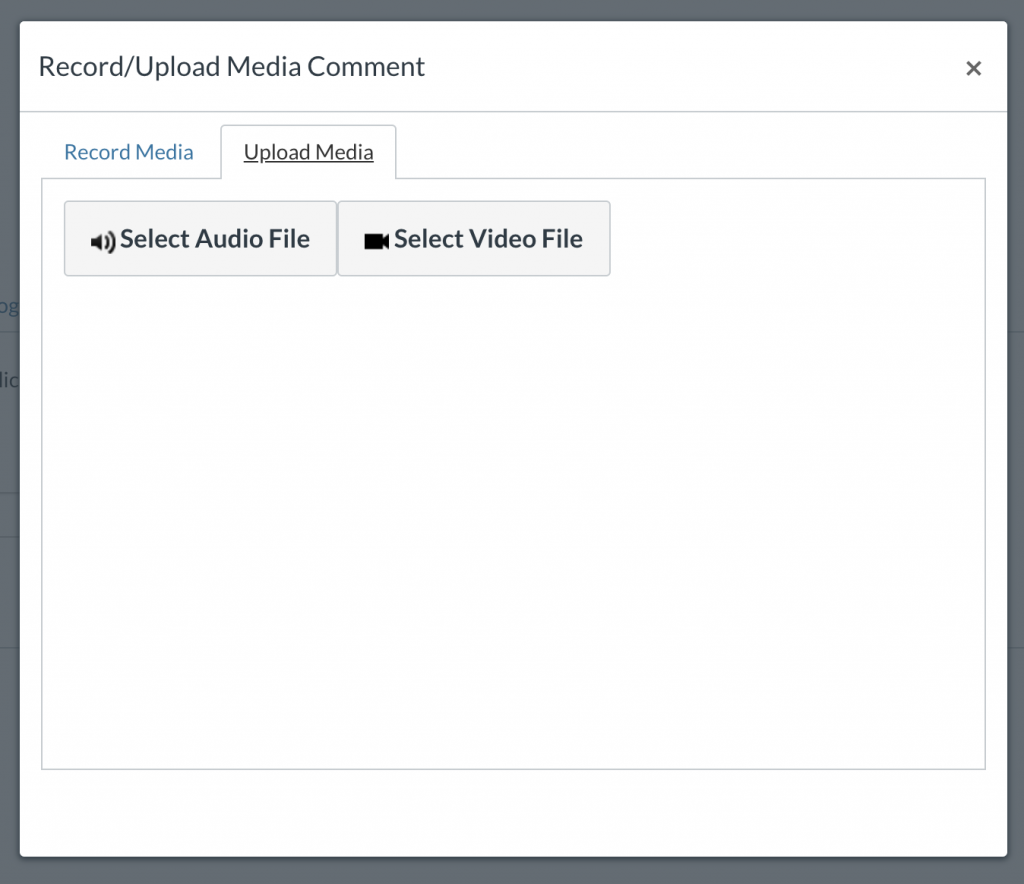
To upload pre-recorded media that is stored on your computer, click on the Upload Media tab. Depending on your submission type, choose either the “Select Audio File” or “Select Video File” button to upload the submission.
Uploading Media Alternatives
By default, CI Learn also has the ability for students to upload their media submissions by way of a Dropbox or Google Drive Link if URL submissions are activated for assignments, and if the student has a account for these services linked to their Canvas account.
Note:
- The 500 MB limit will not apply to files submitted through Dropbox or Google Drive since the submissions will only be links to the files, not the files themselves.
Submitting The Assignment
Once the media has been recorded or uploaded successfully, students can click on the “Submit Assignment” button at the bottom of the submission type tabs list to submit their assignment.