
This assignment requires you to create a VoiceThread by uploading at least one slide and recording comments on it.
If you’ve been asked to create a presentation in VoiceThread, you first need to create your slides. Keep in mind, you can continue to add and delete slides once you’ve created your initial VoiceThread. Below are suggestions for slide creation tools and how to prepare any slides you create for uploading into VoiceThread.
Suggested Presentation Tools
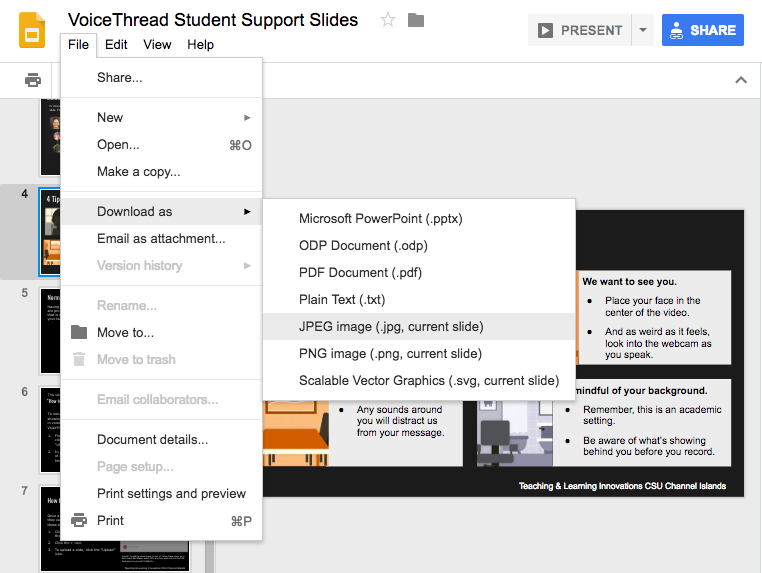
- Google Slides accessed via myCI (you will download each individual slide as a JPEG image format when you are done)
- Click on File
- Click on ‘Download as’
- Click on JPEG Image
- Powerpoint (you will share/export the file to an image file format when you are done)
- Keynote (you will share/export the file to an image file format when you are done)
- Your image file must be formatted in Widescreen format (also referred to as 16:9 aspect ratio).
Submitting Your Assignment on a Computer
- Navigate to your course.
- Click on the VoiceThread assignment link set up by your instructor.
- Click the yellow Start Assignment button on the right.

- To start building a new VoiceThread, click on the course from which you would like to upload or import media, and wait for that media to process. Click Continue at the bottom of the screen to go to the commenting options.

- If you have already created the VoiceThread you want to use, scroll to the bottom of the page and click “Use an existing VoiceThread instead of creating a new one.” This will take you to a page where you can see all of your VoiceThreads, and you can click on one to use it. Click “Continue” at the bottom of the screen to go to the editing area in case you need to add more slides, and then click “Continue” again to go to the commenting options.

- If you have already created the VoiceThread you want to use, scroll to the bottom of the page and click “Use an existing VoiceThread instead of creating a new one.” This will take you to a page where you can see all of your VoiceThreads, and you can click on one to use it. Click “Continue” at the bottom of the screen to go to the editing area in case you need to add more slides, and then click “Continue” again to go to the commenting options.
- Once you have met the requirements for the assignment, you will see blue checkmarks next to each item in your to-do list. Click the yellow Submit button on the right to complete your assignment.

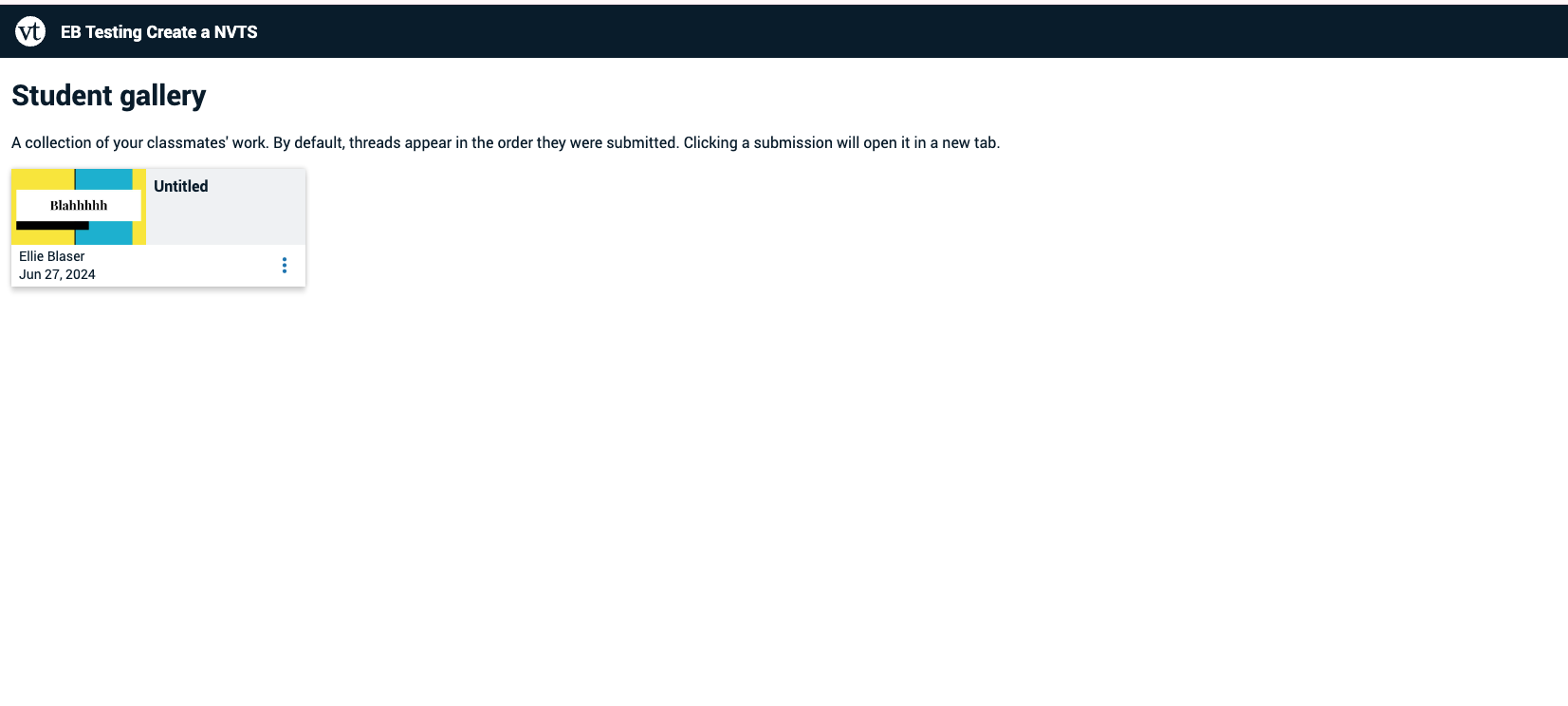
- If your instructor would like you to view and comment on your classmates’ submissions, click on the Student Gallery button beneath the Submit button. This will open a new browser tab and take you to a page where you can view all of your classmates’ work for this assignment. If you do not see this link, then the option has not been enabled by your instructor.
Submitting on Mobile
Visit VoiceThread’s Guide for Submitting on Mobile

Can a youtube video be embedded?
Hi Marcos! Thanks for reaching out. While YouTube videos can’t be embedded in the traditional sense, they can be added to a slide as a link. Take a look at the VoiceThread support article about importing media from another source. Not all YouTube videos will work though, depending on the videos licensing and visibility settings.