
Properly formatted hyperlinks help students scan for important information and identify outside resources. When a screen reader identifies a hyperlink, it states ‘link’ so it is best to avoid using “link” or “link to” in your hyperlinked text.
Screen readers can also make a “Links list” that allows users to listen to the list of available links on a page and navigate directly to the desired link rather than being forced to listen to the entire page, line-by-line. However, a “Links List” is only helpful when link text is descriptive. For example, news sites often only display a teaser for articles followed by a hyperlink to “Read More”. This is doubly problematic for screen reader users. First, “Read More” provides no context to aid in understanding the link. Second, this problem magnifies when there are multiple “Read More” links on a page, making the “Links List” a long list of “Read Mores”.
Formatting Hyperlinks
Rules to follow:
- Identify the purpose/function of the hyperlink as part of the link name
- Be as descriptive as possible without being overly long. Screen reader users must listen to the full link before moving to the next one on the list.
- Integrate the link into your sentence– in doing so, sighted students will see the link, and screen readers will identify it.
- Ideally, a hyperlink should still be useful on its own without being dependent on nearby text.
- For example, Read the latest whitepaper on cognition. If only “latest whitepaper” is hyperlinked you have no context on the subject and instead should hyperlink “latest whitepaper on cognition” or even the entire sentence since it’s fairly short.
Another important consideration is whether or not a hyperlink should open in a new window. If you are linking to a resource outside of the course, the link should open in a new window. All in-course hyperlinks to other course pages, activities, or assignments should remain in the same window.
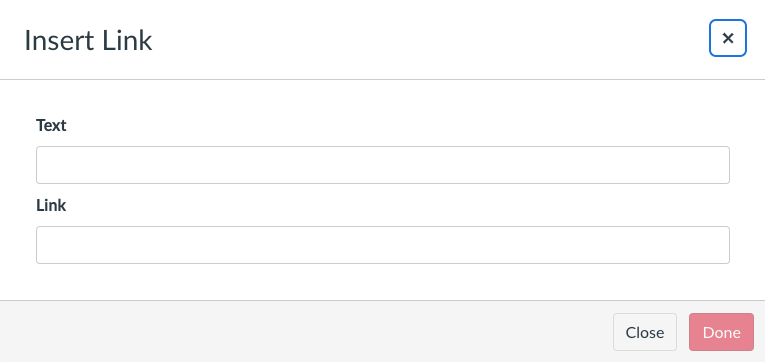
Within Canvas, External links open in a new window/tab by default, and Course links open in the same window. If you’re adding an external link, click on the link icon to open the “Insert Link” dialogue box.
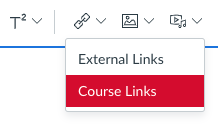
If you are adding a course link, click the dropdown arrow to the left of the icon and select “Course Links”.
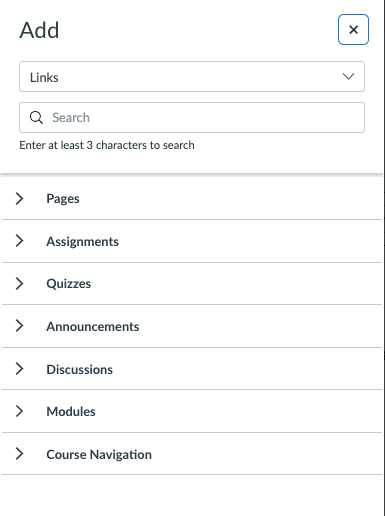
Course and group links display from a sidebar on the right and allow you to link to a page, assignment, quiz, announcement, discussion, module, or course navigation link. Click the “x” in the top right of the Add menu to close it.
Hyperlinking Examples
In an effort to demonstrate how to improve the formatting of hyperlinks, consider the following four examples. There are two options provided for each example. This first sentence represents a less accessible option followed by a more accessible alternative. After reading each pair consider the following questions:
- Do you know the purpose or subject of the hyperlink in the example’s first option?
- Do you understand the context of why a hyperlink is provided in each option?
- Does the second option provide more information than the first in each example?
Hyperlinking Example #1
After reading the two sentences below: Do you know the topic or subject of each? Consider if they were separated from surrounding content which sentence provides more information.
- Click here to read the article.
- Read about Good Fonts for Dyslexia.
Hyperlinking Example #2
In the first sentence below do you think “more info” points to the policy or something else about the policy? Notice that the second sentence can both stand on its own and easily be integrated within a paragraph.
- Read our Academic Integrity Policy – more info.
- Be sure to read our Academic Integrity Policy.
HyperlinkingExample #3
Consider if you were using a screenreader and pulled the four links below into a “Links list”, how would you be able to distinguish between the two links in the first option? Does the second option provide clearer guidance about the order that these articles should be read?
- Read the following articles, Article 1 (Read More) and Article Two (Read More).
- Read the following articles, Article 1: The un-essay and Article 2: Beyond the un-essay.
Hyperlinking Example #4
As we learned earlier, a screen reader user has to listen to the whole link before moving to the next one on the list. For this final pair, the links are identical but consider the difference in the amount of time required to “read” each version.
- Learn more about color and accessibility here: http://accessibility.psu.edu/legibility/contrast/ and here: https://accessibility.psu.edu/color/colorcoding/.
- Learn more about color contrast and color reliance for improved accessibility.
