
The following page was created to highlight the process for adding paragraph and list styles to items such as Announcements, Pages, Assignments, Quizzes, and Discussion boards/posts in Canvas.
Adding Paragraph Styles
The title of each Canvas Content item is the Heading Level 1 (H1), so the styles within the ‘Paragraph Styles’ menu begins at ‘Header 2’. To change the text style, select the desired text and choose the heading style from the ‘Paragraph Styles’ dropdown menu.
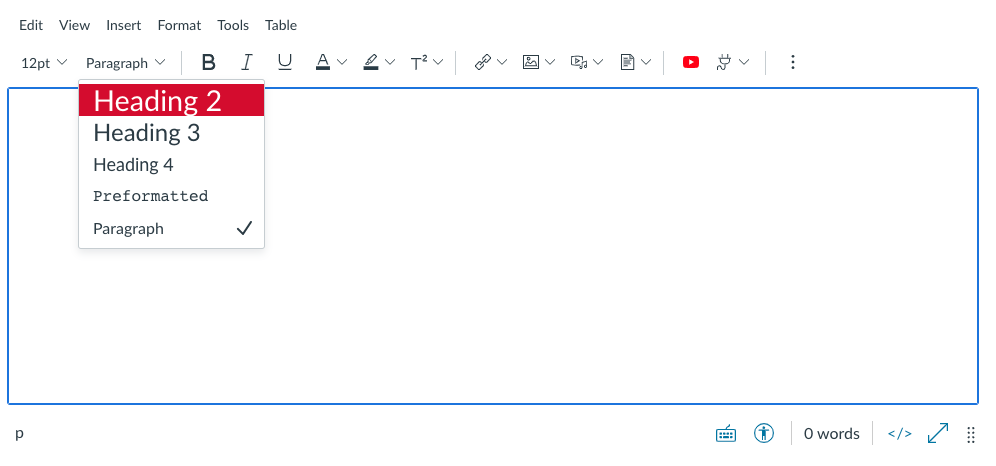
You can also find the paragraph styles within the Format Menu list above the RCE toolbar in Canvas (i.e. Format > Formats > Headings)
Heading Tips
- Keep headings concise: Think of headings as the main ideas and subheadings as the supporting details—short and simplified.
- Use headings to enhance, not replace: Headings (and subheadings) should supplement the substance of your content, not take the place of your topic sentences.
- Don’t overdo it: Not all paragraphs need a subheading. Only use headings if you have more than one point per heading level.
Adding Lists
Lists should never be created manually. Always use the built-in list styles available in the RCE when creating lists.
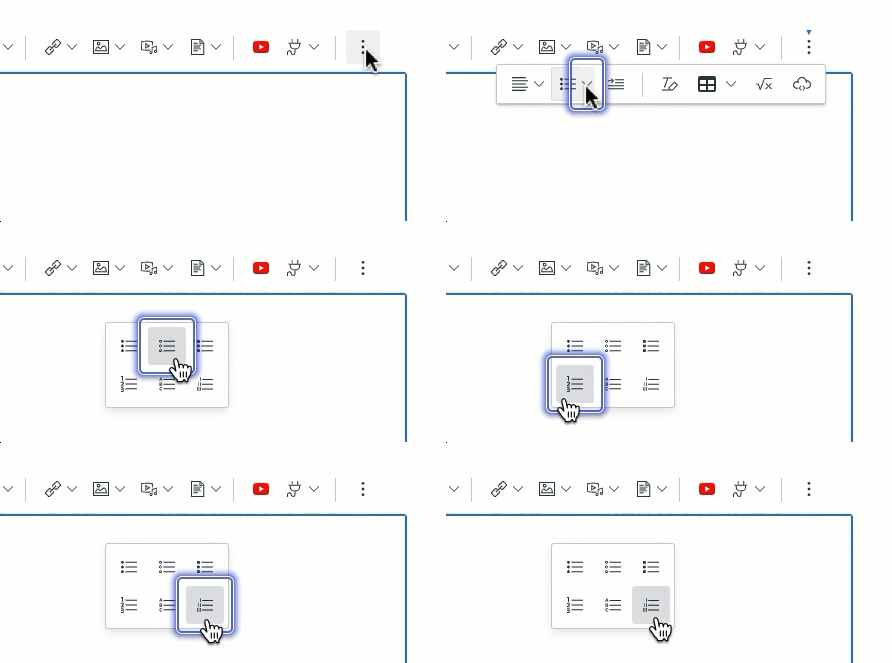
To add a list to a group of text, select the desired text, and select your preferred list style, ordered and unordered. There are six list options on the RCE Toolbar: solid round bullets, hollow round bullets, solid square bullets, cardinal numbers, alphabetic, and roman numerals.
Use ordered list styles when items have a specific order (e.g. steps in a procedure or recipe) and unordered list styles when items do not follow a hierarchy (e.g. list of book titles or shopping list).
To view the List styles, you may have to click the stacked dots (“More”) icon at the end of the RCE toolbar and then the second icon from the left is the Ordered and Unordered list option.
Keep in mind that screen readers can detect ordered and unordered lists but they do not distinguish levels of indentation.
Some of the information that the screen reader announces about an ordered or unordered list include:
- The size of the list.
- The position of each item in the list.
- When the reader has left one list and has entered another.
While it depends on the individual screen reader, the above points are the most common.
