
It is recommended that when using Zoom, you take the following steps to ensure your virtual event or meeting is secure.
- Password protect all of your meetings
- Create Waiting Rooms for attendees
- Require host to be present before meeting starts
- Lock a meeting once it starts
- Screen share watermarks – puts part of your email on the shared screen
- Enable/disable a participant or all participants to record
- Temporary pause screen-sharing when a new window is opened
- Only allow individuals with a given e-mail domain to join
- Secure your meetings with end-to-end encryption
What is a zoom bomb?
Zoom-bombing is the term for when individuals “gate-crash” Zoom meetings. These uninvited guests share their screens to bombard real attendees with disturbing or distracting content.
How to prevent Zoom bombing:
- Never use your personal meeting ID. Each Zoom user has a personal meeting ID—think of it as your Zoom phone number.
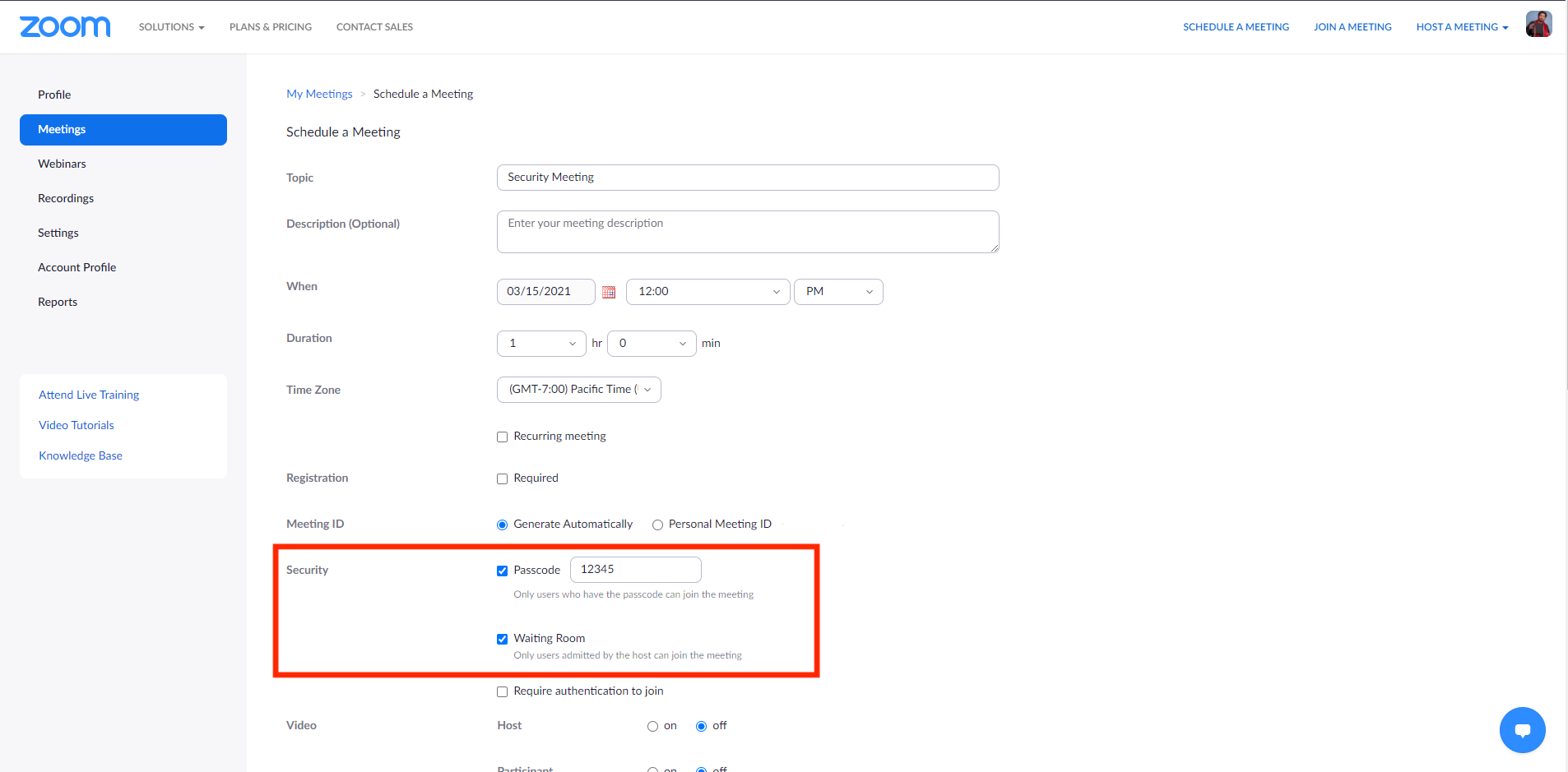
- Always use a meeting password.
- Use Zoom’s waiting room feature.
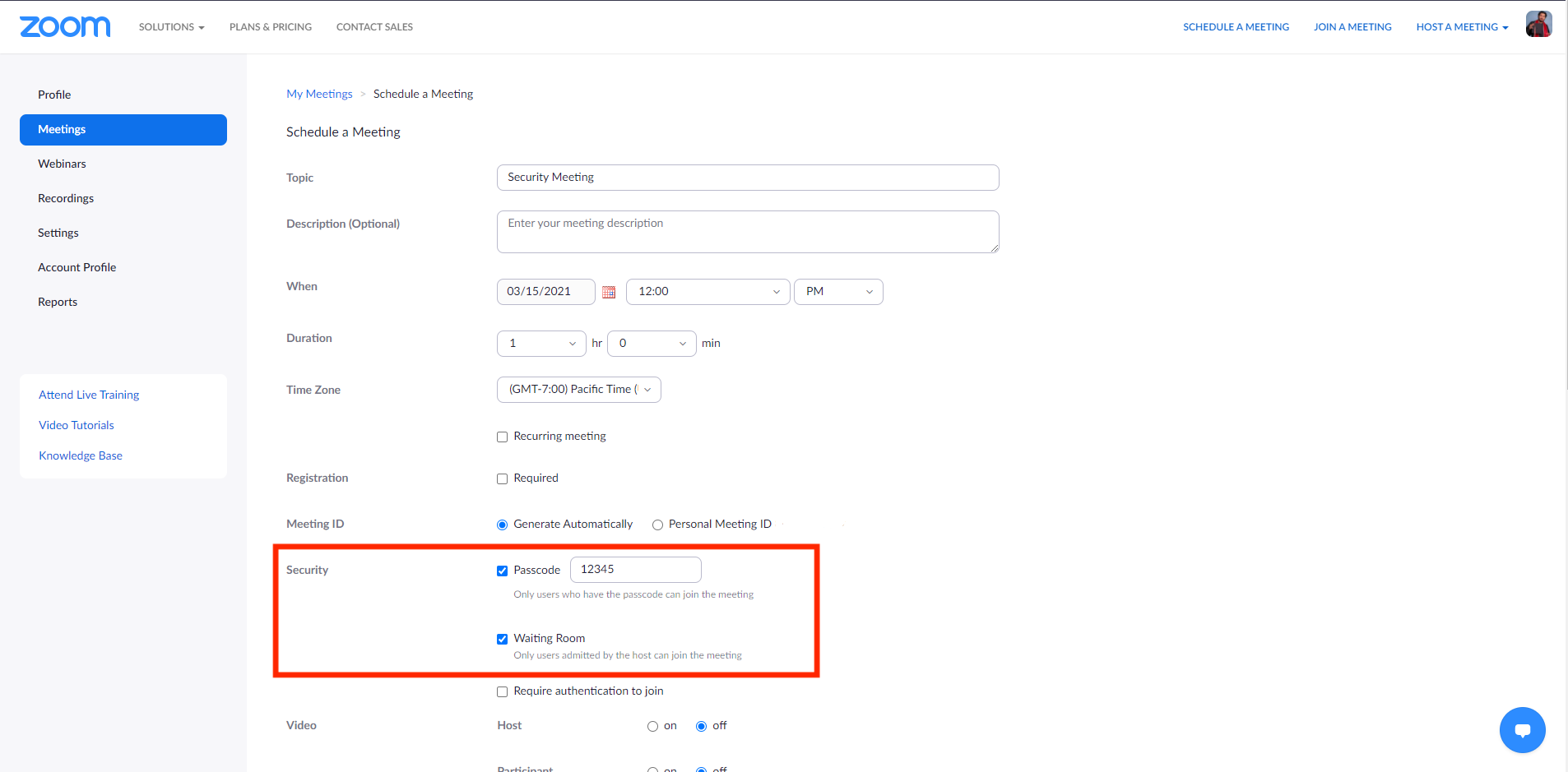
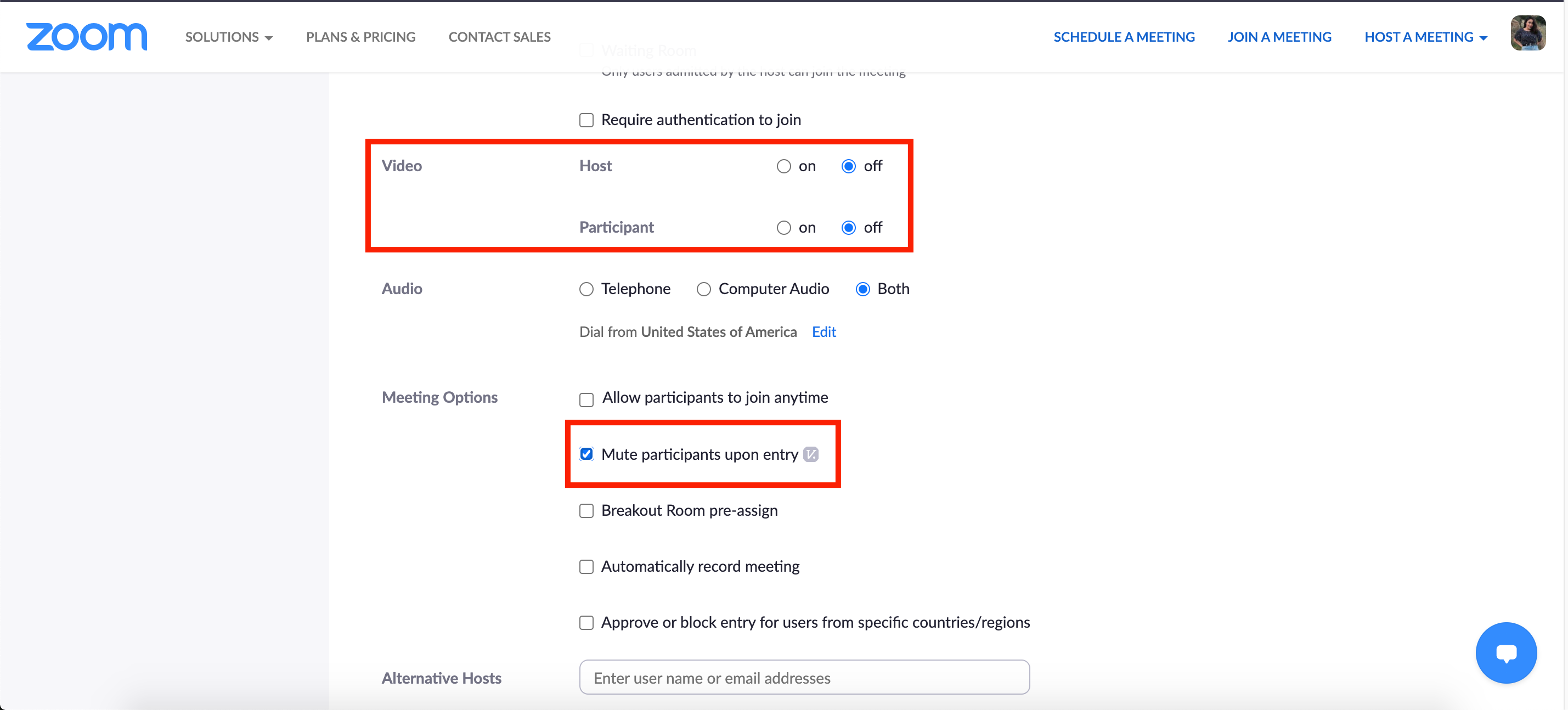
4. Mute audio and disable video for meeting attendees.
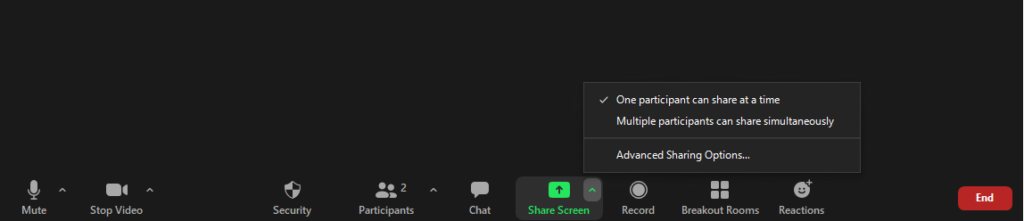
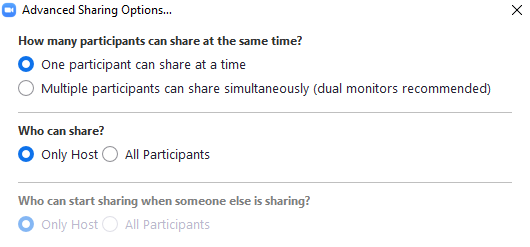
5. Turn off screen sharing for everyone but the meeting host/co-host.
How do I safeguard zoom?
Protecting your meetings
- Secure a meeting with encryption.
- Create Waiting Rooms for attendees.
- Require host to be present before meeting starts.
- Expel a participant or all participants.
- Lock a meeting.
- Screen share watermarks.
- Enable/disable a participant or all participants to record.
Securing your Zoom meetings
- Add a password to all meetings!
- Use waiting rooms.
4. Do not share your meeting ID.
5. Disable participant screen sharing.
6. Lock meetings when everyone has joined.

7. Do not post pictures of your Zoom meetings.
8. Do not post public links to your meetings.
Do not make meetings or classrooms public. In Zoom, there are two options to make a meeting private: require a meeting password or use the waiting room feature and control the admittance of guests
Do not share Zoom conference links on public social media. Provide the link directly to specific people
Manage screen-sharing options. In Zoom, change screen sharing to ‘Host Only.’
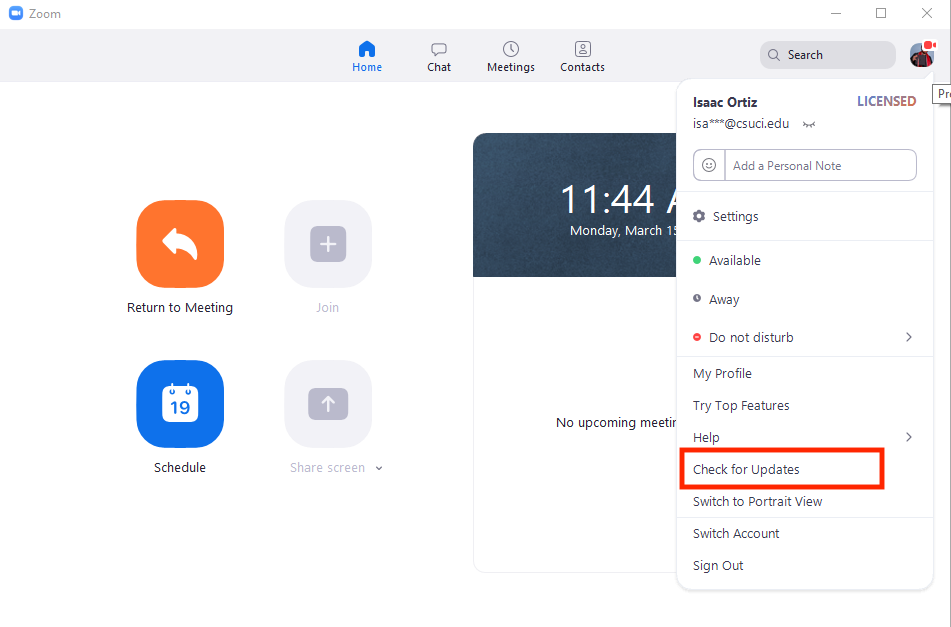
Ensure users are regularly checking to see that their Zoom client is up-to-date with the current version.
