
Once you’ve recorded a Zoom meeting to the cloud, you can link to it in your Canvas course in a couple of different ways. You will receive an email notification once your cloud recording has completed processing within Zoom. Once the recording has processed, you’ll need to get shareable link for the recording by following the steps below.
Copying the Shareable Link for a Zoom Cloud Recording
- Login to myCI
- Click the Zoom button
- Within the Zoom portal, click the Recordings link on the left sidebar
- Click the meeting whose recording you want to add to your course
- Click the Copy shareable link button
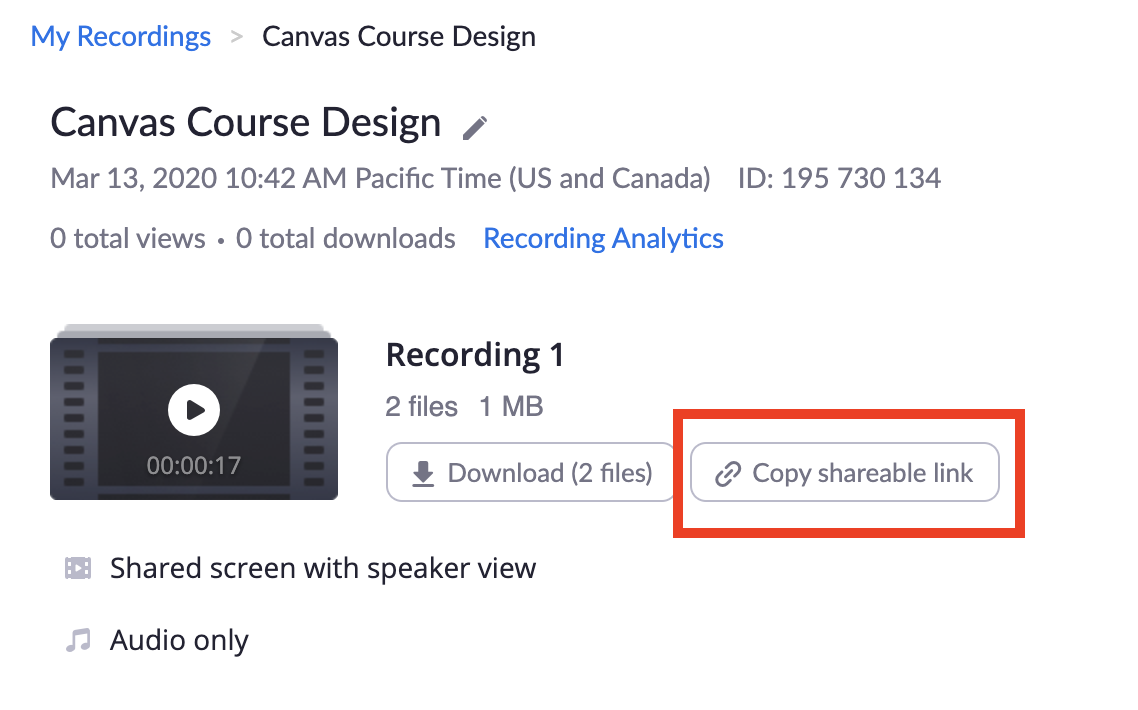
After copying the shareable link, you can add it to your Canvas course in one of the following ways:
Adding a Cloud Recording to a Module
- Navigate to the Canvas course you want to add the recording to
- Click the Modules link in your course
- Scroll to the module you want to add the recording to. This could be a module for the week that the recorded meeting took place or a separate module designated for Zoom recordings. This part is up to you.
- Click the + button to the right of the module’s title
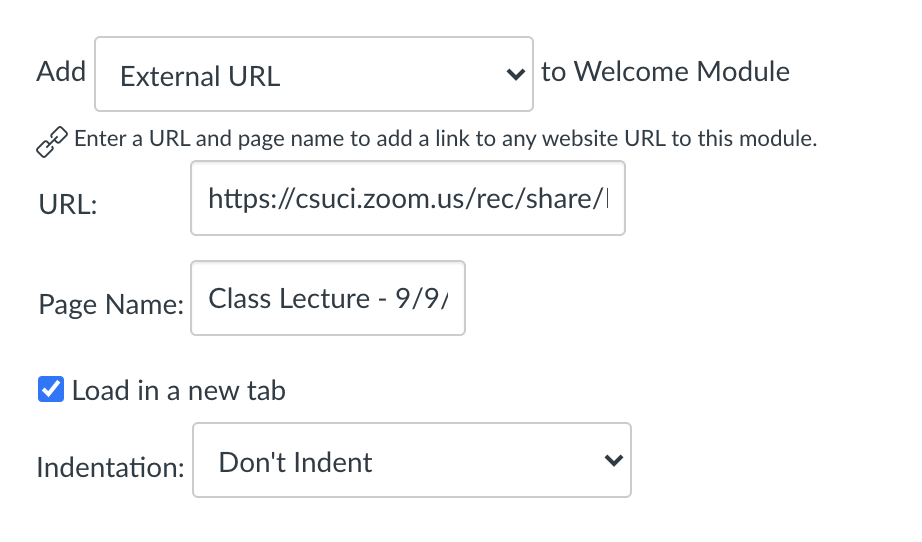
- Select the External URL option
- Paste the copied shareable link into the URL: field
- Enter a name for the link that will appear in the module (e.g. Week 2 Lecture)
- Check the box next to the Load in a new tab option
- Click the Add Item button
Posting Zoom Recordings to a Canvas Page
Another way to post your Zoom recordings is to use a single Canvas page that you update with links to new recordings as you make them. This creates a single repository of recordings for your students that grows as you make more recordings.
- Navigate to the Canvas course you want to add the recording to
- Click the Pages link in your course
- Click the + Page button in the upper right corner
- If you’re using a front page as a custom homepage in your course, you’ll need to click the View All Pages button first
- Give the new page a name (e.g.Class Zoom Recordings)
- Type some text on the page that you can link to the Zoom recording. This soon to be linked text should be something descriptive of recording being linked to (e.g. Week 2 Class Lecture)
- Select the text that you just typed and press Ctrl+K (Cmd+K on Mac) to bring up the link window
- Paste the copied shareable link into the URL: field
- Set the Target option to New Window
- Click the OK button

- Click Save and Publish
- Add the page to a module or other area of the course where you want students to access it from. When new recordings are made, you can simply edit the same page and repeat steps 5-10 to update it with the new recordings
Uploading and Embedding Your Recording
Another method of sharing your Zoom recording with your class is to download the recording from Zoom and then upload and embed it using ShareStream. Refer to the Download Your Recording section of our Recording Accessible Instructional Videos with Zoom + Auto Transcription article for more info on this process.
