1. Home
  2. Knowledge Base
  3. Digital Tools for Teaching
  4. Office 365
  5. How to Forward your @csuci.edu Email to Another Email Address

How to Forward your @csuci.edu Email to Another Email Address

Overview

Some people wish to have their @csuci.edu emails forwarded to a personal email address (e.g., gmail).

Steps for Forwarding your @csuci.edu Email to Another Email Address

  • Log in to myci.csuci.edu
  • Click on Webmail.
  • Click the gear icon near your profile image, then scroll down and click View all Outlook settings.
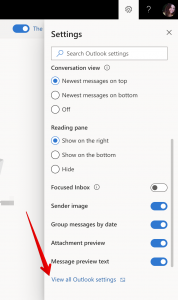
"View all Outlook settings" is the bottom option in the list of options in the Outlook settings menu.
Screenshot of Outlook settings option. Click View all Outlook settings.
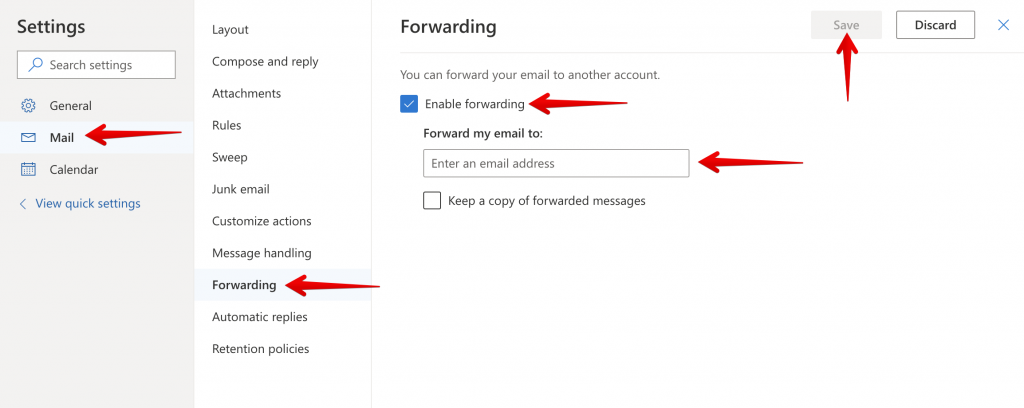
  • Click Mail and then click Forwarding.
  • Check the box to Enable forwarding and then enter your preferred email address into the text field.
  • Click Save.
This text shows all Outlook settings. Red arrows point to the buttons to click to enable mail forwarding settings. Mail-->Forwarding-->Enable Forwarding-->Save.
All Outlook settings. Click Mail, then Forwarding, then Enable forwarding, enter an email address, and click Save.
Updated on May 4, 2026
Was this article helpful?

Related Articles

Need Support?
Can’t find the answer you’re looking for? Don’t worry we’re here to help!
Submit a Help Request

Leave a Comment

This site uses Akismet to reduce spam. Learn how your comment data is processed.

css.php