
Content adapted from PlayPosit’s Knowledge Base.
This is a step-by-step guide to building a text-based Bulb in PlayPosit. A Bulb is an interactive experience created in PlayPosit. To see an example of an interactive digital text-based Bulb, check out this sample Bulb: Understanding the Ozone Layer.
PlayPosit’s core service is creating interactive videos. However, it is possible to use the video-based platform to create interactive digital text-based Bulb. To do this, you must:
- Turn your document into an embeddable site. This is most easily done with Google Drive/CI Docs. If your file is a already created as a .doc, you can turn the .doc into a Google Doc.
- Create a PlayPosit Bulb.
- Insert a short, blank video as the base of the Bulb.
- Insert the document (now an embeddable site) into the Bulb as a Web Embed interaction.
How to Embed a Google Doc
If your document is a .doc, the easiest way to turn it into an embeddable site is by uploading it as a Google Doc. Note: A user must own the Google Doc they wish to embed
- Open the Google Doc you wish to embed.
- Click File, then click Share, then click Publish to the web.
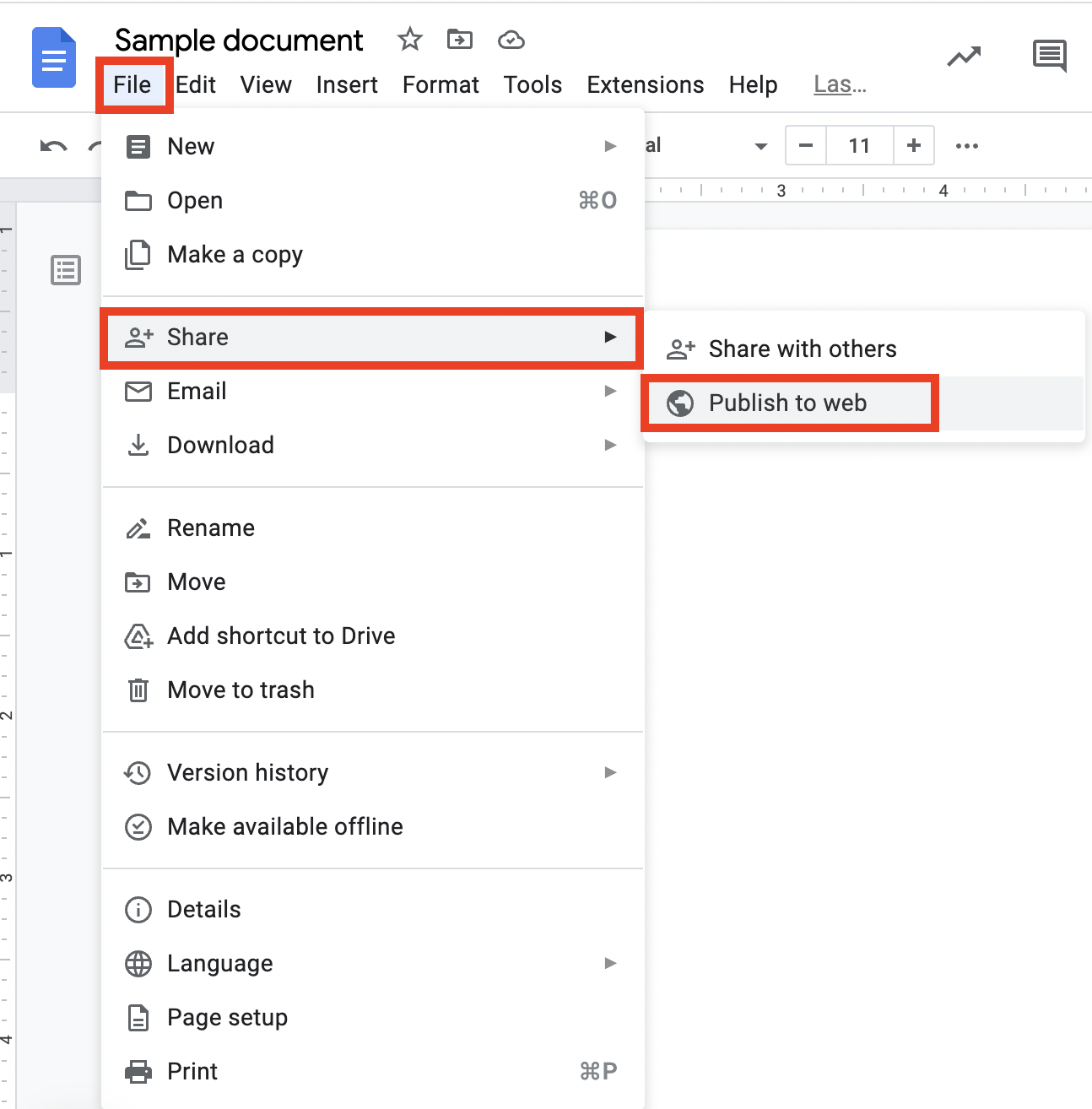
- Select Embed then click Publish.

- Copy the source URL in the window. Only copy the https:// portion of the URL inside the quotation marks, like the sample below.
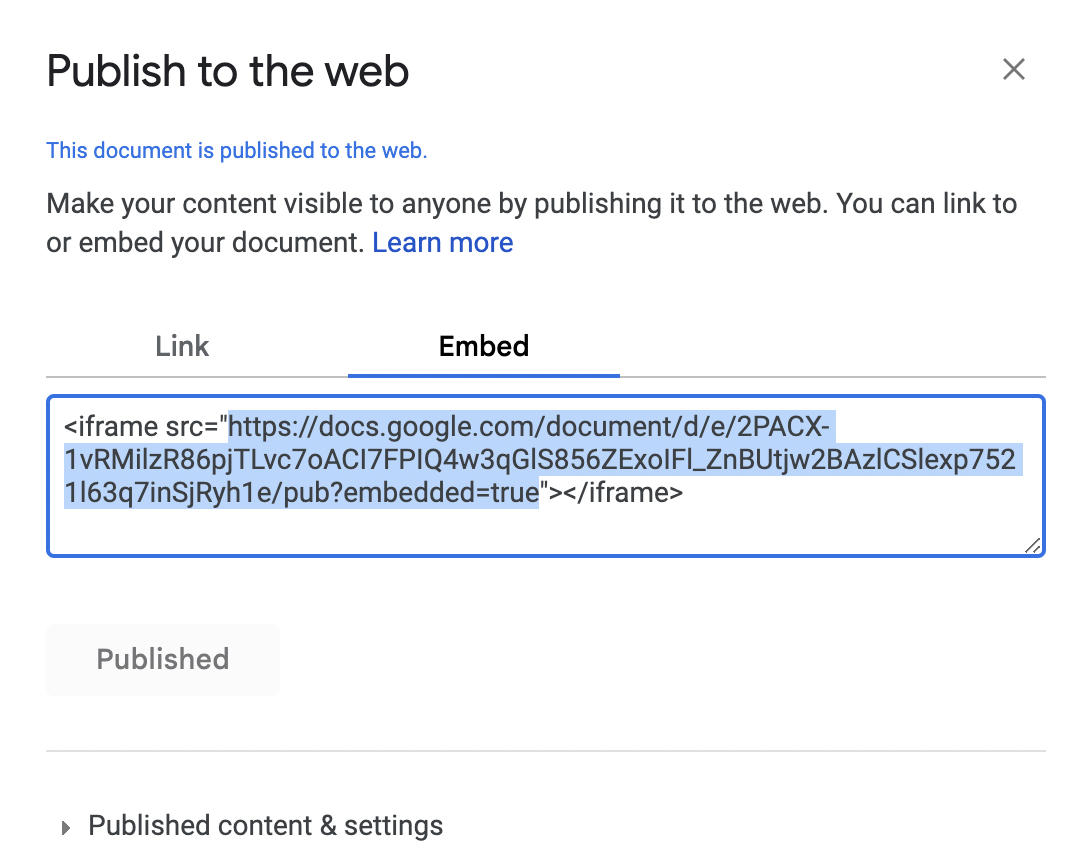
- Save this URL for the last step in this guide. If your Bulb is already complete, paste the URL into a Web Embed interaction.
Creating a new Bulb in PlayPosit
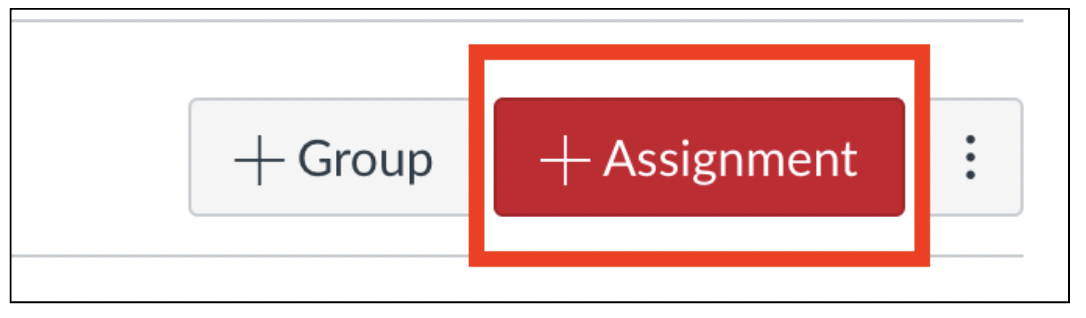
- Navigate to your Assignments page and click the + Assignment button.
- Enter a name for your Assignment and add appropriate instructions.
- Scroll down to the Submission Type field.
- From the drop-down menu, choose External Tool and click Find. It’s recommended to check Load This Tool In A New Tab.

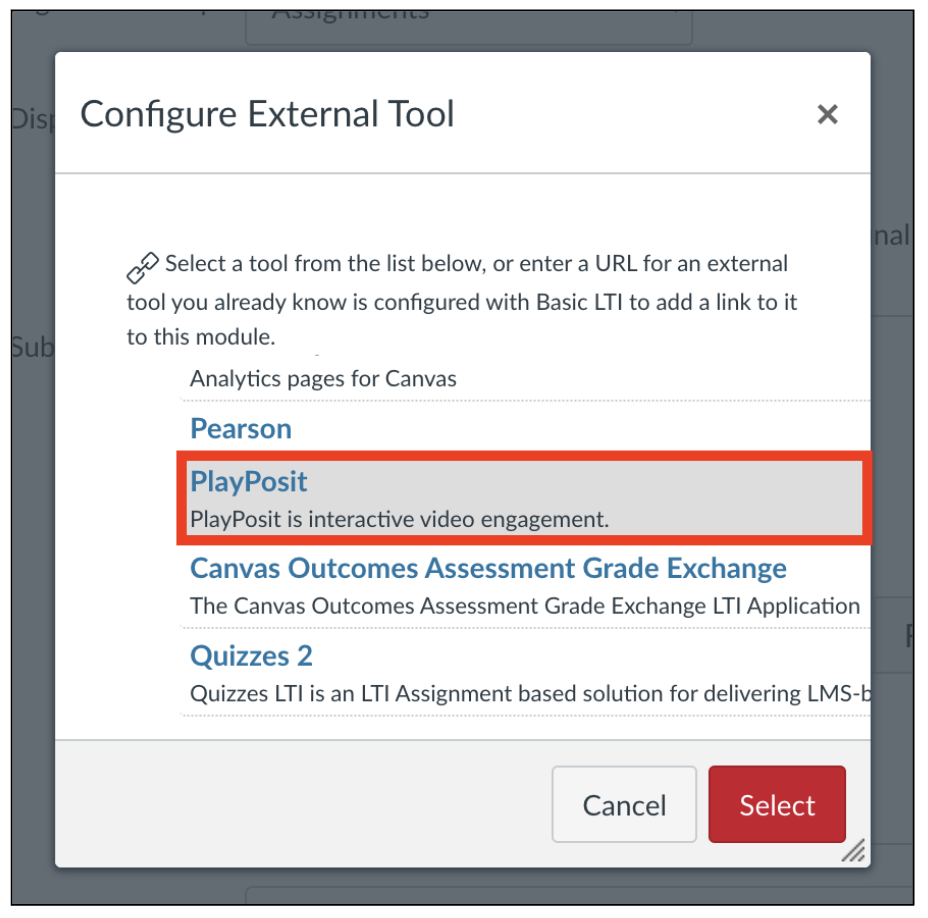
- Select PlayPosit from the list of external tools available.
- Click the text that says Enter PlayPosit in the middle of the screen.

- Click Add New Bulb button at the top right of the window.

Adding a blank video as the foundation of the Bulb
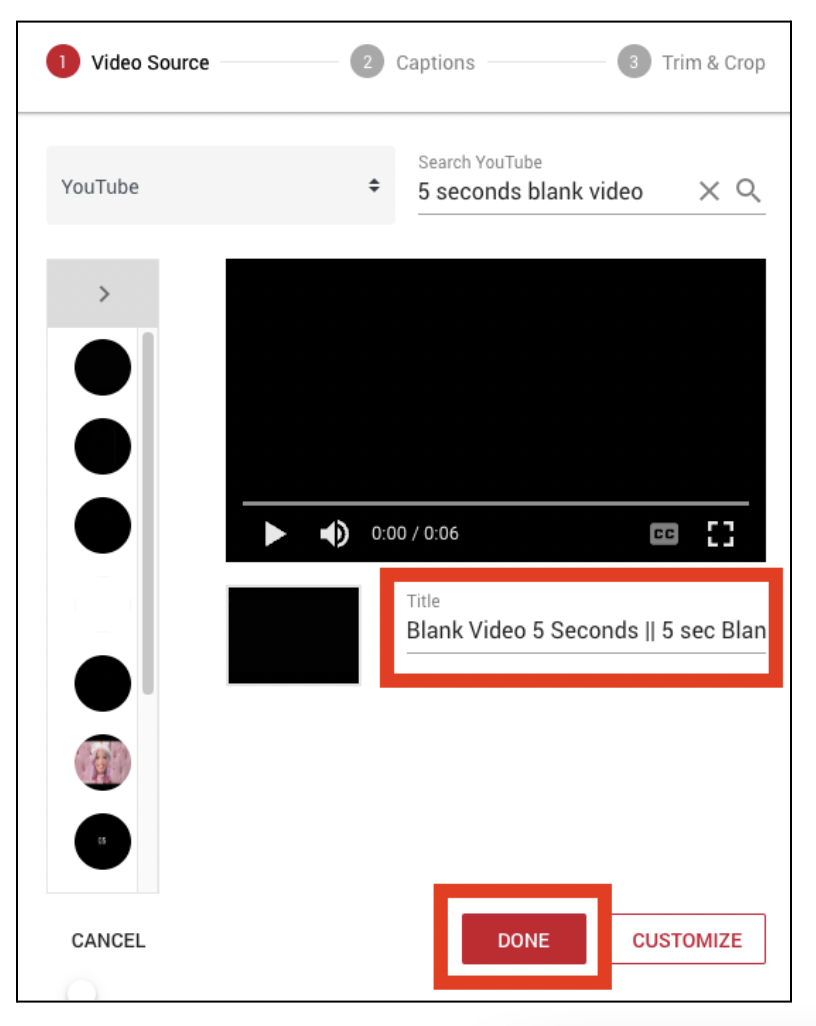
- You will see a menu dispalying different options for video sources. From this menu, select YouTube.

- In the search bar that appears, type “5 seconds blank video.” This will pull up a list of short videos to serve as the base of your Bulb. Click the first video on the list, making sure it is a blank video.

- In the Title field, you have the option to rename the Bulb. Once you have renamed it, click Done.
Embedding the text content
Before you begin this step, please make sure that your text content is converted into an embeddable Google Doc.
- Click the red Add An Interaction button at the bottom of the screen.

- From the list of interactions options, select web embed.

- Paste the embeddable URL into the URL field. Once the URL is entered, click Placement at the top of the screen.

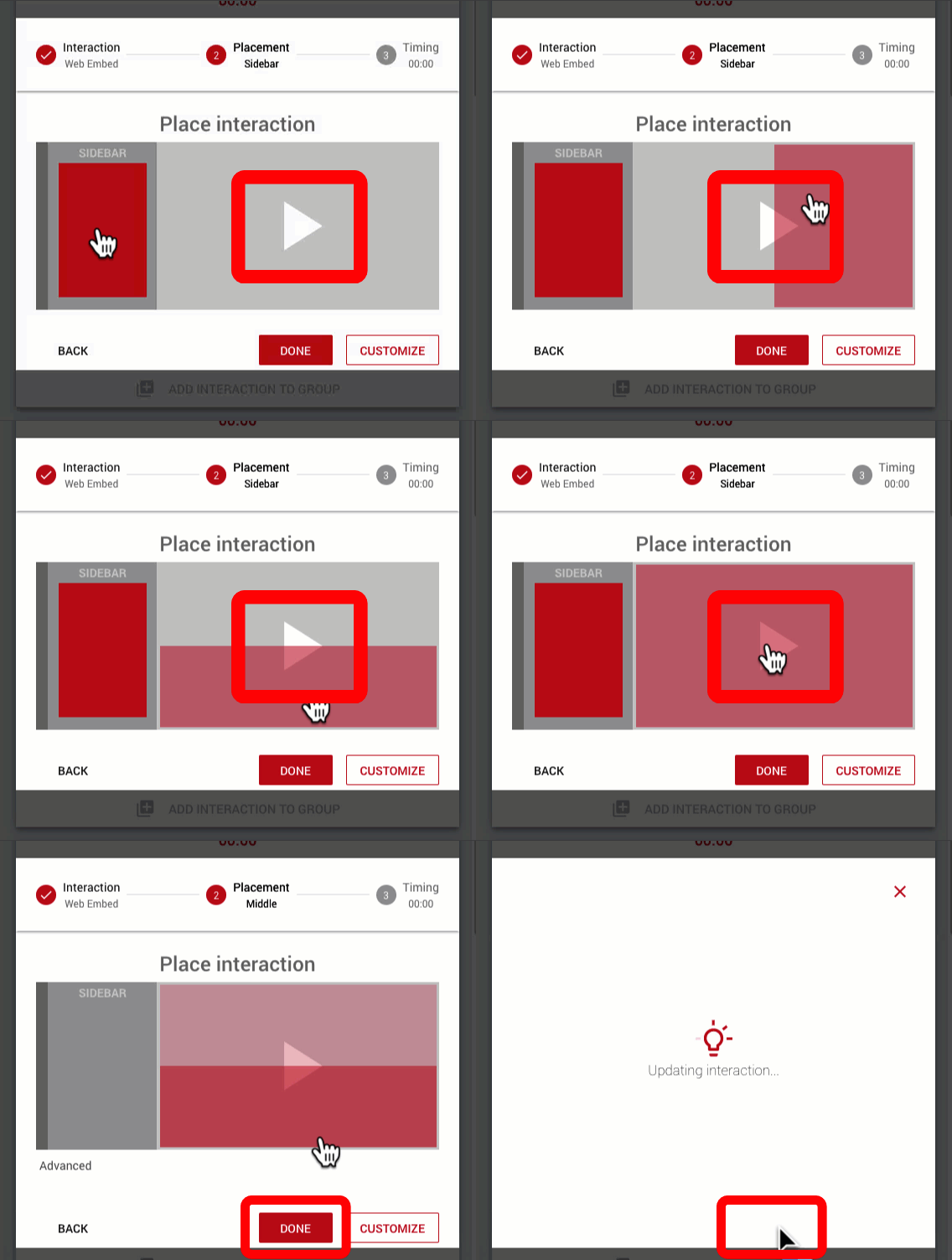
- Once in the Placement tab, click on the arrow symbol in the center of the gray square, making sure that the entire rectangle is highlighted in red. This step makes sure that your document fills the entire screen. Once completed, click Done.
Congratulations, you have created a text-based PlayPosit Bulb. Now you can add interactions to the digital text-based Bulb to incorporate questions, media, pauses, and discussions to the text-based Bulb.
