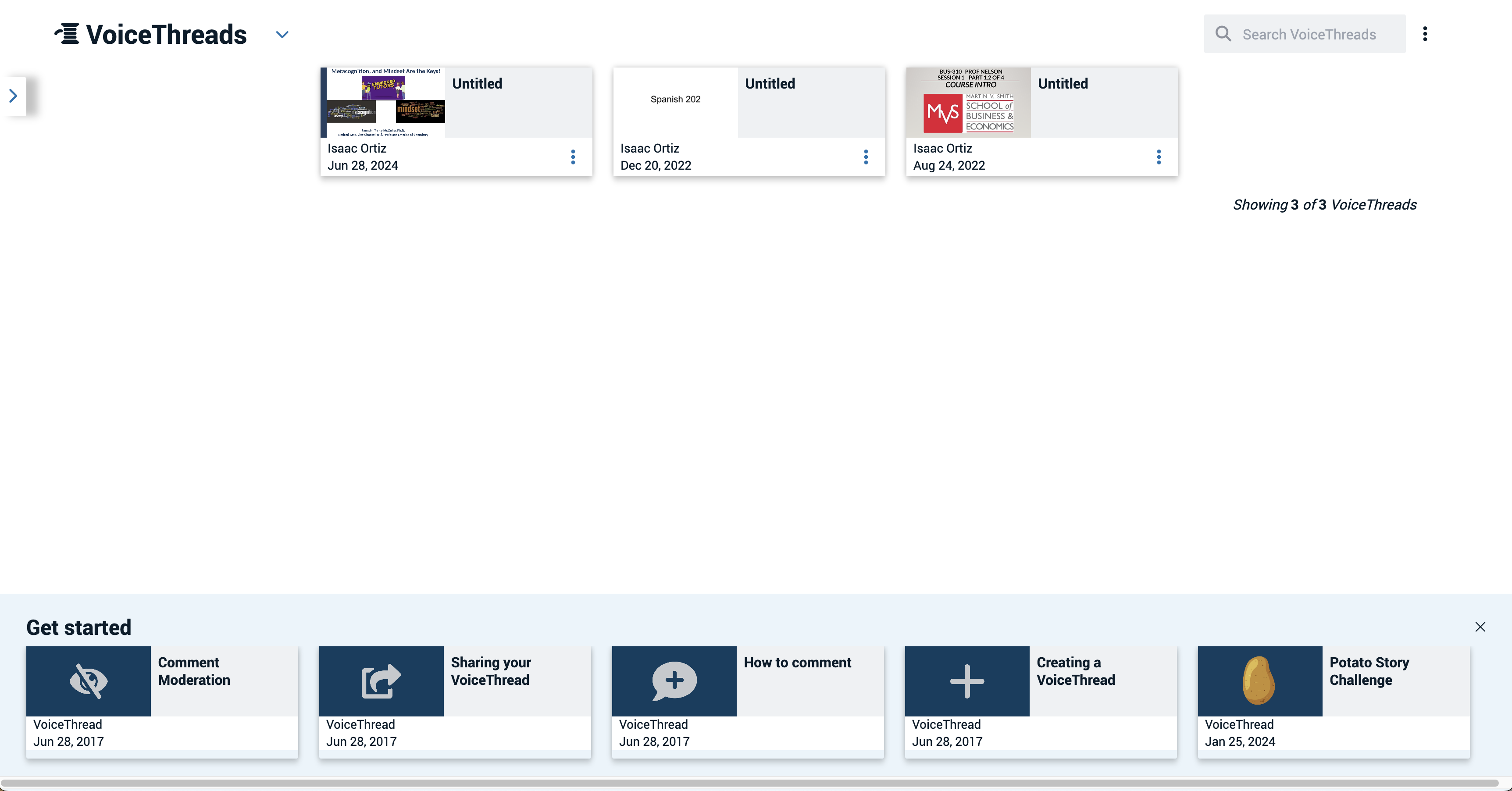
To create a new VoiceThread that can later be added to a Canvas course or assignment, you’ll want to access your VoiceThread dashboard and then follow the steps below:
- From the menu at the top of the dashboard select the plus (+) icon

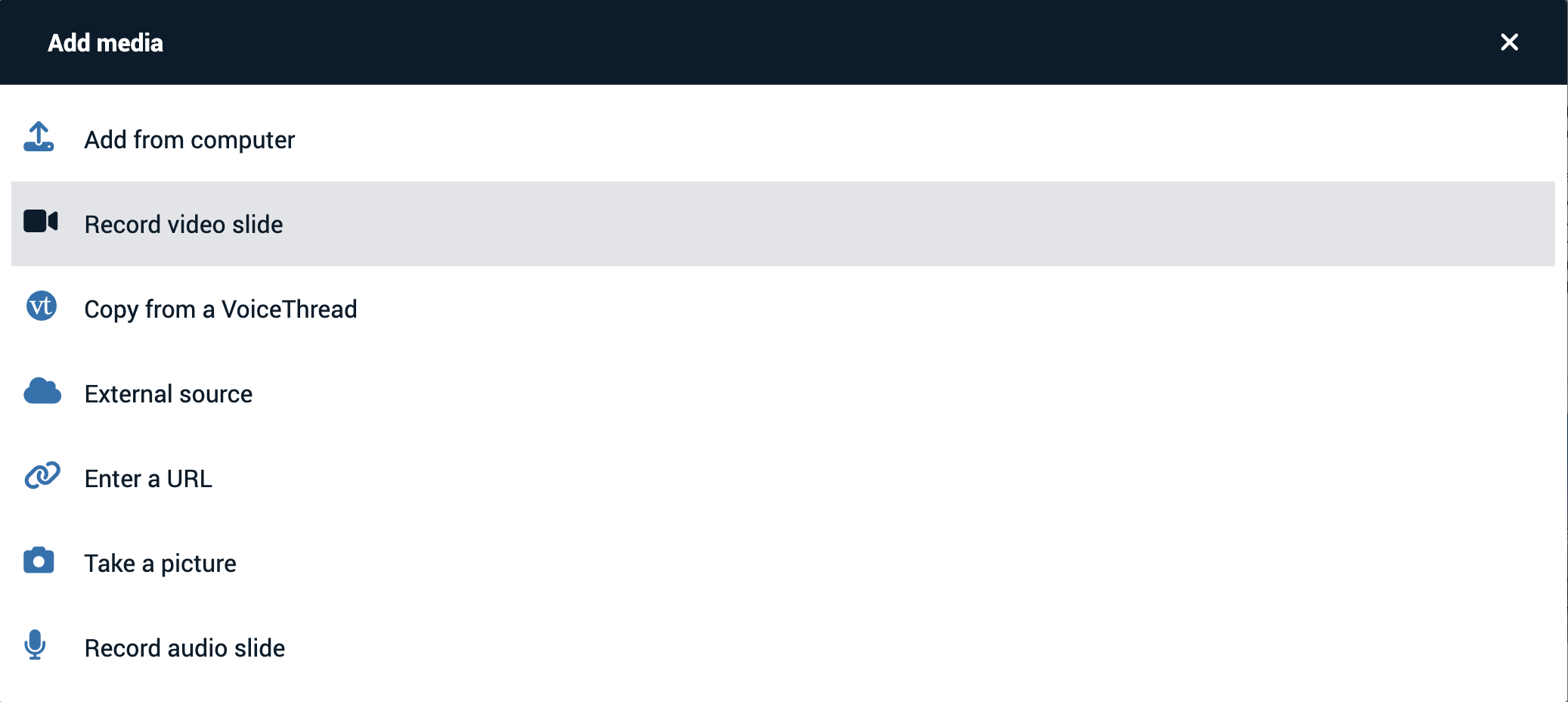
- A menu will open displaying sources for adding media
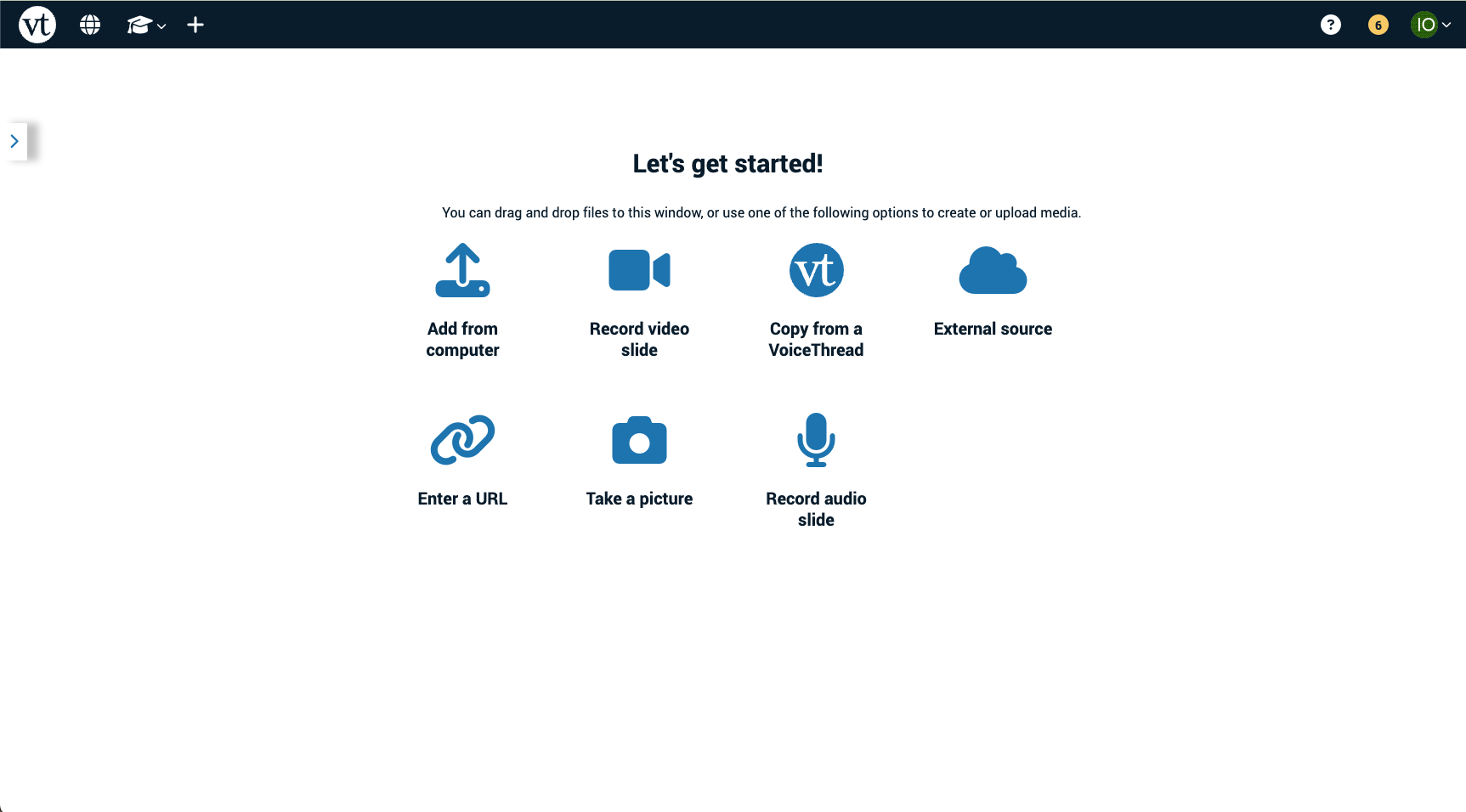
- Add from Computer: Upload files saved to your computer or device (i.e. Word Documents, PowerPoint Slides, Jpeg or Png images, etc.)
- Record Audio Slide: Allows you to record your voice and add it to the VoiceThread. No visual will accompany the recording. Students will only hear your voice.
- Take a Picture: Instantly add an image by taking a picture with your built in camera. This is an easy way to compile a virtual ‘field trip’ using the VoiceThread App on your mobile device, while you or students are on the go.
- Record Video Slide: Record a video instantly. This is an easy way to make introductions, create a Video Log (VLog), or record a mini lecture.
- Enter a URL: Paste a link to a web-based application (i.e. Youtube) to make viewing part of the VoiceThread content. Comments can be added at anytime while the video plays and will sync with the time in the video the comment was recorded.
- Copy for a VoiceThread: Allows you to make a copy of your own VoiceThreads or ones that have been shared to you. This option is great if you are looking to recycle your content.
- External Sources: Gives you the option to pull content from Flickr, Google Drive, and Zoom.
- Once you add one media source you will automatically be redirected to an Untitled page where you will see each individual slide (If you imported a .pptx) of your file or a box of the single or or video.
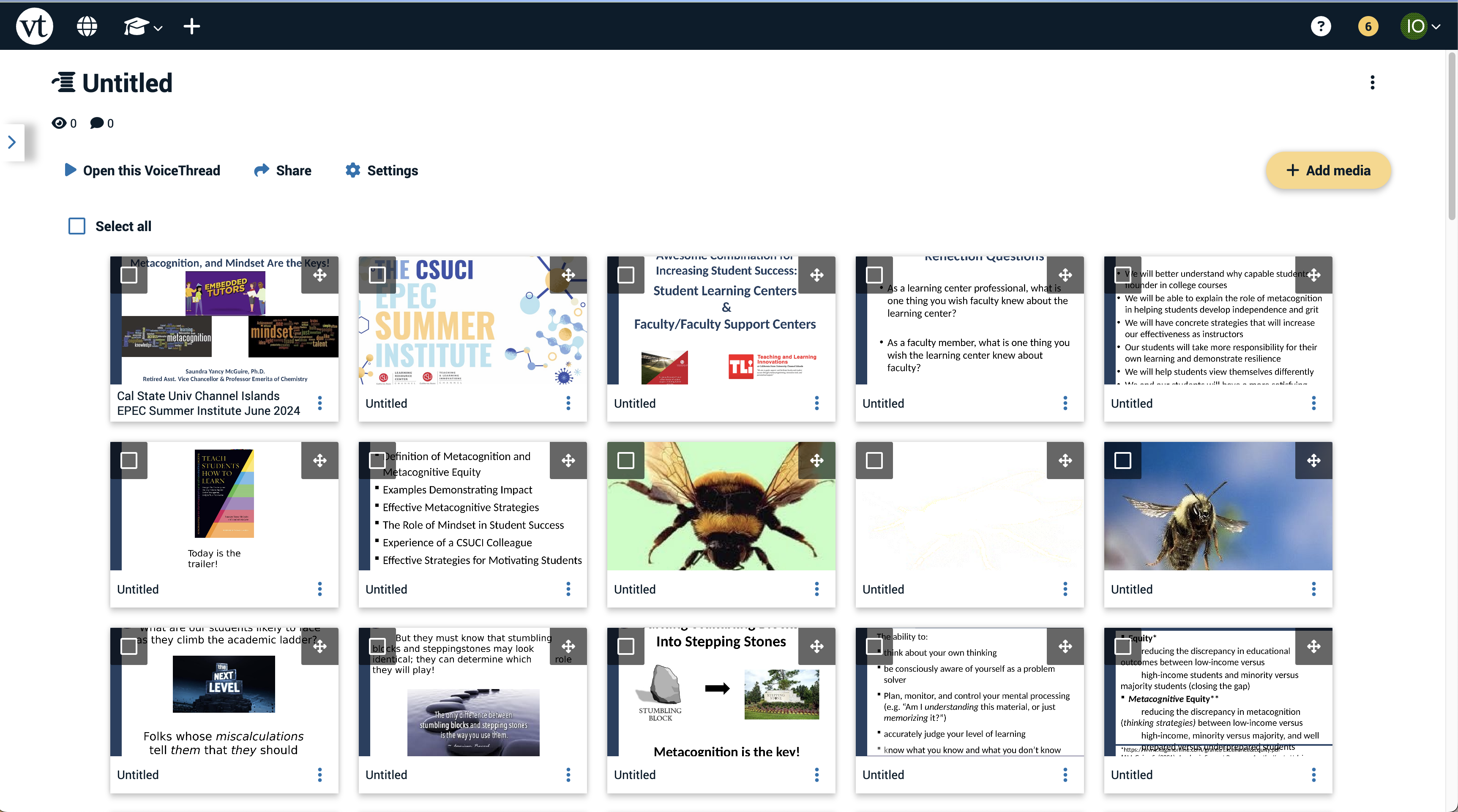
- You can continue to add media to your current VoiceThread by clicking + Add Media in the top right of the page.
- A new menu will open and you will be able to selected for one of the 7 sources to pull content from.
- You will see a spinning cog while your media loads
- If you are loading multiple slides at once (i.e. a multi-slide PowerPoint, It may take a few minutes for all of your slides to upload
- Once loaded, media appears as a thumbnail image
- IMPORTANT! Slides cannot be edited in VoiceThread. If you discover a typo etc. you will need to go back to the original media file to edit. In VoiceThread, delete the incorrect item and upload the updated version.
You can drag and drop thumbnail images to reorder your media.
- IMPORTANT! Slides cannot be edited in VoiceThread. If you discover a typo etc. you will need to go back to the original media file to edit. In VoiceThread, delete the incorrect item and upload the updated version.
- To delete a thumbnail, mouse over the image and click on the trashcan icon in the lower right corner
- Once you are done making edits to your VoiceThread, you are free to leave the page or return to your VoiceThread Dashboard.
- Don’t worry, VoiceThread automatically saves any changes you made to your VoiceThread.
- Once back to your dashboard, you will see your newly uploaded VoiceThread.