
Instructors and students have free access to VoiceThread.
For students who need to access the tool that isn’t set up directly in their Canvas course, please refer to the following directions.
Students:
- Go to the VoiceThread website to log in.
- Click Sign in via Institution. Search “CSU Channel Islands.”
- Click Sign In to be redirected to myCI. Enter your credentials, if prompted, and then the VoiceThread site will open.
Instructors: To locate your account and view your VoiceThread Dashboard:
- Login to MyCI
- Open CI Learn
- Select the Help Icon (question mark) in the red global navigation menu on your CI Learn Dashboard
- From the dropdown menu, select VoiceThread
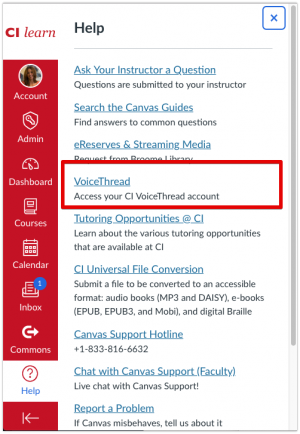
- You will be directed to your VoiceThread Dashboard.
- Disclaimer: If you are not directed to your VoiceThread Dashboard, skip to the Logging Into VoiceThread section
- Once in your Dashboard you will see any VoiceThreads you have created and any that have been shared with you.
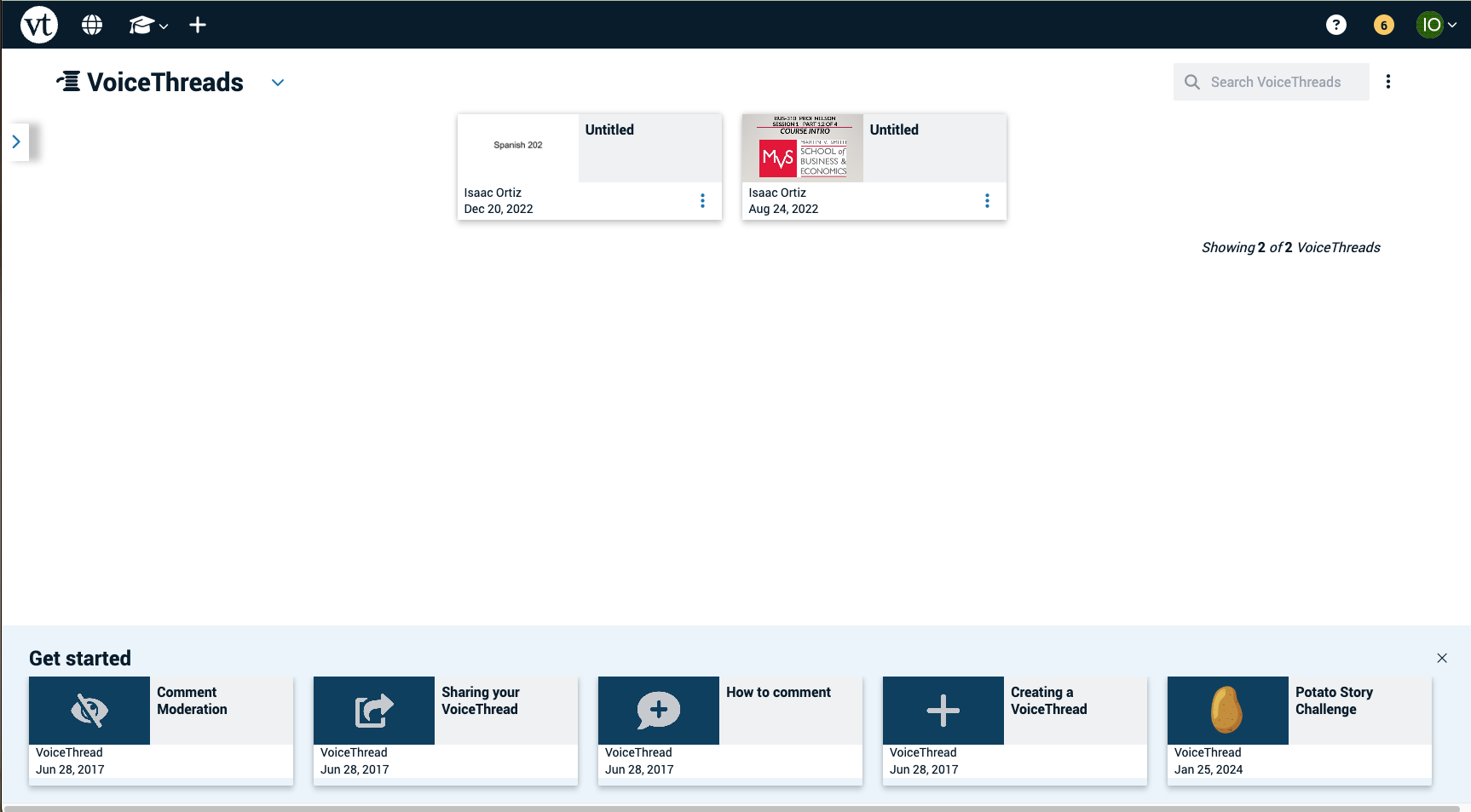
Locate a VoiceThread you have created
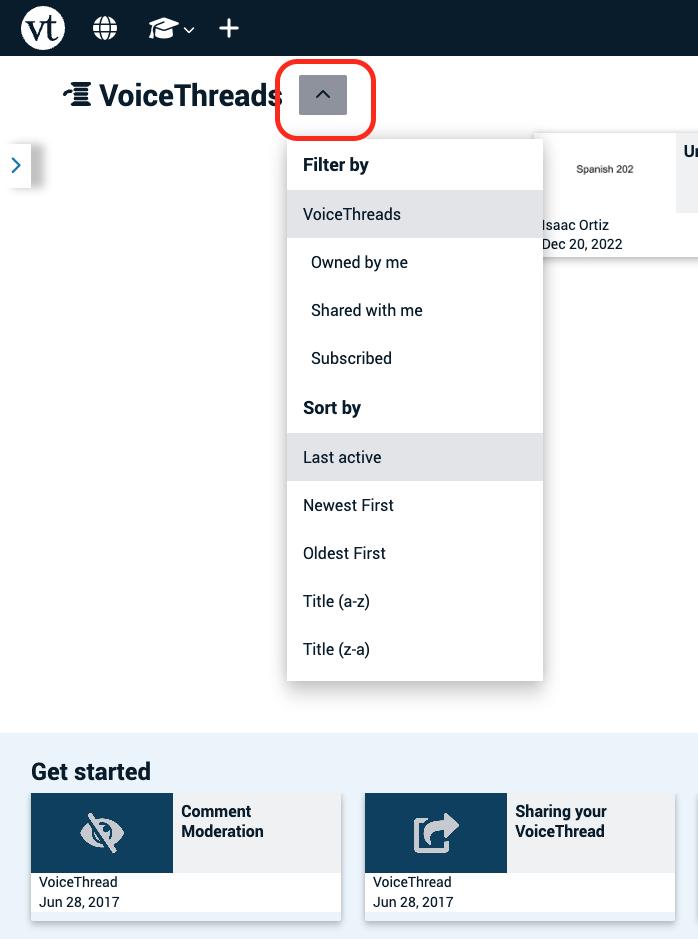
- Select the drop down menu icon that looks like an arrow pointing down in the top menu to the right of the VoiceThreads.
- From the dropdown menu, select Owned By Me.
Logging Into VoiceThread
If this is the first time that you are logging into the VoiceThread or if for any reason you get logged out. Follow these steps.
- After selecting VoiceThread from the Help Icon (question mark) in the red global navigation menu on your CI Learn Dashboard, you well be redirected into a new menu interface.
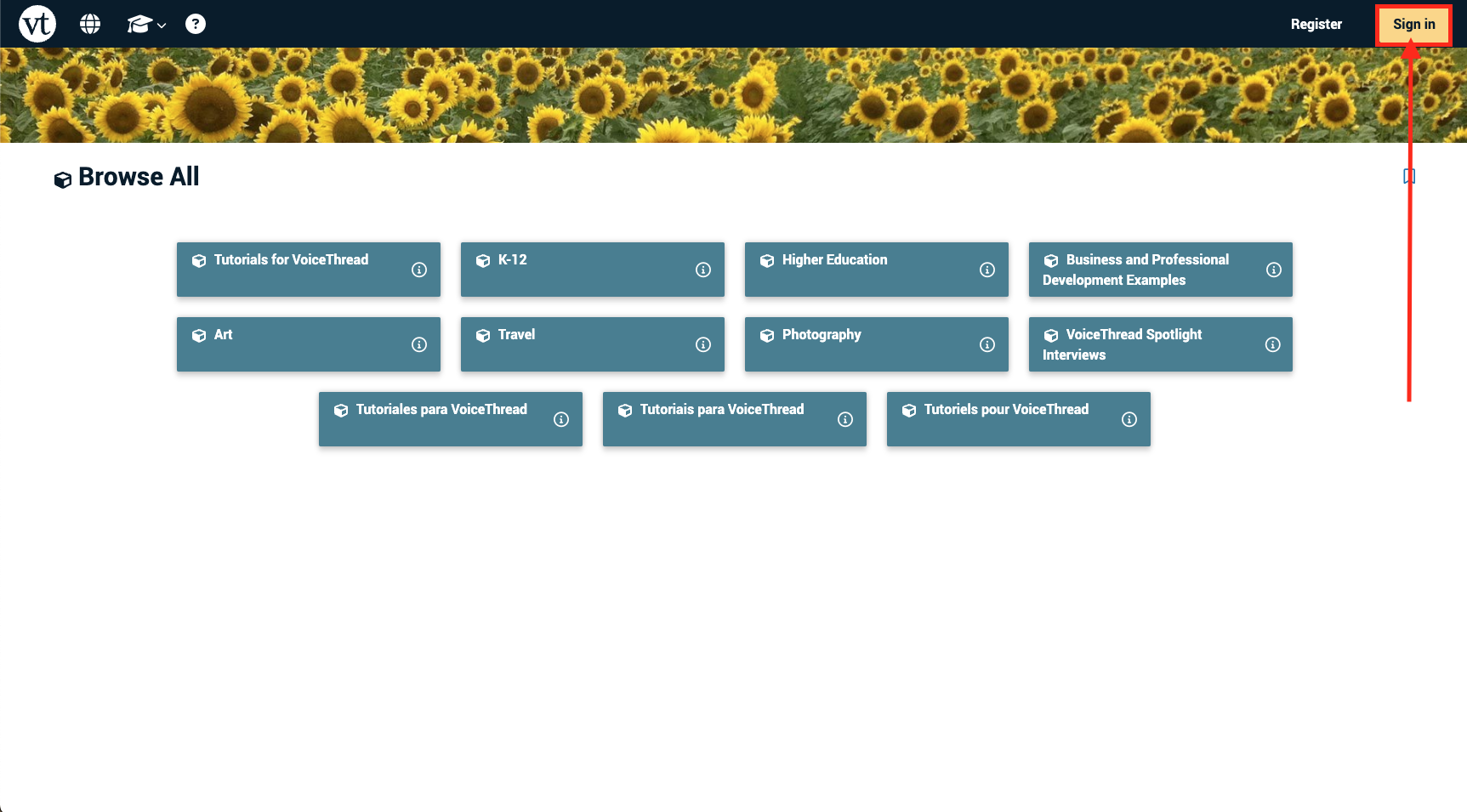
- Ignore the blue tabs and click Sign in at the top right of the page.
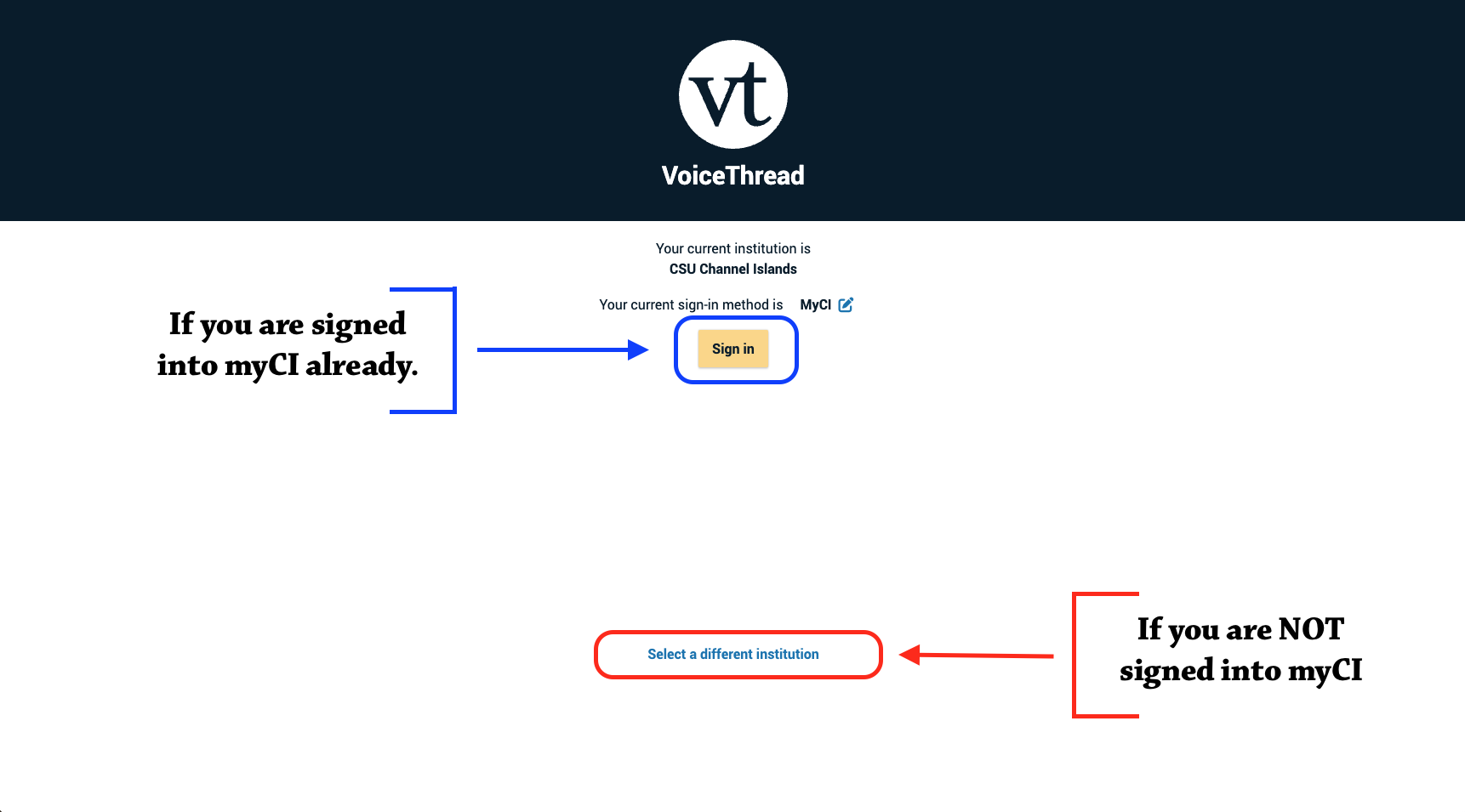
- If you are logged into myCI already, then VoiceThread will have automatically selected your current institution.
- At this point, click the Sign in button.
- You’ll be redirected to your VoiceThread Dashboard.
- If you are not signed in or signed into a different institution
- At this point, click Select a Different Institution at the bottom.
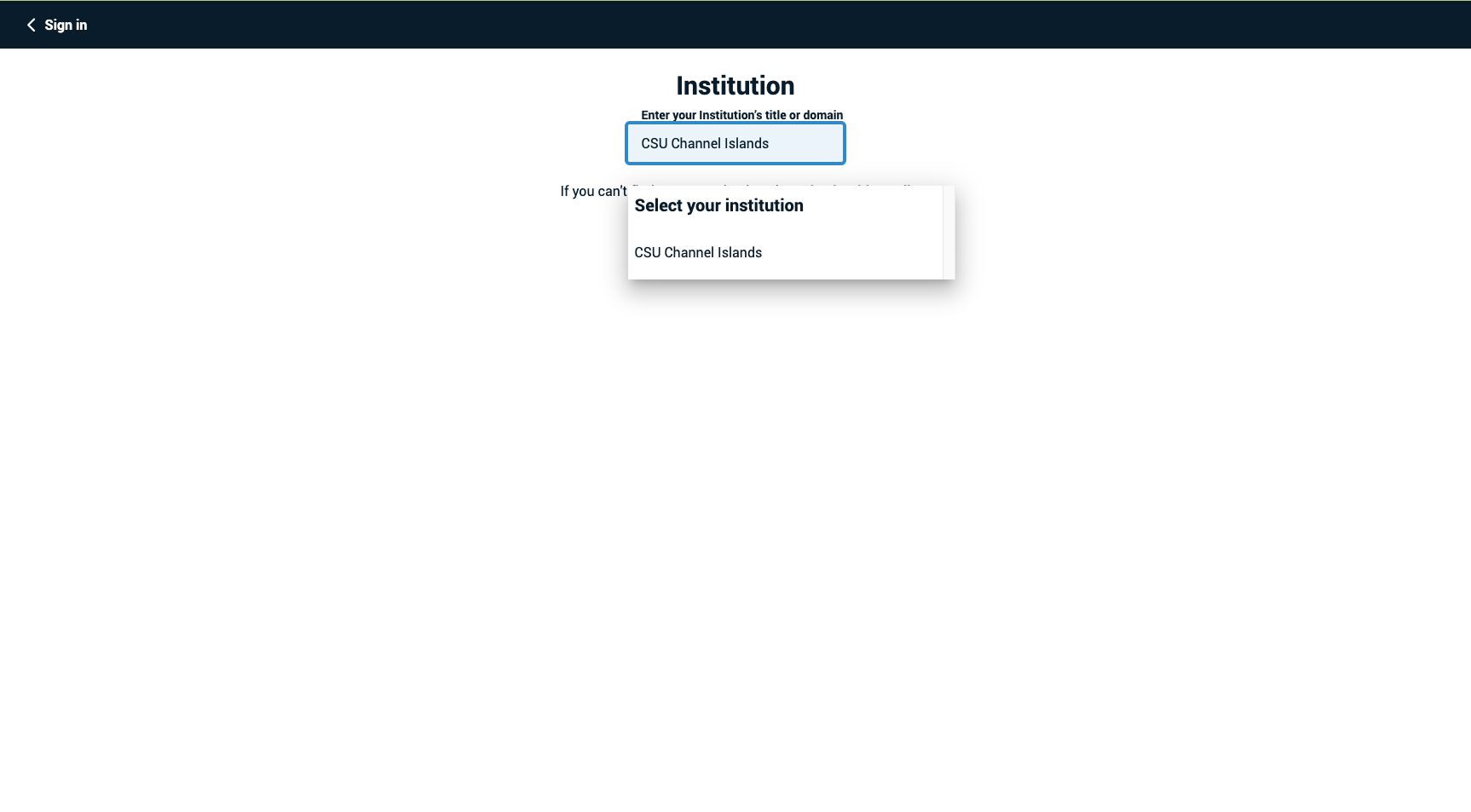
- Under Enter your Institution’s Title or Domain type in the box CSU Channel Islands.
- A dropdown menu will pop-up, and CSU Channel Islands will show up on the list.
- Select Channel Islands.
- At this point, you will be redirected to login and then redirected again to your VoiceThread Dashboard.
