
This article provides an overview of the UDOIT homepage and its key features.
Course Accessibility Score
In the upper left of the UDOIT Home page, you’ll find an overall assessment of the course’s accessibility, represented as a percentage score and a red-to-green progress bar.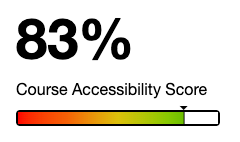
This overall score factors in High, Medium, and Low Impact issues at varying weights to provide the best possible assessment of your course’s general accessibility.
Scorecard
On the Scorecard, you’ll see three categories: High, Medium, and Low.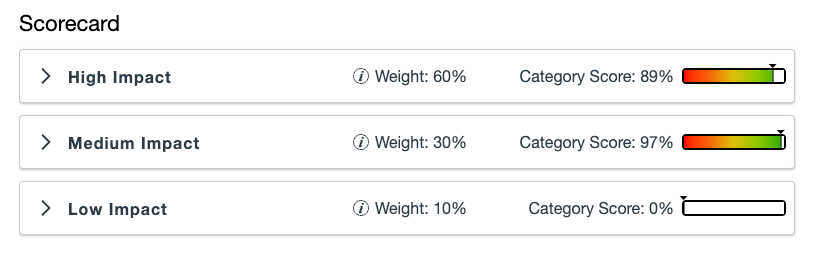
Each category can be expanded to see the specific types of issues contained within that group.
Each category has a different Weight, which affects how it impacts your total Course Accessibility Score. High Impact has a weight of 60%, Medium Impact has a weight of 30%, and Low Impact has a weight of 10%. Each category also has a Category Score, which provides an assessment of the specific issues contained within that category.
The weight of a category combined with its individual category score factor into how your overall course score is calculated.
Content Summary
Within the Content Summary are Errors, Suggestions, Issues Fixed, and Marked Resolved
- Errors: things UDOIT can confidently determine need to be remediated/fixed for accessibility.
- Suggestions: things UDOIT flags that may be issues, but require human insight to be sure.
- Issues Fixed: the number of issues fixed using UDOIT.
- Manually Resolved: the number of issues manually addressed and resolved.
Files Summary
Within the Files Summary are File Issues, Total Files, Files Remediated, and Files Marked Reviewed.
- File Issues: number of issues identified by UDOIT.
- Total Files: number of files in the course.
- Files Remediated: number of files remediated using UDOIT.
- Files Marked Reviewed: number of files manually remediated and marked as reviewed.
Ways to Get Started
Along the right side of the UDOIT homepage is a Ways to Get Started Panel. The first way to get started is the Easiest to fix issues using UDOIT, such as alternative text for images, and descriptive link naming. You can also choose by issue type, by impact type, and by (Canvas) content type.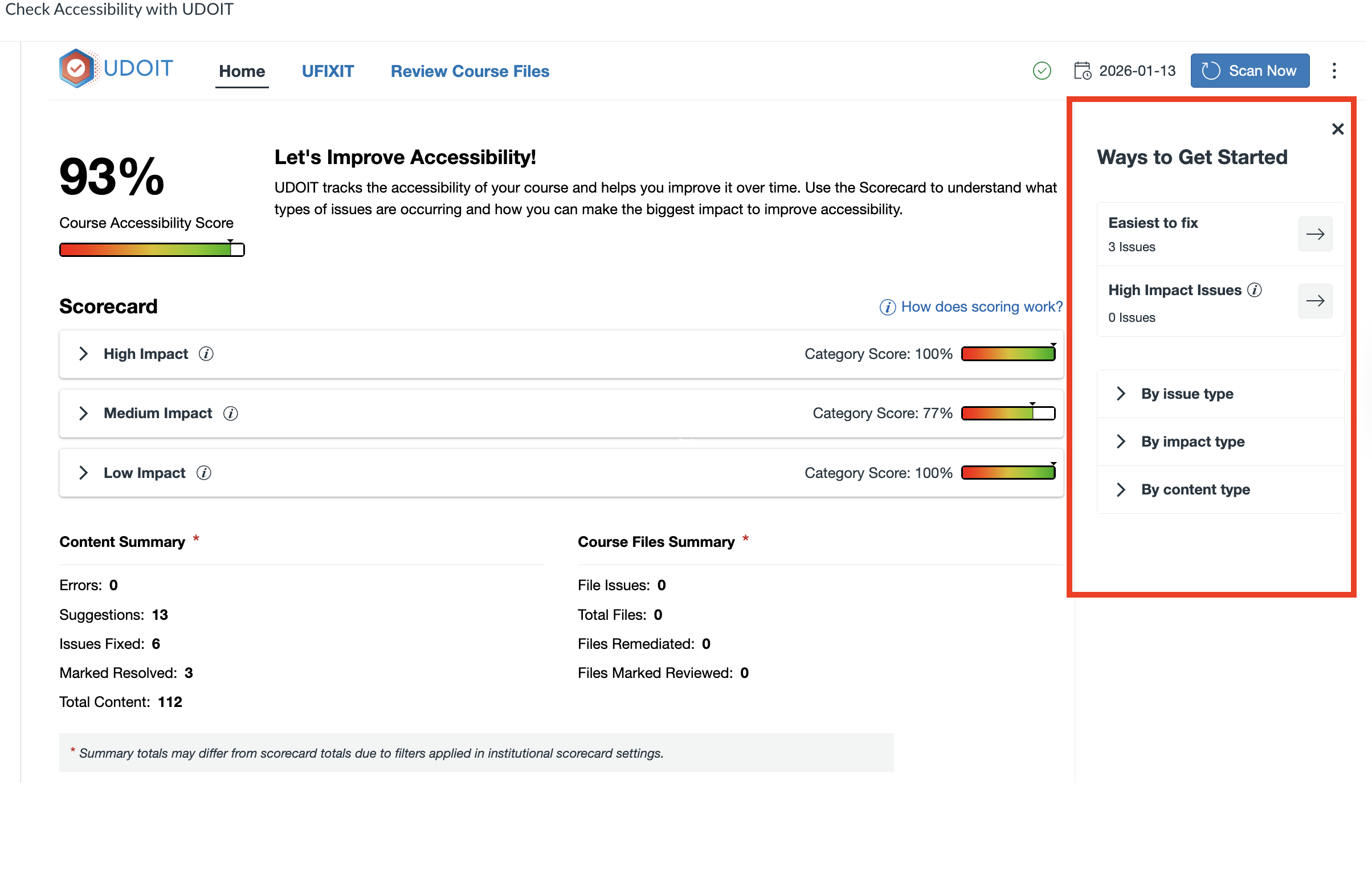
Depending on how you choose to address the issues identified, you’ll be taken to either the UFIXIT area or the Review Files area, which are covered in separate guides.
Refer to the Getting Started with Accessibility in UDOIT Article to learn more about the Ways to Get Started Panel.
