
Upon occasion, you may wish to submit an assignment directly to TurnitIn without creating an assignment in CI Learn to check a particular paper’s originality score, as reported by TurnitIn. In order to do this, you will have to have created at least one TurnitIn assignment in an active CI Learn course. This assignment doesn’t need to be published, but this will ensure that there is a place to submit it within the TurnitIn interface.
Logging-In to TurnitIn
- Go to turnitin.com
- Click the Login link in the upper right corner
- Click the Forgot your password? Click here link
- Enter your CSUCI email address and your last name in the fields provided
- This email will need to be the same as your primary email in CI Learn
- Click the Next button
- You’ll receive an email with a link to reset your password. Proceed with the reset, and then click “login” to login to TurnitIn with the credentials that you just created. Do not use your myCI password.
Creating an Assignment to Submit To
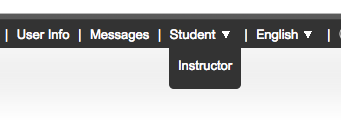
- Once you’ve logged in to TurnitIn, be sure that you’re logged as an instructor at the top of the screen. If not, switch to your Instructor role
- You’ll then see a list of your active courses.

- Click on the course that you’re wanting to submit to.
- Click the + Add Assignment button

- Choose the Paper Assignment option
- Give the assignment a title. Points and dates won’t matter in this instance since this isn’t an assignment that students are actually submitting to. If you’re intending on building an assignment for your students to submit to you, you should be creating a TurnitIn assignment via CI Learn.
- Click the Optional settings menu
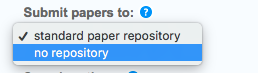
- Scroll down to the Submit papers to: option and select no repository. This will ensure that the student submissions aren’t saved in TurnitIn’s repository to be compared against later.
- Click “Submit” at the bottom of the page
Submitting a Paper to the Assignment
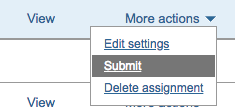
- To the right of the assignment that you just created, click “More actions” and “Submit”
- Enter the student name and title of the submission
- Click the Choose from this computer option to upload the paper. If you’ve saved the paper in Dropbox or CI Docs, use the Dropbox or Google Drive buttons accordingly.
- Select the file, and click Open
- Click the Upload button
- Once the file has been uploaded, click the Confirm button
- You will see a digital receipt once the file has been successfully submitted.
- Click the Go to assignment inbox button
- Once the originality report has been generated, you’ll see the score in the Similarity column. This will take some time as it’s being compared against TurnitIn’s databases.
