
Jamboard by Google creates an interactive whiteboard space in which instructors and students can interact in both synchronous and asynchronous learning environments. The 12 minute video below illustrates how to use Jamboard and ideas for incorporating it into the virtual classroom.
How to Get Started with Jamboard
Jamboard is free and already part of the Google Apps Available in your CI Docs Google Drive. Sharing your Jamboard with students follows the same process as sharing any Google Document (i.e. Docs, Slides, Sheets). Each ‘slide’ within the board is called a Frame.
- To get started, Login to your MyCI Account and select CI Docs
- Once in Docs select New
- Form the dropdown menu select More then Google Jamboard

Creating your Jamboard Frames
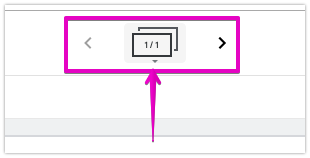
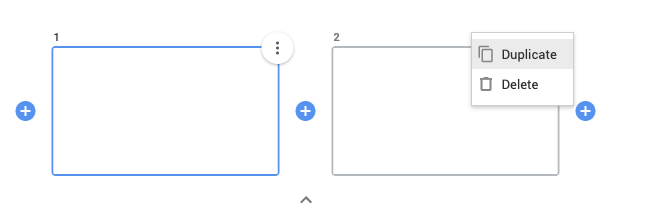
- To create additional Frames, select the thumbnail view of Frames at the top of the Jamboard screen
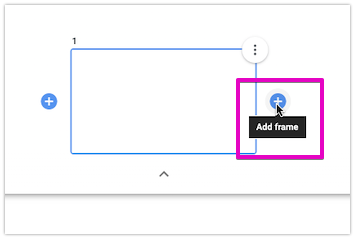
- Select the plus sign next to each frame to add another.
- Use the vertical dots in the upper right of the slide to duplicate or delete.
- Things to think about in planning your Jamboard Interaction:
- Will this be a demonstration tool?
- Will you need to create Frames for individuals or small groups?
- What will students do on each Frame?
- Pro Tip! Plan in time to let students practice and experiment with accessing and creating on the Frame.
- Begin with a low-stakes activity (i.e. add a sticky note and include your name).
- Make sure your Practice Activity builds the skills students will need for the learning activity (i.e. add an image, draw, use a textbox, etc.)
Share your Jamboard with Students
- Select the Blue Share Button

- Select Change beneath Get link
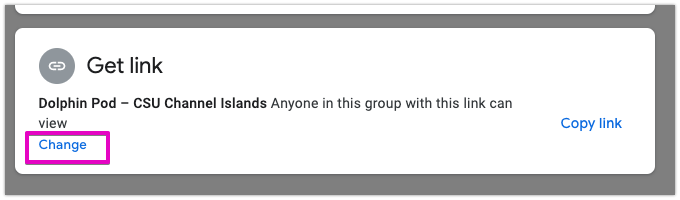
- Now you need to adjust the settings so others can edit the Jamboard.
- Select the dropdown arrow next to Dolphin Pod – CSU Channel Islands
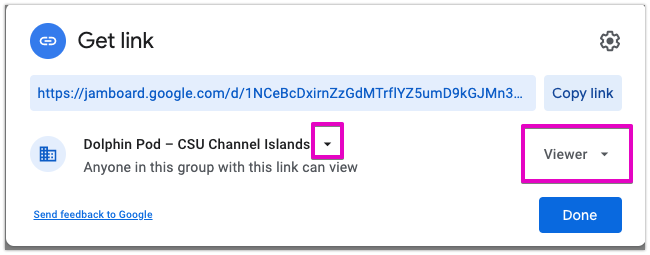
- If you want to restrict access to only CSUCI participants you can leave the permissions as Dolphin Pod – CSU Channel Islands.
- If students have difficulty editing the Jamboard have them make sure they are logged into Chrome/Google using their @myci.csuci.edu Dolphin Drive Account.
- To avoid login barriers, you may opt to set permissions to Anyone with the link
- Change the drop down menu to the right from Viewer to Editor.
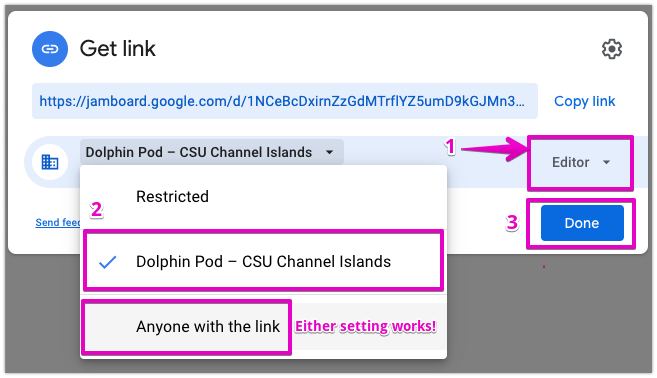
- Select Copy Link to place it on your Clipboard
- Select Done
- You can edit these settings at anytime to change permissions
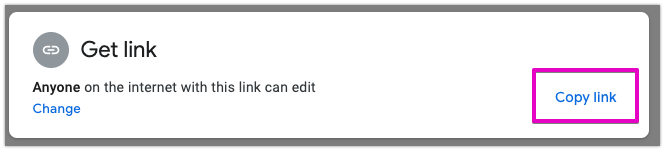
- Paste the link (Command + v) or (Control + V) to give students access (i.e. in Canvas, Zoom Chat, Session Agenda, etc.
- Begin collaborating!
Example
Below is an example of what the instructor can observe on a Frame while students are working in a Breakout room.
Video excerpt shared by Dr. Lorna Gonzalez from her Synchronous Zoom Session with Single Subject Credential Students.
