
If you have built content in Google Docs or Microsoft Word, and would like to add it to a CI Learn course.
Below are instructions for copying and pasting content from another source into a Page in your CI Learn (Canvas) course:
- Log in to myCI.
- Click CI Learn, and then select the course you’d like to add the content to.
- Locate the Page you would like to edit. All pages are housed in the Pages repository, but it may be easier to locate the page you are looking for if you have already placed it in a Module.
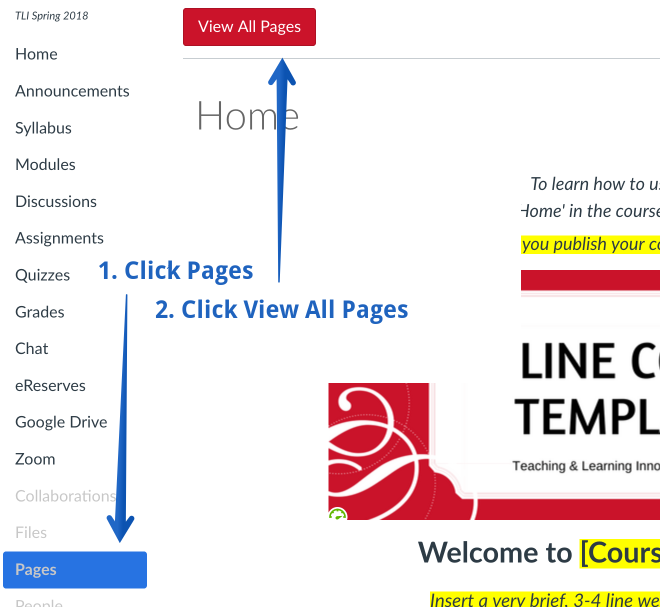
- To locate the page via Pages: Click Pages and then click View all Pages in order to locate your page and click on it –OR–
- To locate the page via Modules: Click Modules, locate the page you are looking for and click on the title.
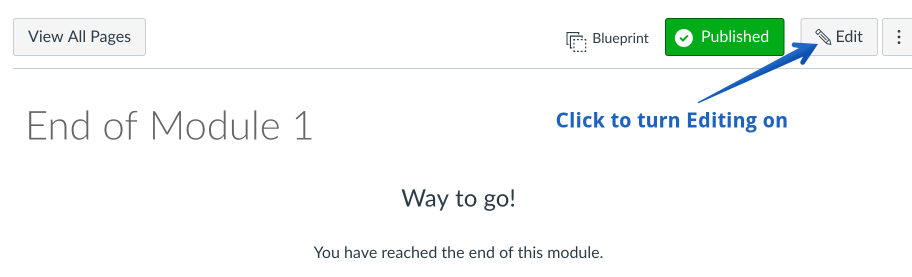
- Click Edit, in the upper-right corner.
- Copy and Paste your content directly into the Rich Content Editor (RCE) and use the formatting options in the menu bar to make adjustments to font, color, spacing, images, etc.
Note: We recommend clicking the Tx button in the RCE menu to clear the formatting to minimize formatting problems from Microsoft Word. - Scroll down and click Save.
Additional Resources:
- Searchable Canvas Help Guides
- CSUCI’s Canvas “Getting Started” Guide
