
Use New Course Analytics to monitor student activity, academic progress, and course interactions. Consistently reviewing your course data can inform teaching decisions and help you identify and reach out to students who may seem to ‘go missing’ or begin to struggle academically, to offer humanized ‘just in time’ support.
Getting Started with New Analytics
As an instructor, you have to turn on New Analytics in your Course Settings. Please note, it will take 24 -48 hours for your course data to transition to New Analytics.
Turning On New Analytics
From your Course Navigation Menu:
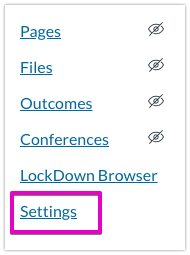
- Select Settings
- From the menu at the top of Settings, select Feature Options

- Scroll down till you come to New Analytics
- Click the switch to the right
- You will know New Analytics is turned on when the ‘X’ is replaced with a checkmark
- You will see New Analytics appear near the bottom of the Course Menu and on the right sidebar of your course homepage.
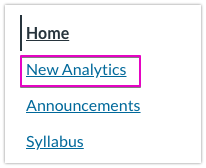
- You can reposition the New Analytics link in your Course Menu via the Course Navigation Settings if you prefer; however, students will not be able to see New Analytics even though it is enabled.
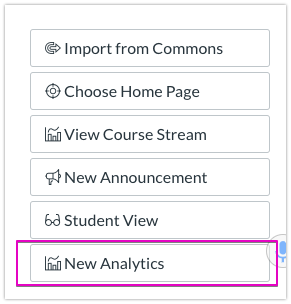
From your Homepage From the Course Menu
