
- In your course, click the Assignments link from the course menu
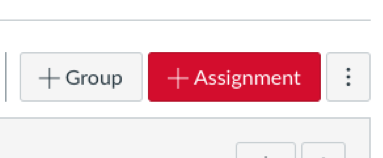
- Click the + Assignment button in the upper right
- Give the assignment a title, instructions, and points possible
- In the Submission Type field, choose External Tool

- Click the Find button
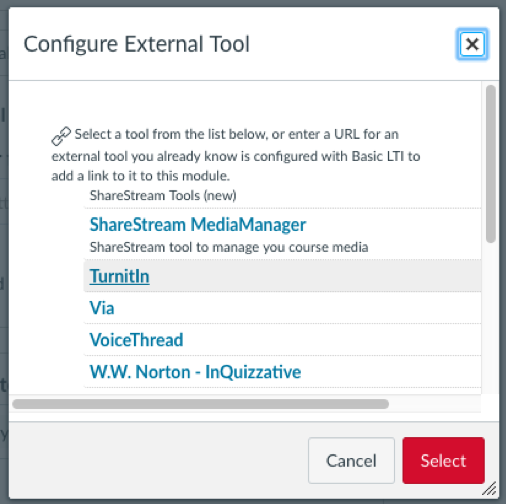
- Scroll down the list and select TurnitIn. Click the Select button.
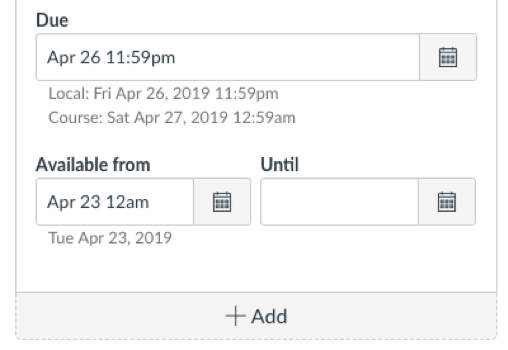
- In the Assign section, set a due date and an Available From date. This is important as the assignment will not load correctly if these values are left blank.
- Click Save or Save and Publish if you’re ready for the assignment to be visible to students
- You’ll see the TurnitIn Assignment Inbox upon completing these steps
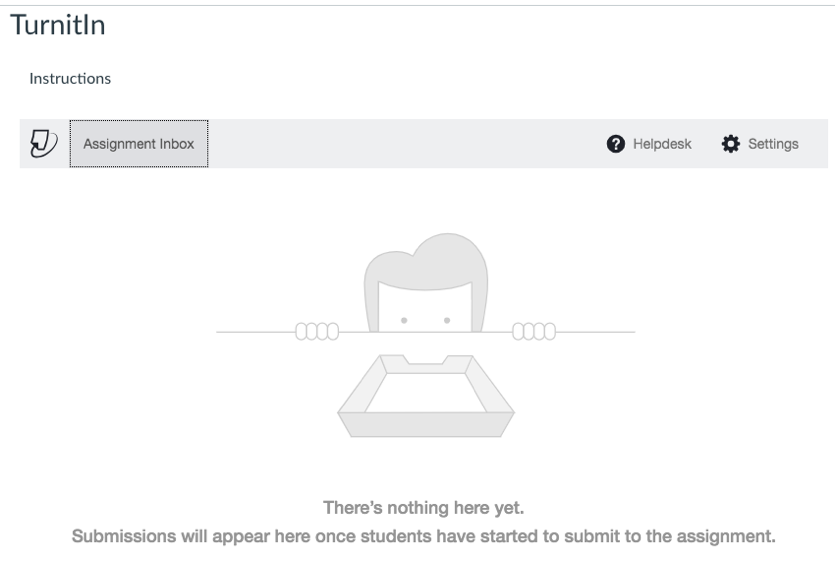
- You can set additional settings within the assignment by clicking the Settings button in the upper right corner of the TurnitIn interface, and then clicking Optional Settings
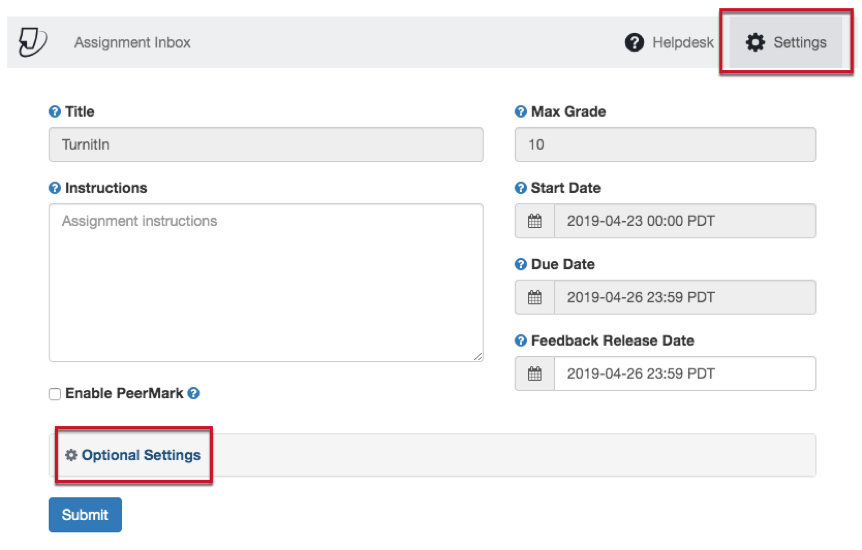
Creating a Turnitin Assignment in Canvas
Updated on September 12, 2019
Need Support?Submit a Help Request
