
Overview
All course offerings at CSUCI are vetted and approved through a course proposal and review process with the faculty senate. Certain information in a course syllabus (e.g., pre-requisites, student learning outcomes, course description, etc.) must be consistent with the approved information in the course proposal. Course proposals and outlines are housed in Curriculog, where you can verify that the information you have in your syllabus is consistent and correct.
How to locate a course in Curriculog
- Go to CSUCI’s Curriculog page.
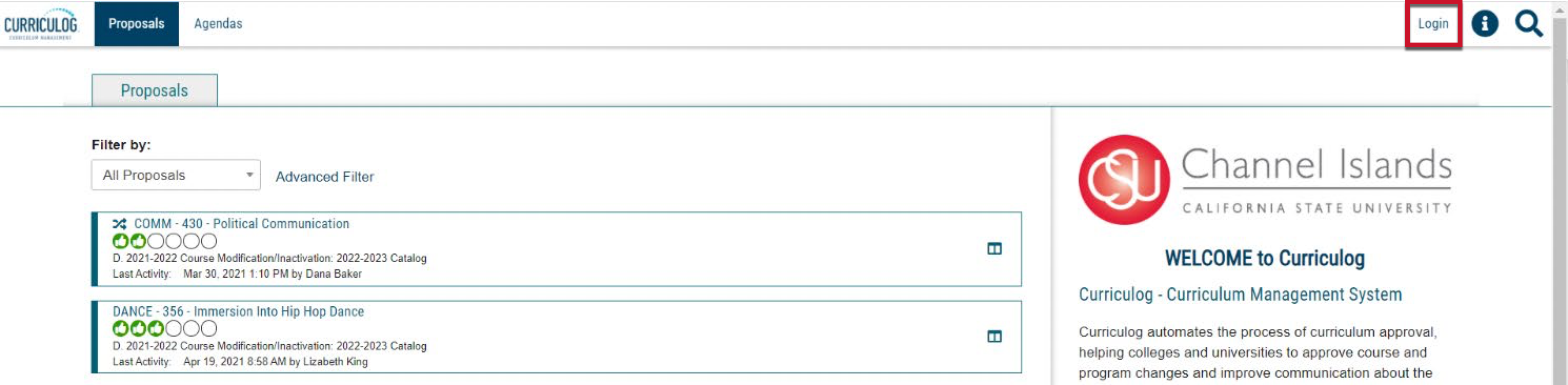
- Click Login in the upper-right corner of the page. You will be prompted to log in with your Dolphin ID and password (myCI credentials).
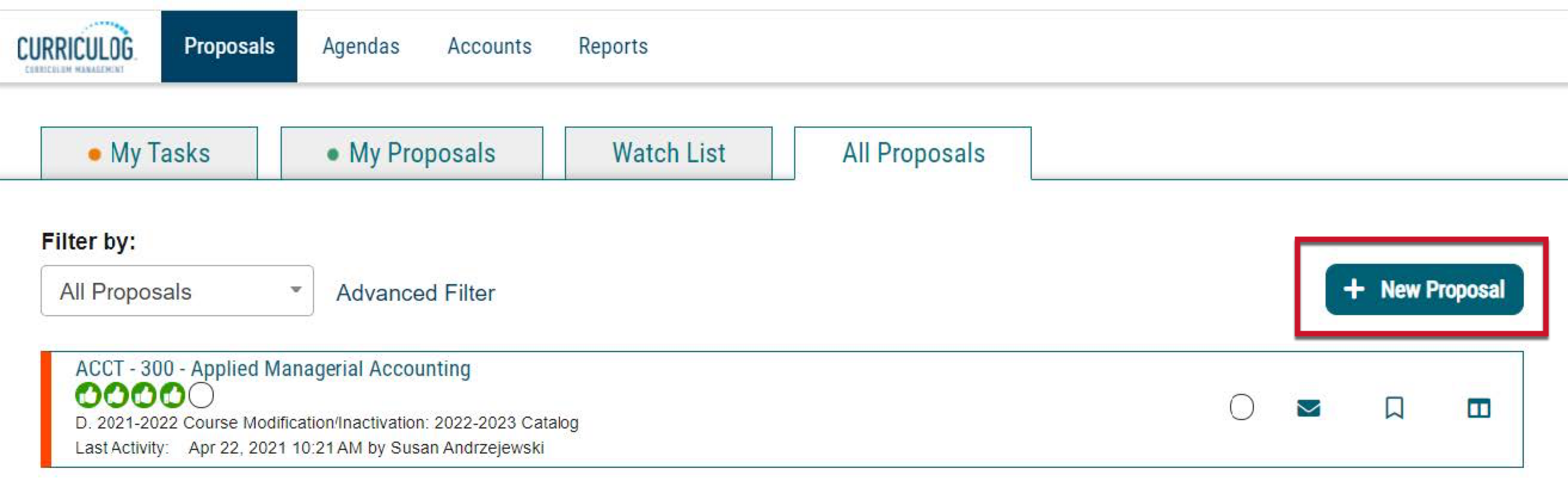
- Click + New Proposal.
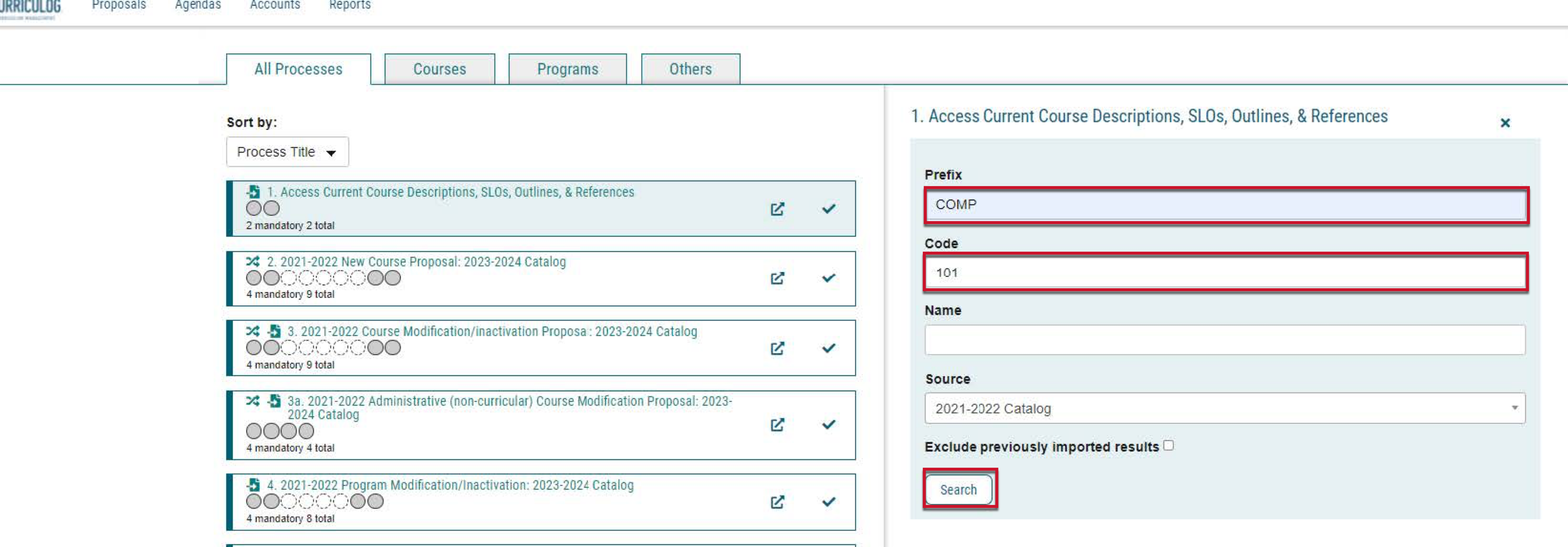
- Hover your mouse over form number 1. Access Current Course Descriptions, SLOs, Outlines, & References, and you will see two icons at the end of the row. Click the Start Proposal icon (the checkmark).

- Enter the Prefix and Code for the course you are requesting. Example: Prefix: COMP; Code: 101. Click Search
- The results will appear below the search. If it’s the correct course*, click the Preview and Build icon at the end of the row. The example below shows Preview and Build COMP 101.
*You may need to refine your search if the result is not for the correct course.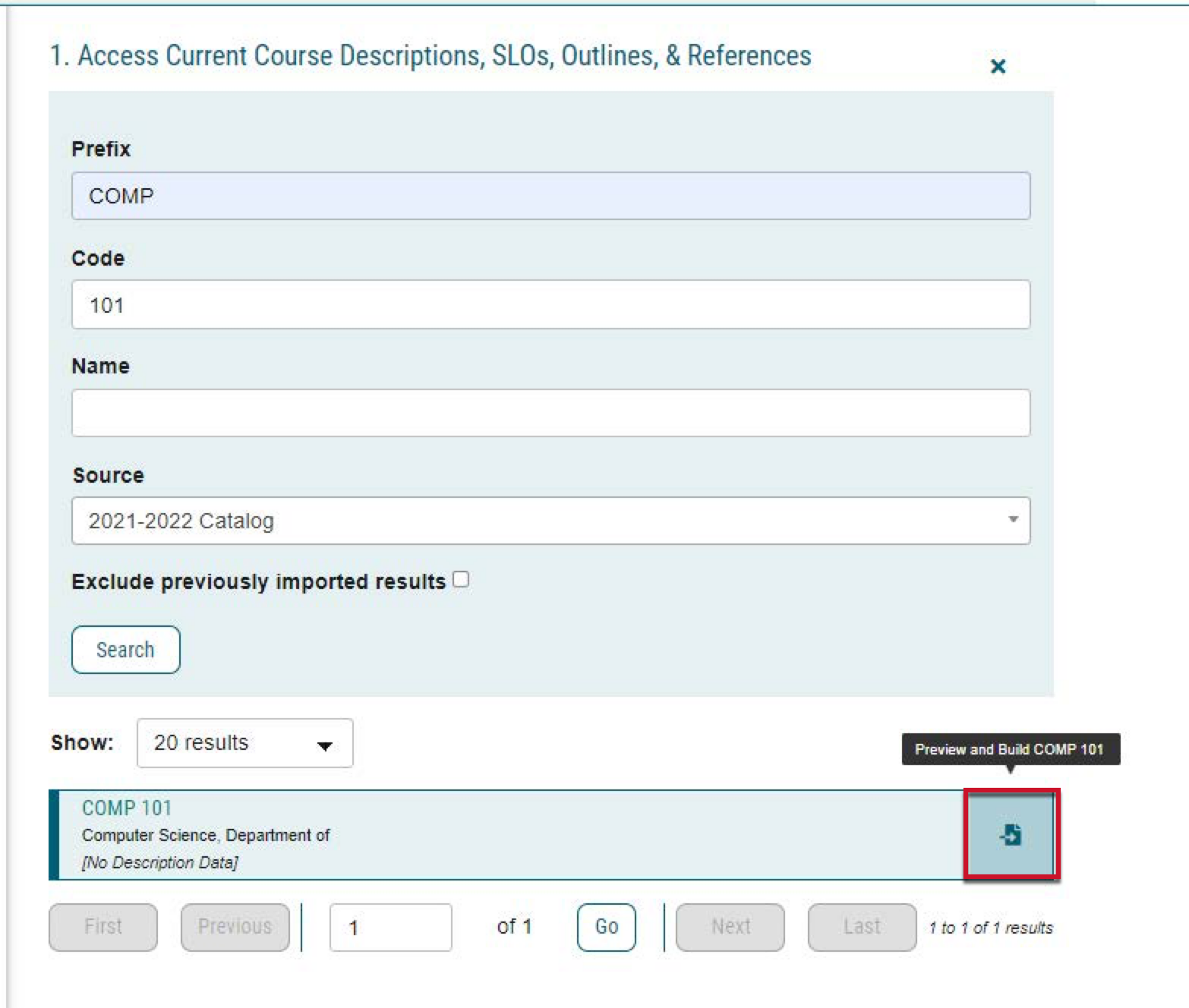
- A preview of the catalog information for the chosen course will be displayed. Click on Build Proposal at the bottom.
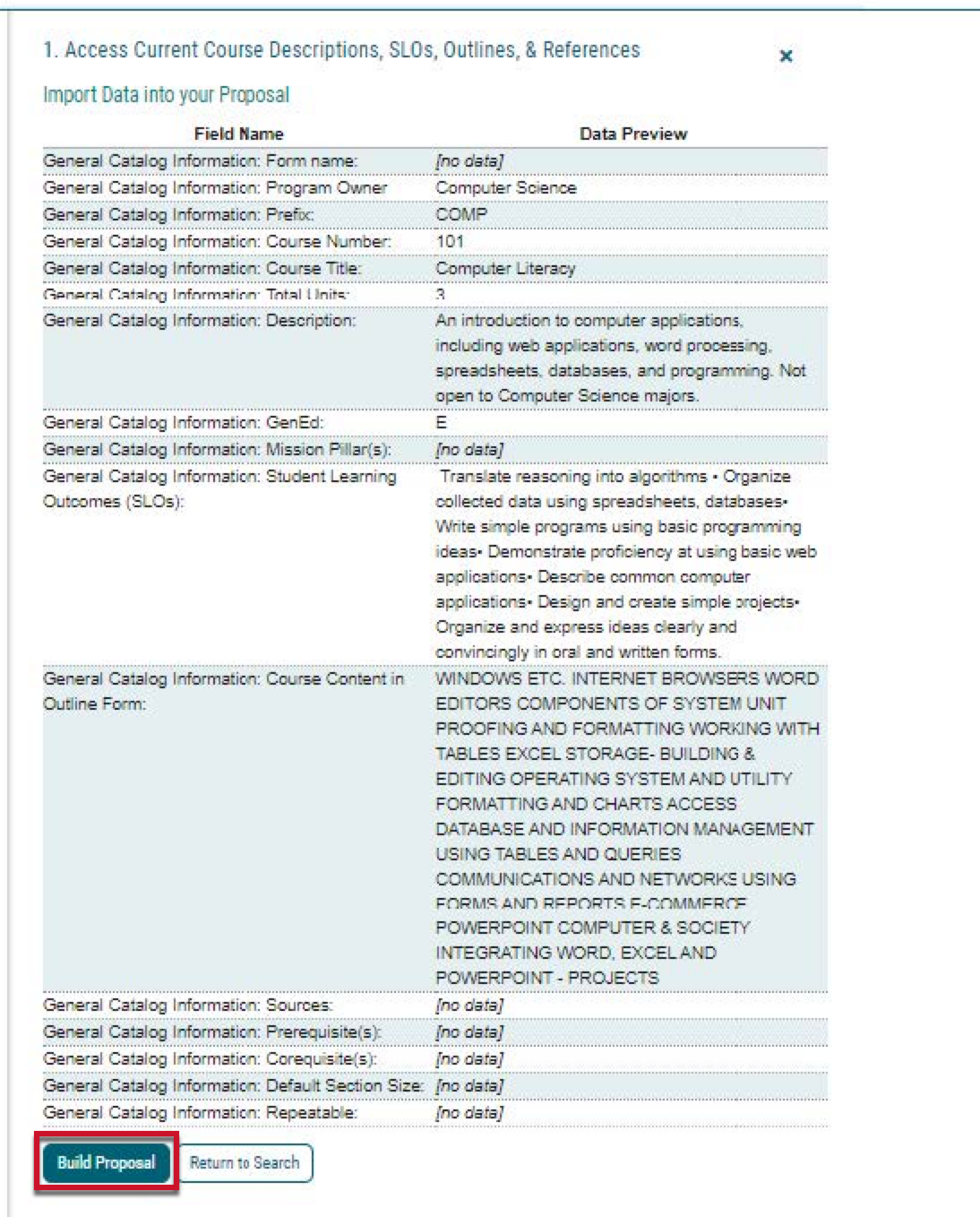
- Enter the Form Name by clicking on that field by selecting Access Current Course Descriptions, SLO’s, Outlines, & References.
- Click the Validate and Launch Proposal button.

- Click the Launch Proposal button.

You will be able to scroll up and down the proposal to view the Course Description, Student Learning Outcomes (SLO), Course Content, and References in outline form.
After 10 days, the form will be deleted from your Currilog dashboard. If you need this information again, you must repeat the process outlined above.
For additional information or for help with this Curriculog process, please contact Andrea Skinner, Curriculum Coordinator and APDB Coordinator.
