
Two new apps have been integrated into Canvas and are available within your courses as of 6/15/2024: Lucidspark, a collaborative whiteboard app that is the official replacement of Google’s Jamboard, and Lucidchart, an intelligent diagramming tool. These tools have been added as part of a partnership with Instructruce that you can read more about in their blog post.
How to Sign Up/Into Lucid in Canvas
- Create a new assignment, page, quiz, or discussion.
- From the Rich Content Editor toolbar, click the Lucid icon. If you do not see the Lucid icon, click the three dots on the right side of the toolbar. The Lucid logo should appear alongside the YouTube and LinkedIn icons.

- A welcome window will pop up. Click No for “Does your classroom include students younger than 13 years old?” and then click Next.
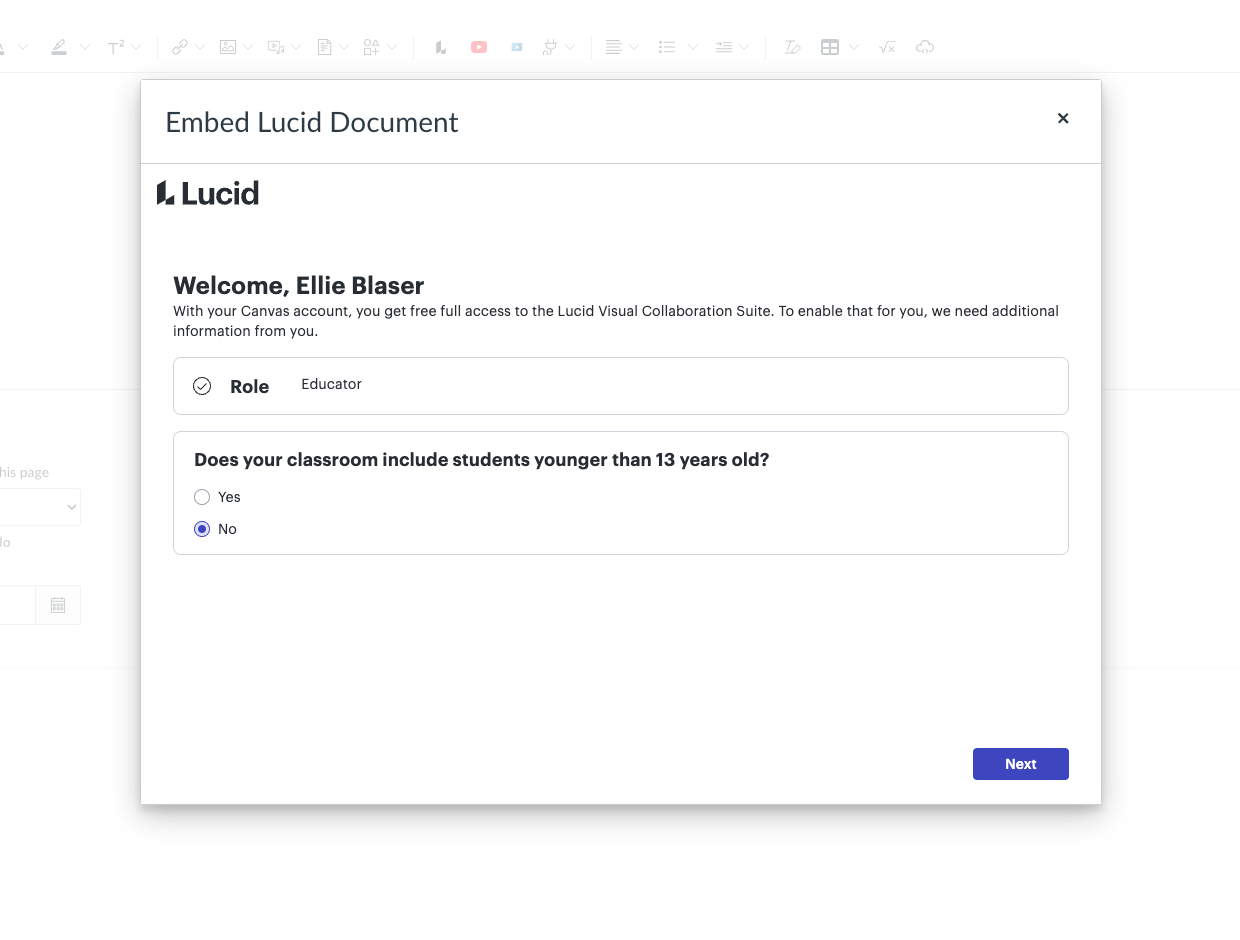
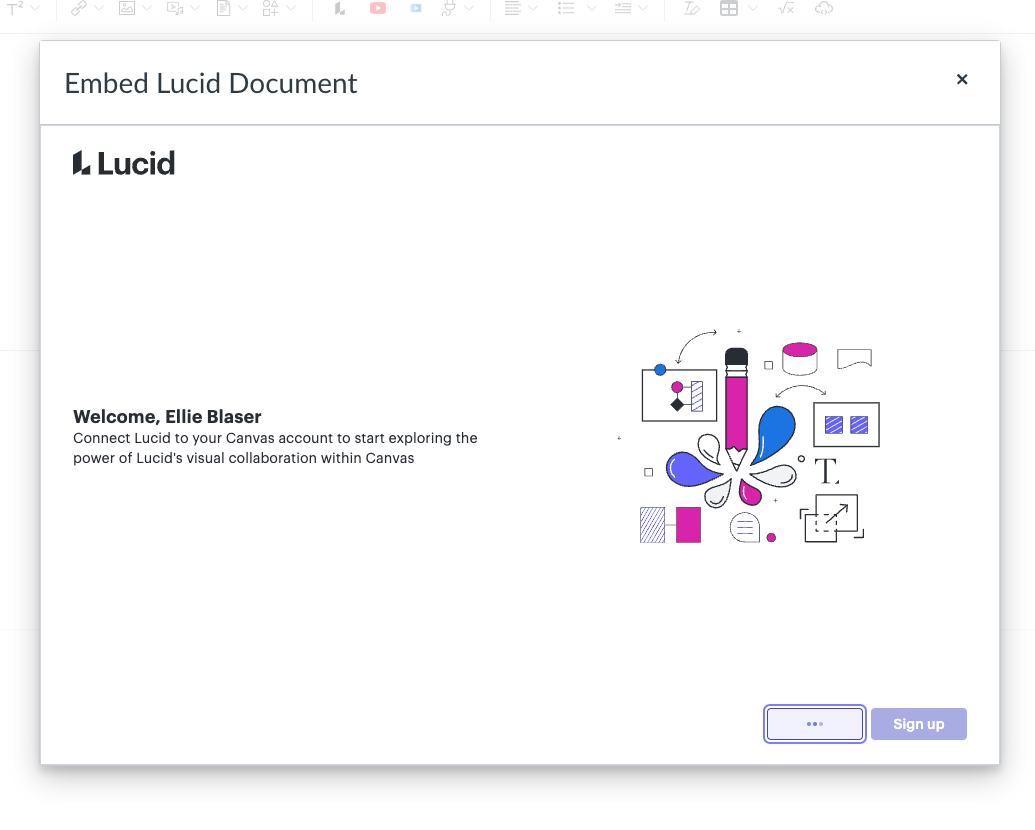
- Next, you’ll see a screen asking you to connect Lucid to Canvas. Click Connect to proceed.

- If you do not have a Lucid account, click Sign up. A Lucid account will be created for you connected to the email address on your Canvas account.
- If you have a Lucid account but are not logged in, click Log in.
- If you are already logged in to a Lucid account, click Connect to Lucid.
- A welcome message will pop up. Click Continue.
- Another welcome message will pop up. Click Get Started.

- A Lucid tab will open asking for access. Review the permissions and click Grant Access. And you’re done!
