
Using VoiceThread at CI includes an auto-captioning feature that generates automatic captions that you can easily edit. An important thing to note about this feature is that it only works on newly recorded comments, so you cannot add captions to recordings you’ve already made. Please note, this is not a global setting! So you will need to turn on Closed Captions each time you want to see the captions in VoiceThread.
Turning ‘On’ Closed Captions
- Go to the VoiceThread website to log in.
- Click Sign in via Institution. Search “CSU Channel Islands.”
- Click Sign In to be redirected to myCI. Enter your credentials, if prompted, and then the VoiceThread site will open.
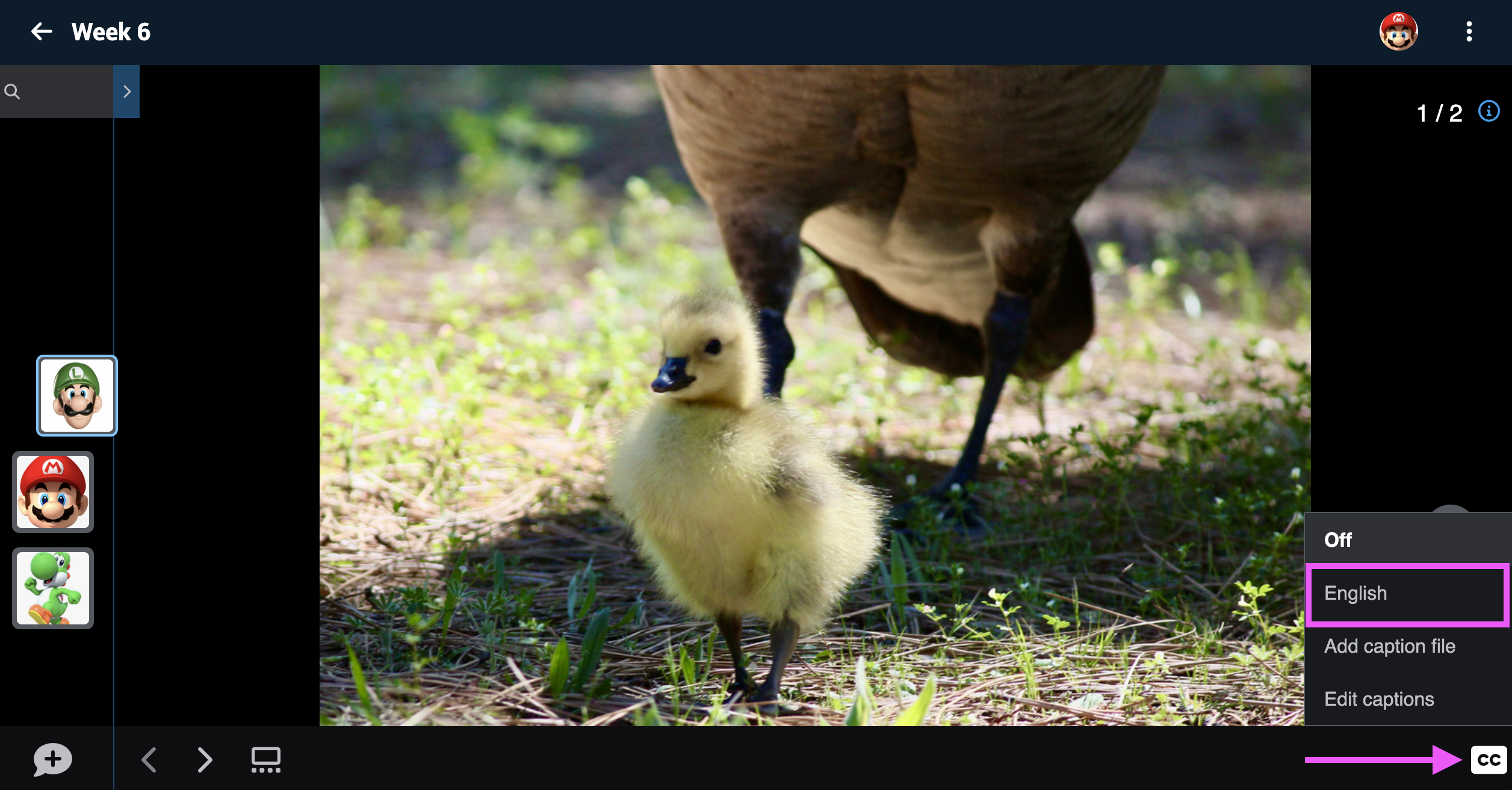
- Locate the Voicethread. Turn on closed captioning by clicking on the “CC” button in the bottom-right corner of the VoiceThread and selecting the language of the caption you want to view.
- From the dropdown CC Menu, select “On” or “English”.
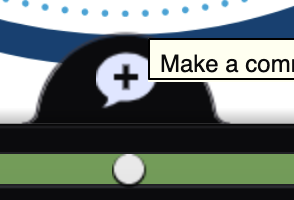
- Now record a Voice or Video Comment by clicking on the plus sign (+) in the lower left of the VoiceThread window. When you are satisfied with your comment, select Save.
- It can take a few minutes to a few hours for the automatic closed captions to generate. You can continue recording all of your comments for the VoiceThread while you wait.
Note: CC must be enabled individually to see the captioning.
Editing Captions
Only the person who created a VoiceThread or someone who has editing rights to that VoiceThread can add captions. However, the author of a comment should be able to revise the automatic captions for their voice or video comment(s).
- Start playing the comment you want to caption.
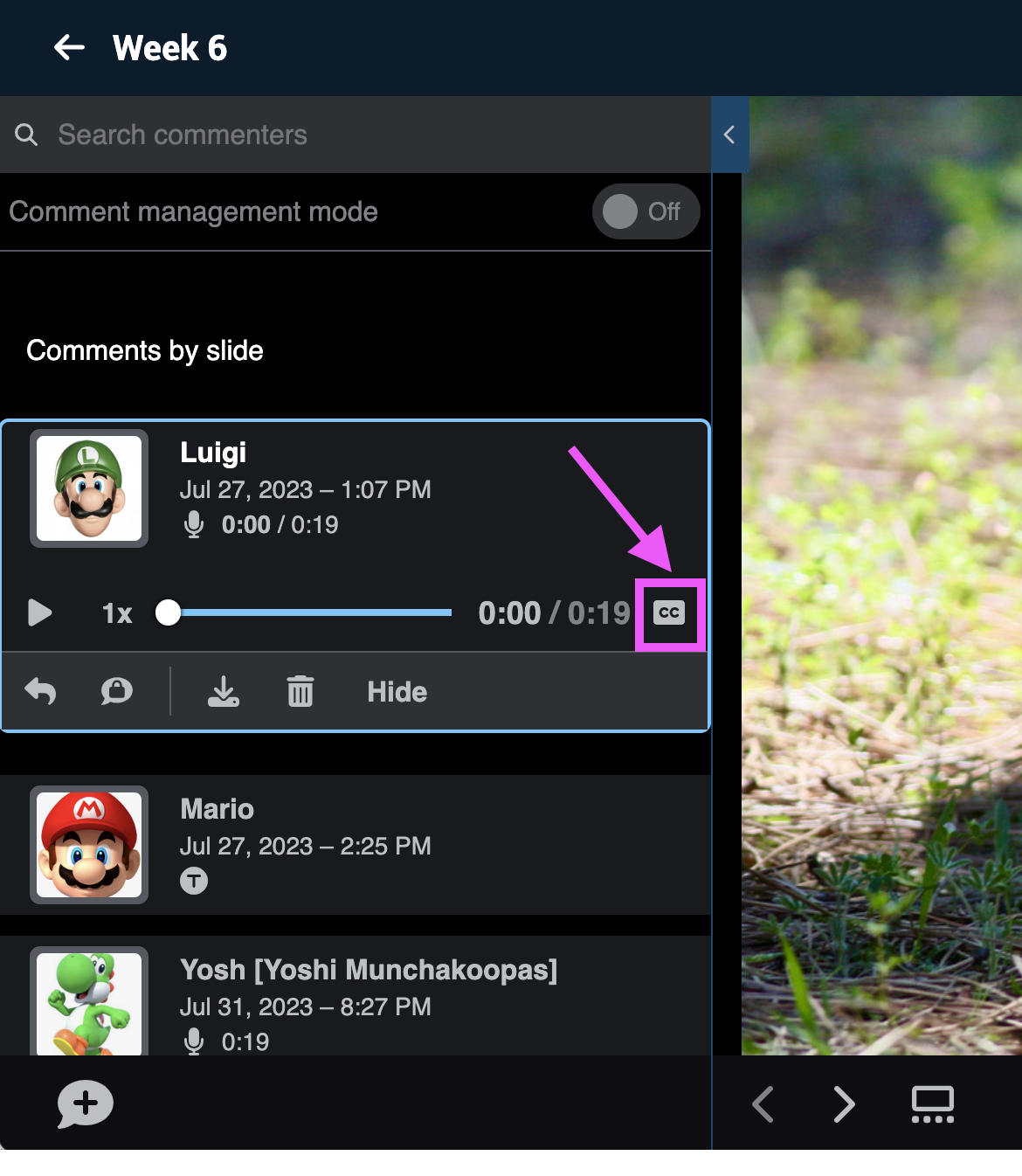
- Click on the CC button near the bottom-right corner of the comment window.
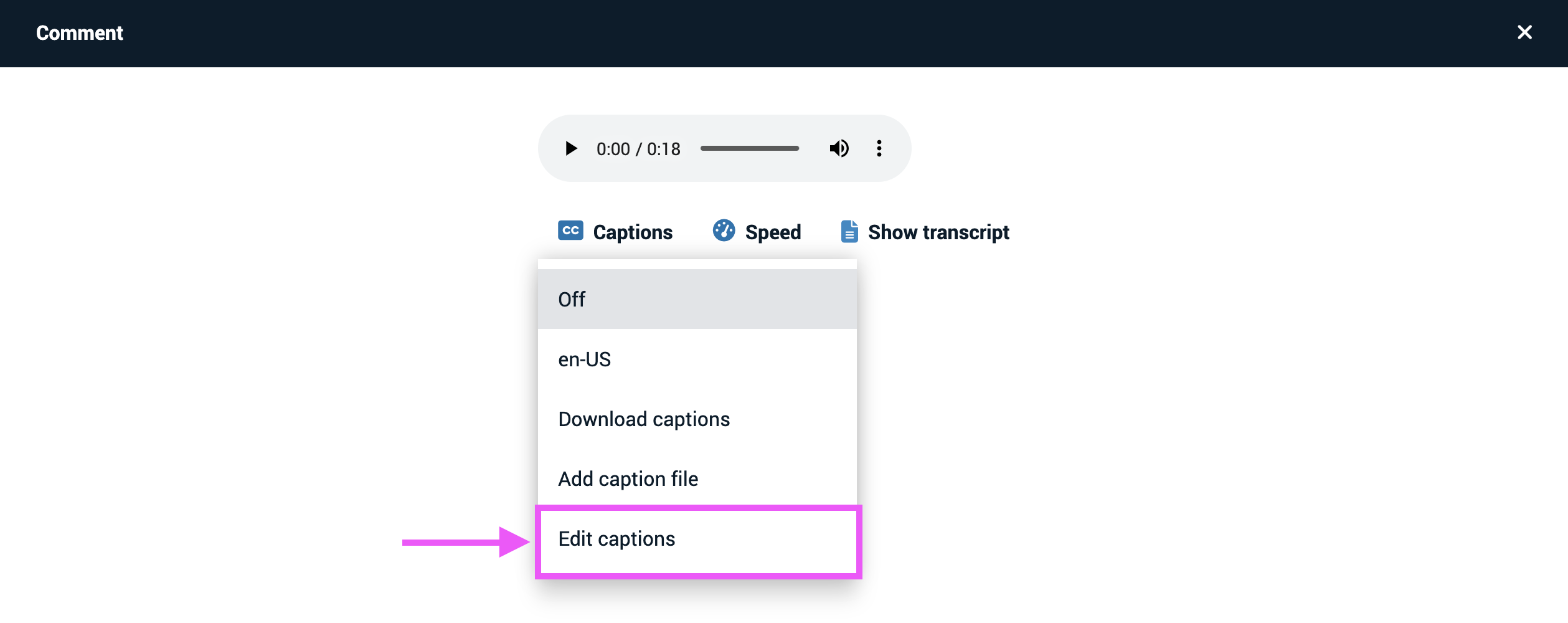
- Click “Captions” beneath the slide media, and select “Edit Captions.”
- Make any changes using the text chunks on the right.
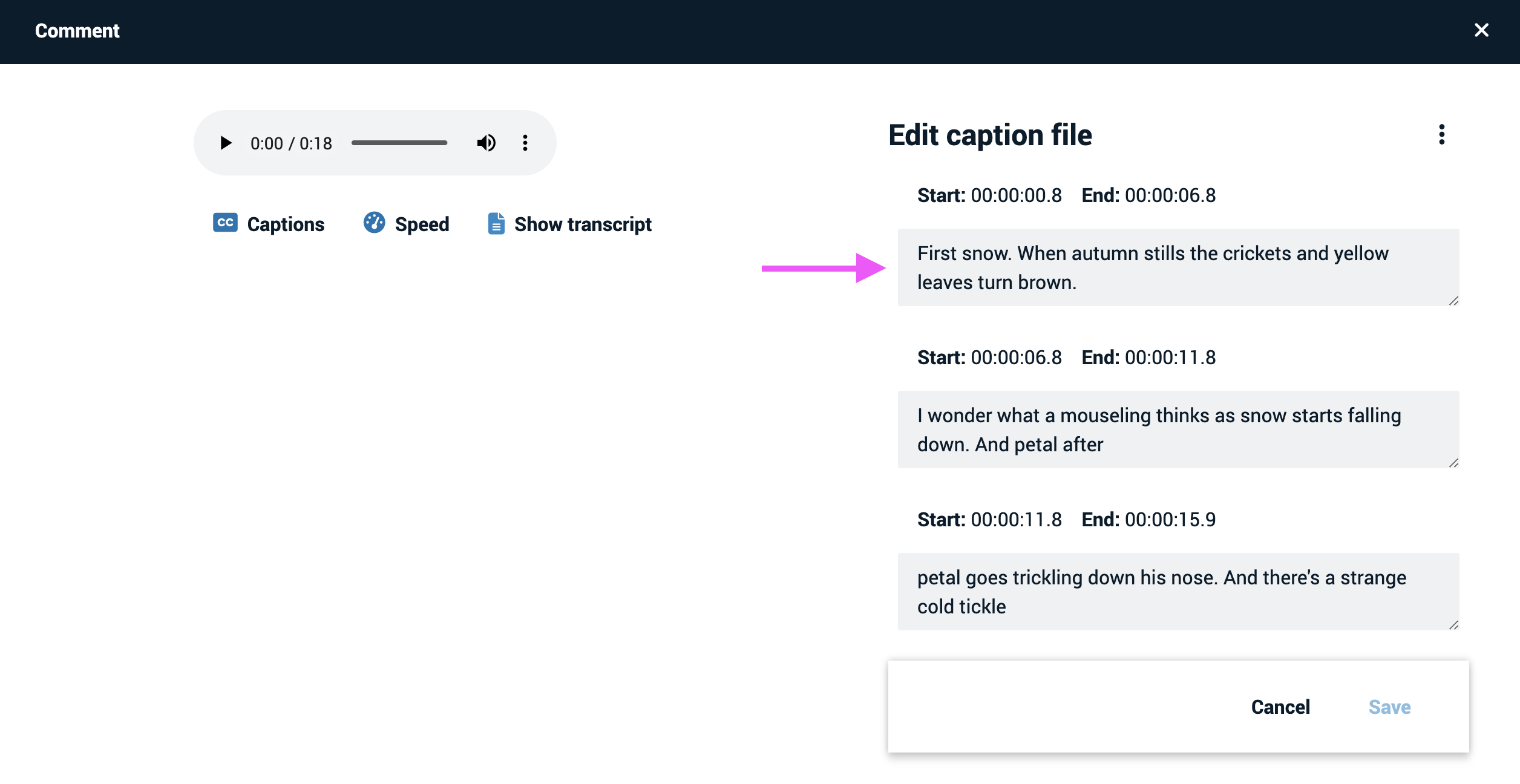
- Click “Save” at the bottom of the window.
Possible Applications
VoiceThread is a useful tool for creating your own micro-lectures to infuse your speaking with visual stimulation and examples. VoiceThread is also a useful discussion tool or presentation tool for students.
Recording Tips
- Record your comments separately on each slide. Don’t record over multiple slides in a single recording. Here’s why:
- If you make a mistake, you will have to re-record comments for multiple slides.
- When the recording ends, viewers will be taken back to the first slide even if your recording advanced through several slides. This can be confusing for the viewer.
- Recording one slide at a time makes it easy to rerecord if a mistake is made, since you do not have to restart the entire presentation.
- If you need to update the VoiceThread at a later date, you can replace a specific slide or slides and only record where you’ve made changes, instead of having to rerecord the entire VoiceThread.
- Wear a headset with a microphone. Earbuds with a built-in microphone work great. Here’s why:
- This minimizes background noise
- Your voice will record more clearly, and you can speak in a more conversational tone
